
Blog Posts Section Documentation
The Blog Posts section displays a curated grid of article cards from a selected blog, with a swipeable slider on smaller screens. It is commonly used on homepages or landing pages to surface recent or featured content and drive traffic to the blog. The section automatically pulls the most recent articles from the chosen blog — articles cannot be manually selected or reordered from within the section settings.
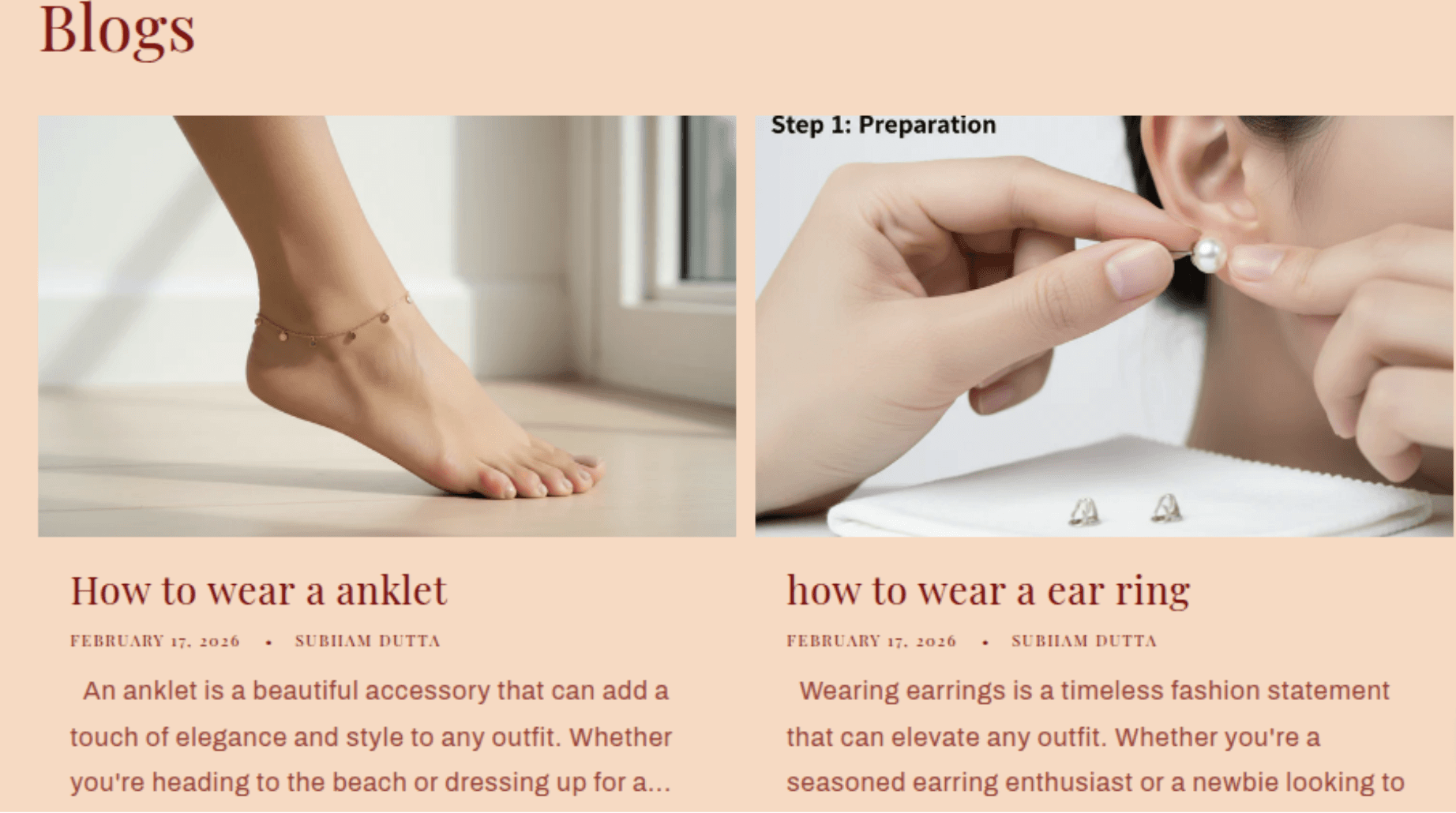
Features
Automatic Article Pull: Fetches and displays the most recent articles from the selected blog automatically — no manual article selection required.
Configurable Post Limit: Show between 2 and 4 articles at a time.
Swipeable Slider: On mobile and tablet, articles are displayed in a horizontally swipeable slider with prev/next arrow controls and a slide counter.
Toggle Article Elements: Independently show or hide the featured image, publication date, and author name on each article card.
View All Button: An optional "View all" button and inline link that directs customers to the full blog page. Only appears when the blog has more articles than the post limit.
Article Excerpts: Article excerpts are always shown on each card. Excerpt content is pulled from the article's excerpt field in the Shopify blog editor.
Blog Card Style: Article card appearance (standard or card style, border, shadow, color) is controlled globally from Theme Settings > Blog cards, not from within this section.
Scroll Animations: Article cards animate in with a cascading slide-in effect if animations are enabled in Theme Settings.
Settings
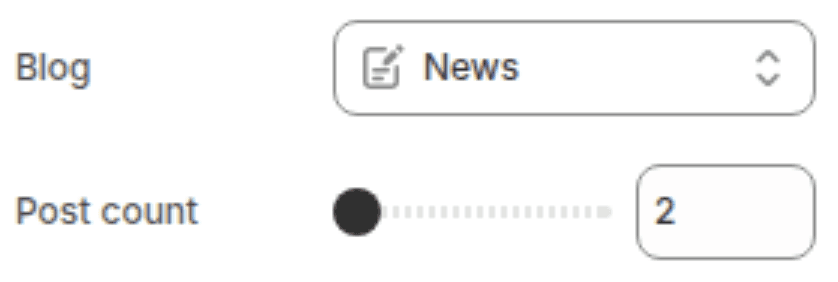
Blog
Settings
Description
Default
Blog
Selects which blog to pull articles from. The section displays the most recent articles from this blog up to the post limit. If no blog is selected or the selected blog has no articles, placeholder cards are shown.
(empty)
Number of posts to show
Sets how many article cards are displayed. Range: 2 – 4.
3
Text
Settings
Description
Default
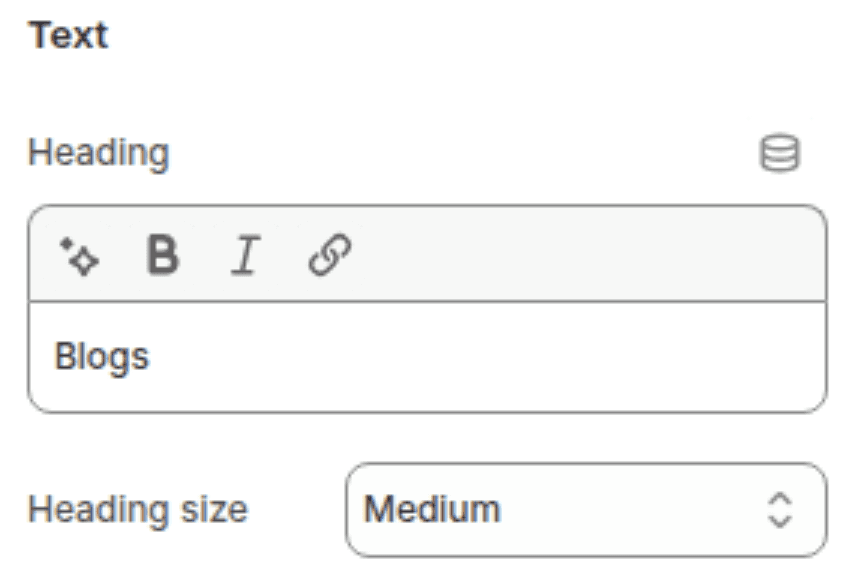
Heading
An optional section title displayed above the article grid. Supports inline rich text (bold, italic, links). Leave blank to hide.
"Blog posts"
Heading size
Controls the visual size of the section heading. Options: Small (h2), Medium (h1), Large (h0), Extra Large (hxl), Extra Extra Large (hxxl).
Medium (h1)
Layout
Settings
Description
Default
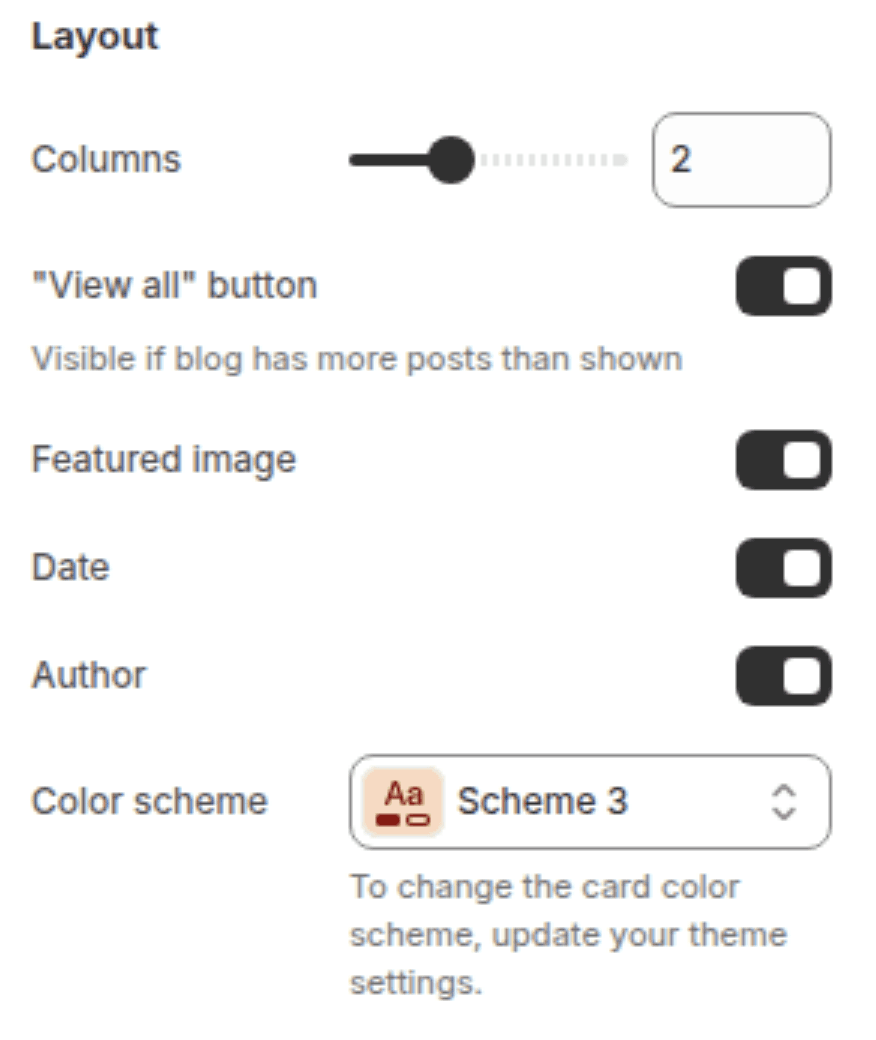
Number of columns on desktop
Sets how many article cards display per row on desktop. Range: 1 – 4.
3
Show "View all" button
When enabled, a "View all" button appears below the grid on desktop and an inline underlined link appears beside the heading on mobile - but only when the selected blog contains more articles than the post limit. If the blog has fewer or equal articles to the post limit, this button is hidden automatically regardless of this setting.
Enabled
Show featured image
Toggles the article's featured image at the top of each card. When disabled, cards display as text-only.
Enabled
Show date
Toggles the publication date displayed on each article card.
Enabled
Show author
Toggles the article author name displayed on each article card.
Disabled
Color scheme
Sets the background color of the section. Note: The individual article card colors (background, border, shadow) are controlled by Theme Settings > Blog cards, not by this setting.
Scheme 1
Spacing
Settings
Description
Default
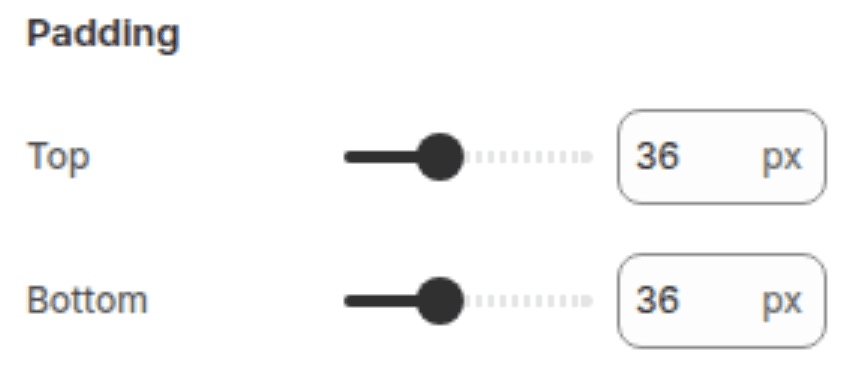
Padding top
Sets the top padding of the section (0px – 100px).
36px
Padding bottom
Sets the bottom padding of the section (0px – 100px).
36px
Customization Tips
Article Order: Articles always display in reverse chronological order - the most recently published article appears first. There is no way to manually reorder or pin specific articles within this section. To control which articles appear, adjust their publish dates in the Shopify Admin blog editor.
"View All" Button Visibility: The "View all" button only appears when the blog has strictly more articles than the post limit. If your blog has exactly 3 articles and the post limit is 3, the button will not appear - even if the Show "View all" setting is enabled. Publish at least one more article than your post limit to make the button visible.
Excerpt Field is Always Shown: Excerpts cannot be hidden from within the section settings. If you do not want an excerpt shown on a card, leave the article's excerpt field blank in the Shopify blog editor. Shopify will then auto-generate a short excerpt from the article body, which may also appear - to prevent any excerpt, use a custom excerpt field left intentionally blank or keep the opening paragraph very short.
Featured Image Aspect Ratio: All article card images are displayed at a fixed 1.66:1 (landscape) aspect ratio, regardless of the uploaded image's original proportions. Images are cropped from the center. Upload featured images in landscape orientation (ideally 16:9 or similar) to avoid important content being cropped at the top and bottom.
Card Style is Global: Article card appearance - including borders, shadows, and background colors - is set globally in Theme Settings > Blog cards and applies to article cards everywhere on the store. It cannot be customised per section.
Columns Desktop vs. Post Limit: If the Number of columns on desktop is set higher than the Number of posts to show, some columns will be empty. For example, 4 columns with a post limit of 2 will show 2 cards with 2 empty column spaces. Always set the column count equal to or lower than the post limit for a clean grid.
No Manual Article Selection: The section cannot display specific, hand-picked articles - it always shows the most recent articles from the selected blog. If you need to feature specific articles, consider creating a dedicated blog (e.g. "Featured Posts") and publishing only the articles you want to surface, then linking that blog to this section.