
Rich Text Section Documentation
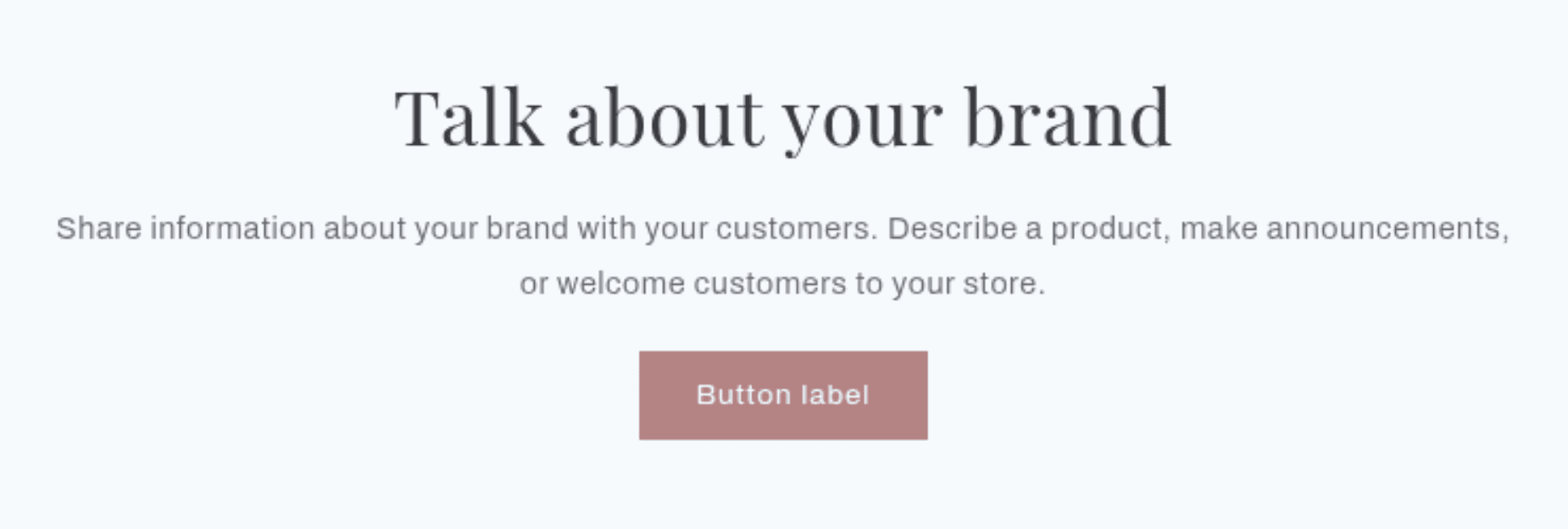
The Rich Text section is a flexible, content-focused section used to display formatted text, headings, captions, and call-to-action buttons. It is commonly used for brand messaging, policy summaries, promotional copy, or any page area that needs clean, structured text content.
Features
Multiple Block Types: Supports four block types - Heading, Caption, Text, and Button - that can be combined in any order.
Dual Button Support: The Button block supports up to two buttons side by side, each with independent links and styles.
Content Alignment: Control horizontal alignment of all content (left, center, right).
Desktop Position: Independently control where the content column sits on the page on desktop (left, center, right).
Full Width Mode: Toggle between a contained page-width layout and a full-width background span.
Color Scheme: Full support for the theme's color schemes.
Scroll Animations: Blocks animate in on scroll if animations are enabled in Theme Settings.
Settings
The following settings are available to customize the behavior and appearance of the Rich Text section.
Settings
Description
Default
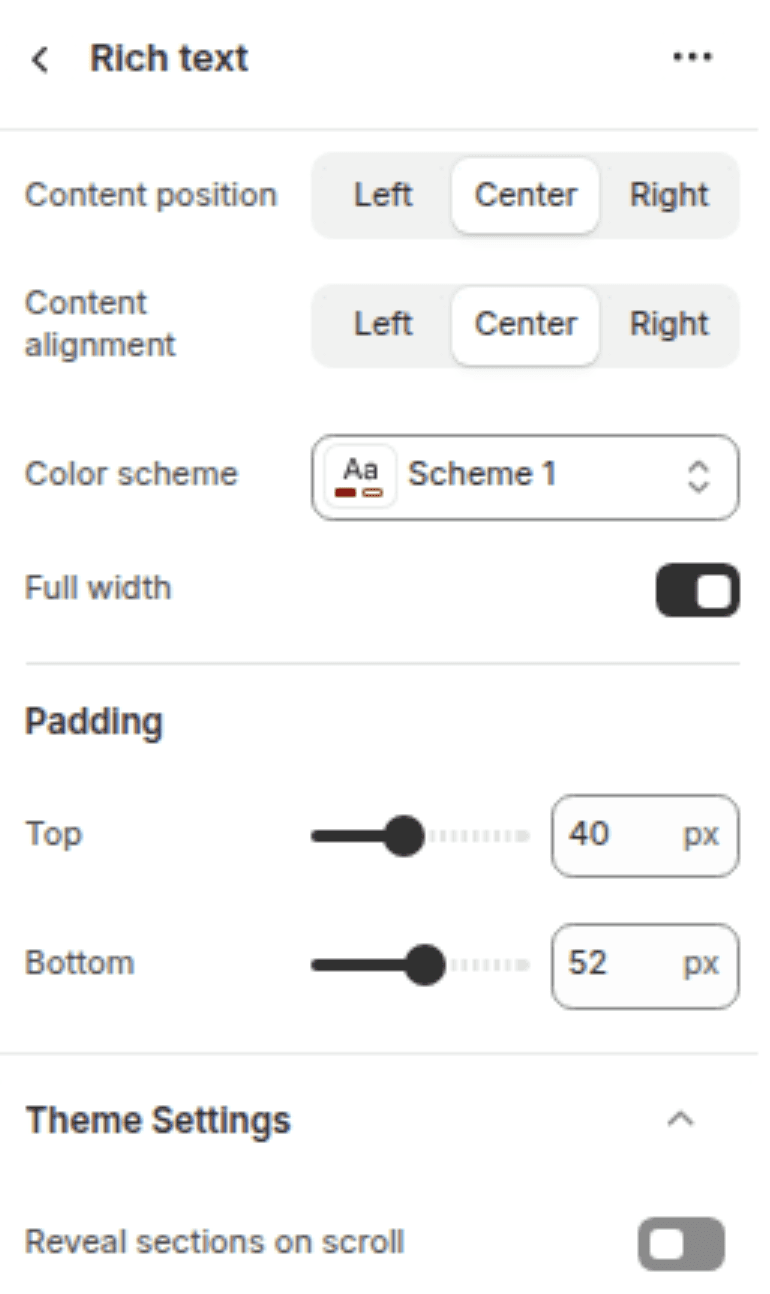
Desktop content position
Sets the horizontal position of the content column on desktop. Options: Left, Center, Right.
Center
Content alignment
Sets the text alignment of all blocks within the section. Options: Left, Center, Right.
Center
Color scheme
Sets the background and text colors based on your theme's color schemes.
Scheme 1
Full width
When enabled, the section background spans the full browser width. Content remains page-width.
Enabled
Padding top
Sets the top padding of the section (0px – 100px).
40px
Padding bottom
Sets the bottom padding of the section (0px – 100px).
52px
Blocks
The section supports four block types. Each block type has a limit to keep content focused.
Heading Block
(Limit: 3)
Displays a styled heading. Supports inline rich text formatting (bold, italic, links).
Settings
TYPE
Description
Default
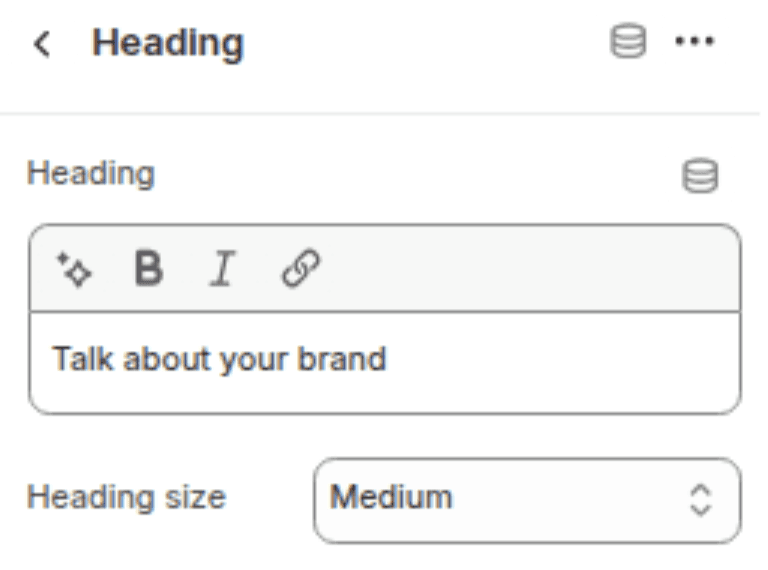
Heading
Inline rich text
The heading text to display.
"Talk about your brand"
Heading size
Select
Controls the visual size of the heading. Options: Small (h2), Medium (h1), Large (h0), Extra Large (hxl), Extra Extra Large (hxxl).
Medium (h1)
Caption Block
(Limit: 3)
Displays a small label or eyebrow text, typically placed above a heading.
Settings
TYPE
Description
Default
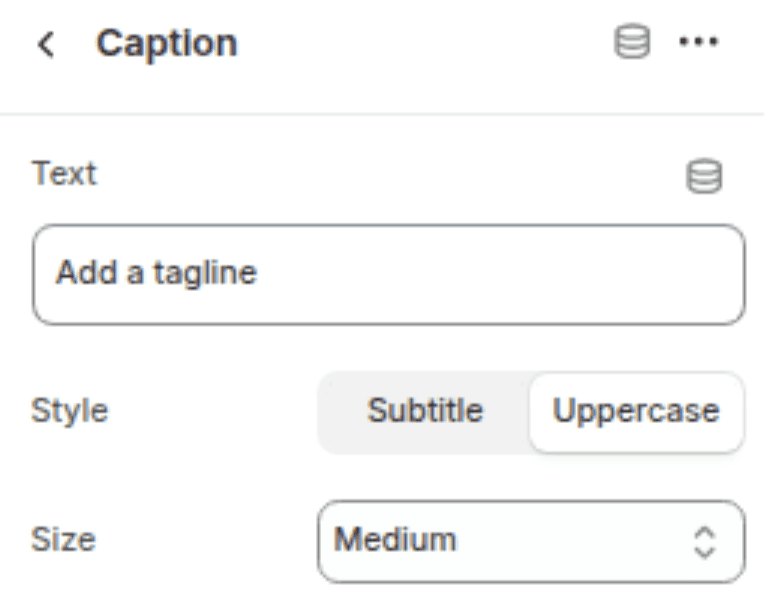
Caption text
Text
The caption text to display.
"Add a tagline"
Text style
Select
Controls the typographic style. Options: Subtitle, Uppercase with letter spacing.
Uppercase with letter spacing
Caption size
Select
Controls the size of the caption text. Options: Small, Medium, Large.
Medium
Text Block
(Limit: 3)
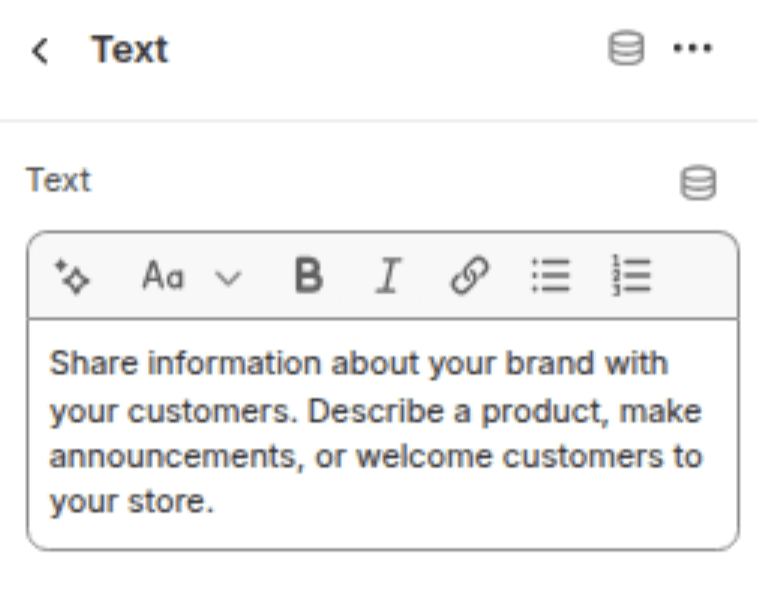
Displays a block of formatted body text. Supports full rich text editing (paragraphs, bold, italic, lists, links).
Settings
TYPE
Description
Text
Rich text
The body text content to display.
Button Block
(Limit: 2)
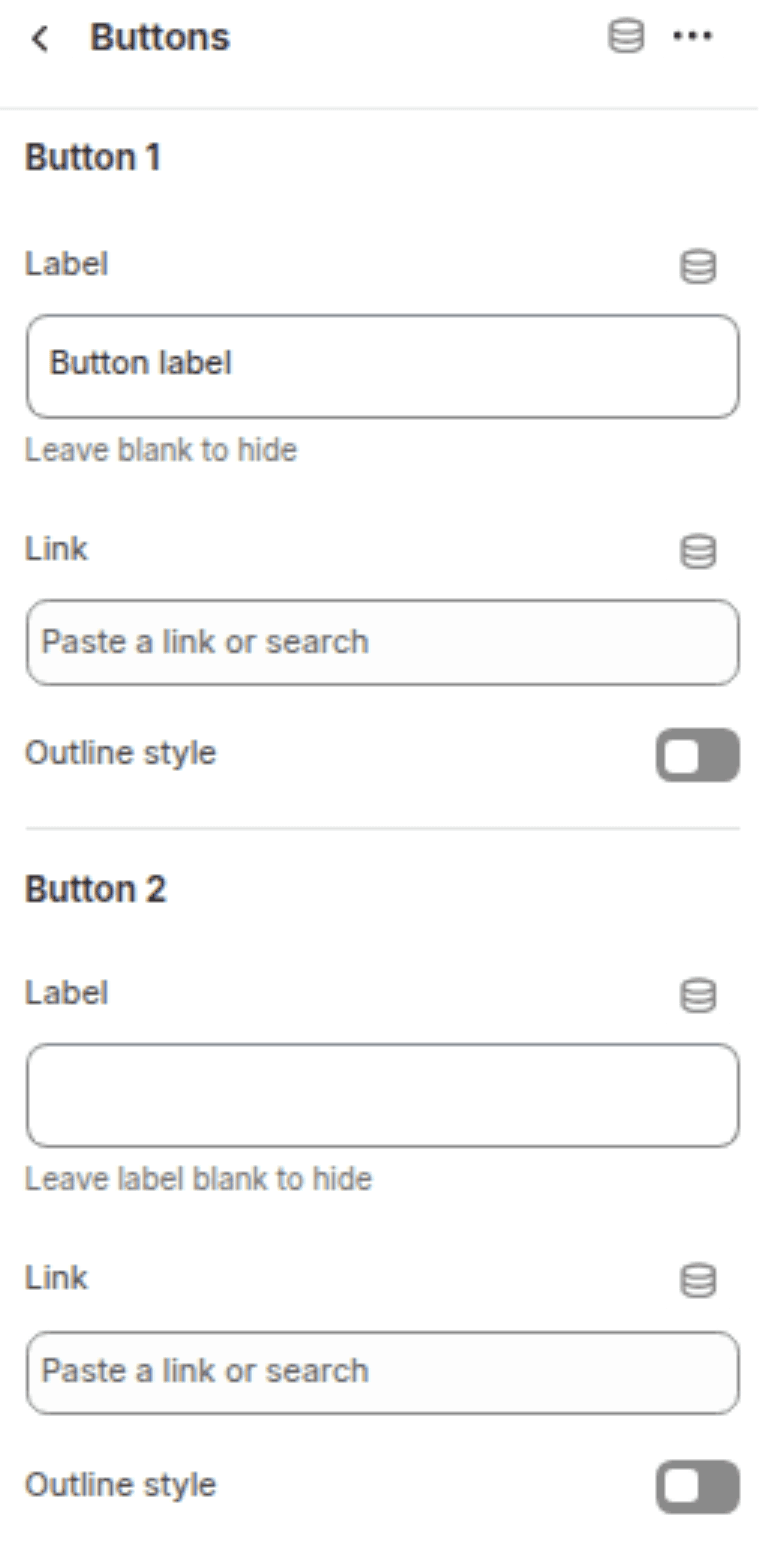
Displays up to two buttons side by side. When both buttons are added, they render as a pair.
Button 1
Settings
TYPE
Description
Default
Button label
Text
The visible text on the first button. Leave blank to hide.
"Button label"
Button link
URL
The URL the first button links to.
(empty)
Use outline button style
Checkbox
When enabled, renders the button as a secondary (outline) style instead of the primary (filled) style.
Disabled
Button 2
Settings
TYPE
Description
Default
Button label
Text
The visible text on the second button. Leave blank to hide.
(empty)
Button link
URL
The URL the second button links to.
(empty)
Use outline button style
Checkbox
When enabled, renders the second button as a secondary (outline) style.
Disabled
Customization Tips
Block Order Matters: Blocks render in the order they appear in the theme editor. A common layout is Caption → Heading → Text → Button, which follows a natural content hierarchy.
Two Buttons: To show two buttons side by side, add a single Button block and fill in both Button 1 and Button 2 labels. Do not add two separate Button blocks for this - both buttons live within one block.
Full Width vs. Contained: With Full width enabled, the color scheme background stretches edge to edge. Disabling it constrains the entire section - including the background - to the page width. Use full width when you want a distinct colored band across the page.
Desktop Content Position vs. Content Alignment: These are two separate controls. Desktop content position moves the entire content column left, center, or right within the page. Content alignment controls the text alignment inside that column. You can, for example, left-align the column but center-align the text within it.
Heading Size: The hxl and hxxl sizes render very large display text. Use these sparingly for hero-style statements rather than standard headings.
Animations: Block animations (slide-in on scroll) are controlled globally via Theme Settings > Animations, not within this section.