
Main Product Section Documentation
The Main Product section is the core of the product detail page. It uses a two-column layout with a media gallery on one side and modular product information blocks on the other.
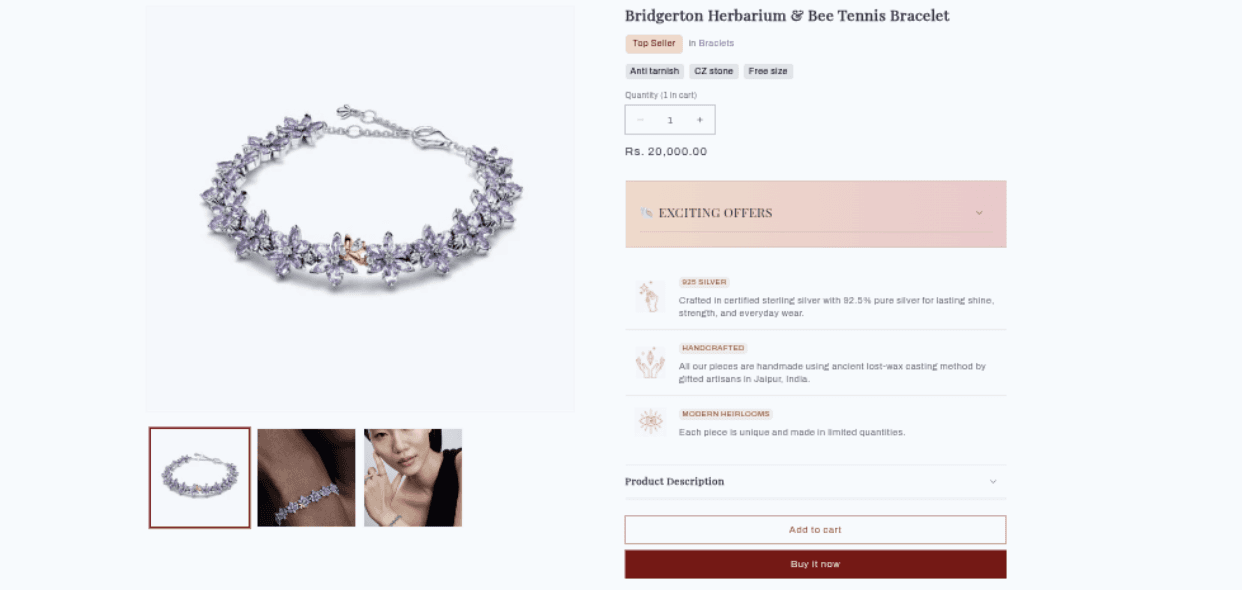
[Screenshot: Full product page showing media gallery on the left and product info on the right]
Section Settings
General
Settings
TYPE
Description
Default
Enable sticky info
Checkbox
Keeps the product info column fixed while scrolling through long galleries.
Enabled
Color scheme
Color Scheme
Background and text colors for the entire section.
Scheme 1
Media
Settings
TYPE
Description
Default
Desktop media width
Select
Width of the media gallery relative to the product info: Small, Medium, or Large.
Large
Constrain media to viewport
Checkbox
Prevents tall images from exceeding the screen height.
Enabled
Media fit
Select
How images fill their container: Contain (show full image) or Cover (fill and crop).
Contain
Gallery layout
Select
Layout style: Stacked, 2 Columns, Thumbnail (list), or Thumbnail slider.
Stacked
Media border radius
Range (0–30px, step 1)
Rounds the corners of all product images and thumbnails.
0px
Mobile thumbnails
Select
Thumbnail display on mobile: 2 Columns, Show, or Hide.
Hide
Media position
Select
Gallery placement on desktop: Left or Right.
Left
Image zoom
Select
Zoom behavior on click/hover: Lightbox, Hover zoom, or None.
Lightbox
Hide variant media
Checkbox
Hides media not associated with the currently selected variant.
Disabled
Enable video looping
Checkbox
Automatically loops embedded product videos.
Disabled
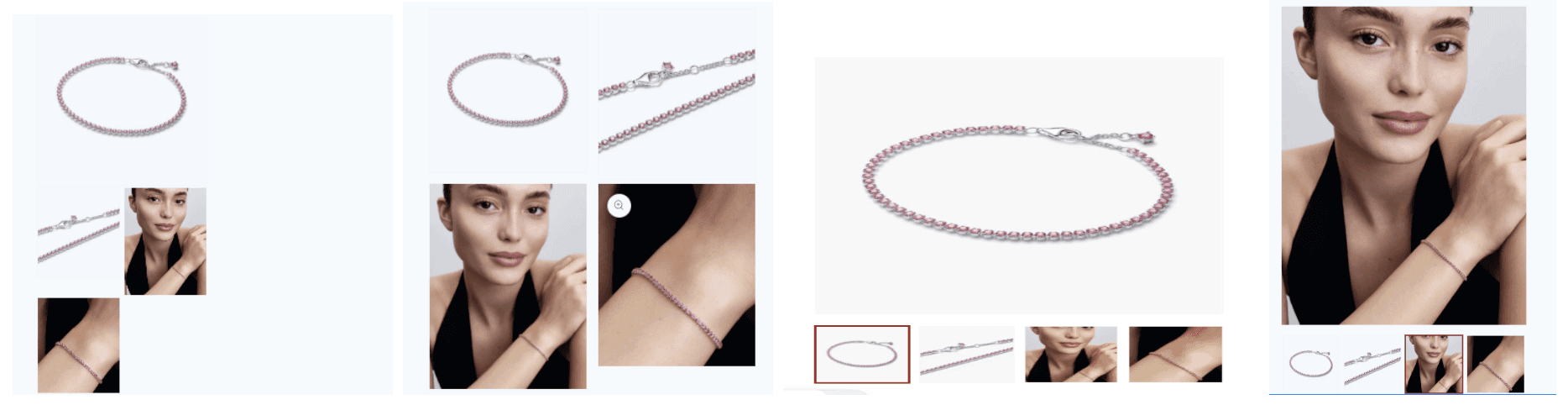
[Screenshot: Product page using the Thumbnail Slider gallery layout]
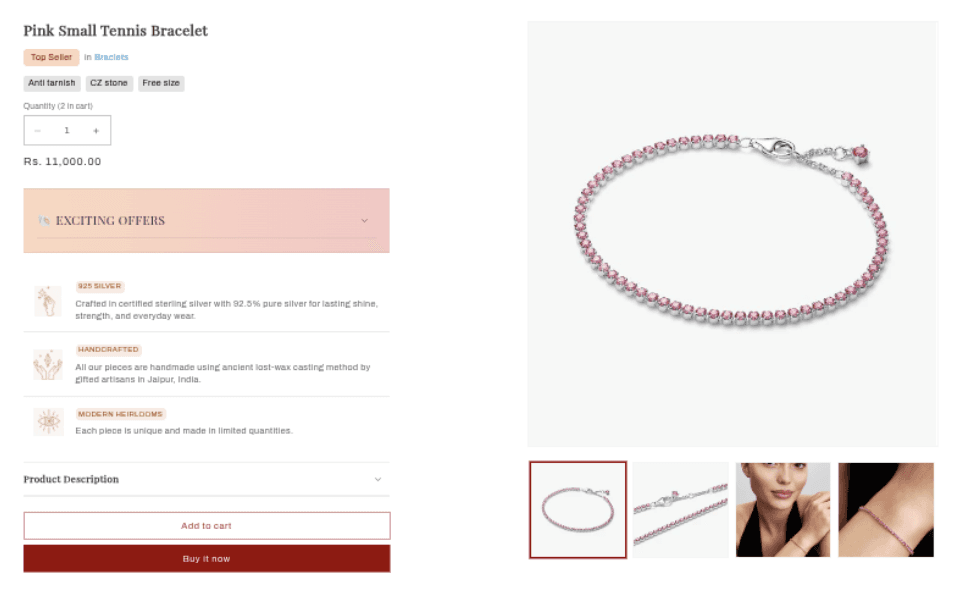
[Screenshot: Product page with gallery on the right side using Media Position "Right"]
Blocks
Blocks are the modular content pieces that build the product info column. They can be reordered in the customizer.
Title
Displays the product title as an H1 heading.
No configurable settings.

Price
Displays the product price, compare-at price, sale badges, tax info, and payment installment terms.
Settings
TYPE
Description
Default
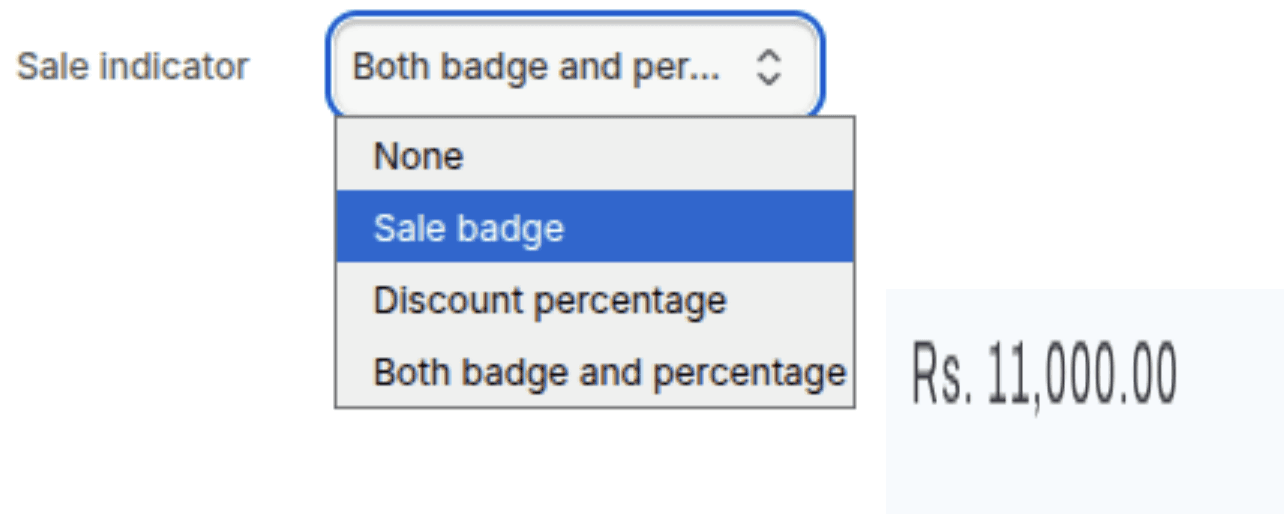
Sale indicator
Select
How to show savings: None, Badge ("Sale"), Percentage ("Save 20%"), or Both.
Percentage
SKU
Displays the Stock Keeping Unit for the currently selected variant.
Settings
TYPE
Description
Default
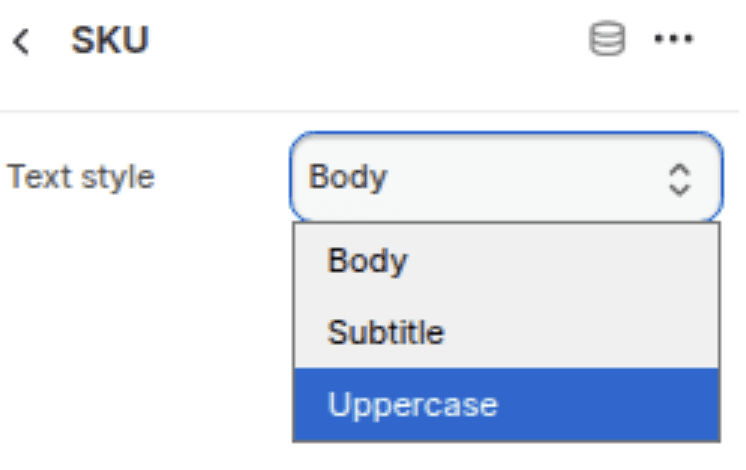
Text style
Select
Visual style: Body, Subtitle, or Uppercase.
Body
Inventory Status
Shows real-time stock availability with color-coded indicators (green = in stock, orange = low stock, grey = out of stock).
Settings
TYPE
Description
Default
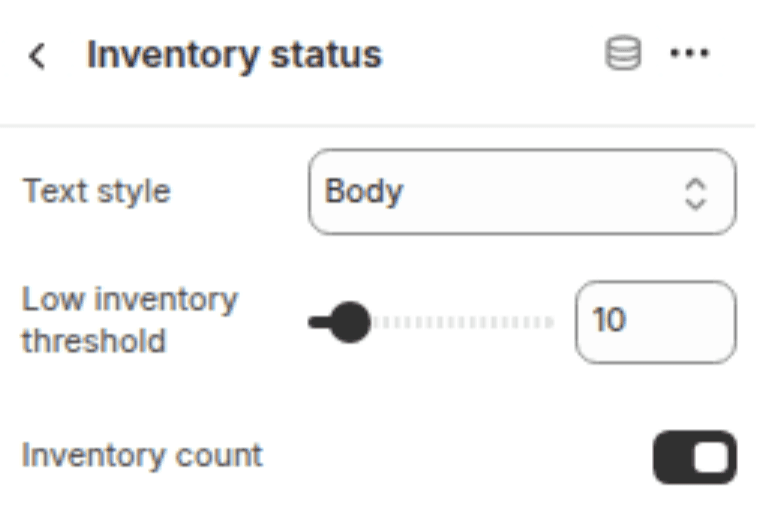
Text style
Select
Visual style: Body, Subtitle, or Uppercase.
Body
Low inventory threshold
Range (0–100, step 1)
Stock quantity at which the status turns orange (e.g., "Only 3 left!").
10
Show inventory count
Checkbox
Displays the exact stock number (e.g., "5 in stock").
Enabled
Variant Picker
Controls how customers select product variants (size, color, etc.).
Settings
TYPE
Description
Default
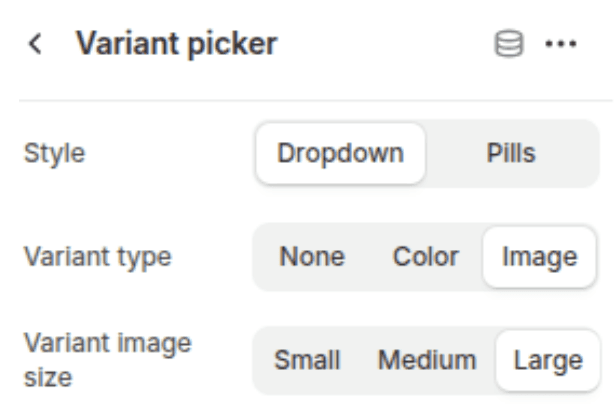
Picker type
Select
Selector style: Dropdown or Button (pill-style).
Button
Variant type
Select
Swatch display: None, Color (color swatches), or Image (variant images as swatches).
None
Variant image size
Select
Size of image swatches: Small, Medium, or Large.
Medium
[Screenshot: Inventory status showing "Only 3 left!" in orange]
[Screenshot: Variant picker using image-style swatches]
Quantity Selector
A number input with plus/minus buttons for adjusting quantity. Automatically shows volume pricing tiers, quantity rules (min, max, multiples), and in-cart quantities.
No configurable settings.
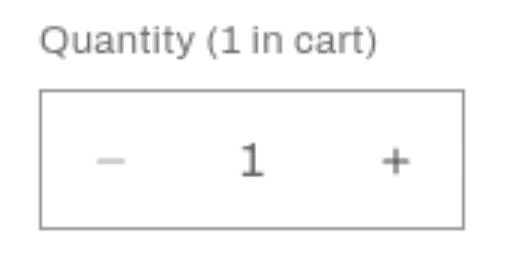
[Screenshot: Quantity selector with volume pricing tiers visible below]
Buy Buttons
The "Add to Cart" button plus optional dynamic checkout buttons and gift card recipient fields.
Settings
TYPE
Description
Default
Show dynamic checkout
Checkbox
Enables branded accelerated checkout buttons (PayPal, Apple Pay, Google Pay, Shop Pay).
Enabled
Show gift card recipient
Checkbox
Adds recipient name/email fields when the product is a gift card.
Enabled
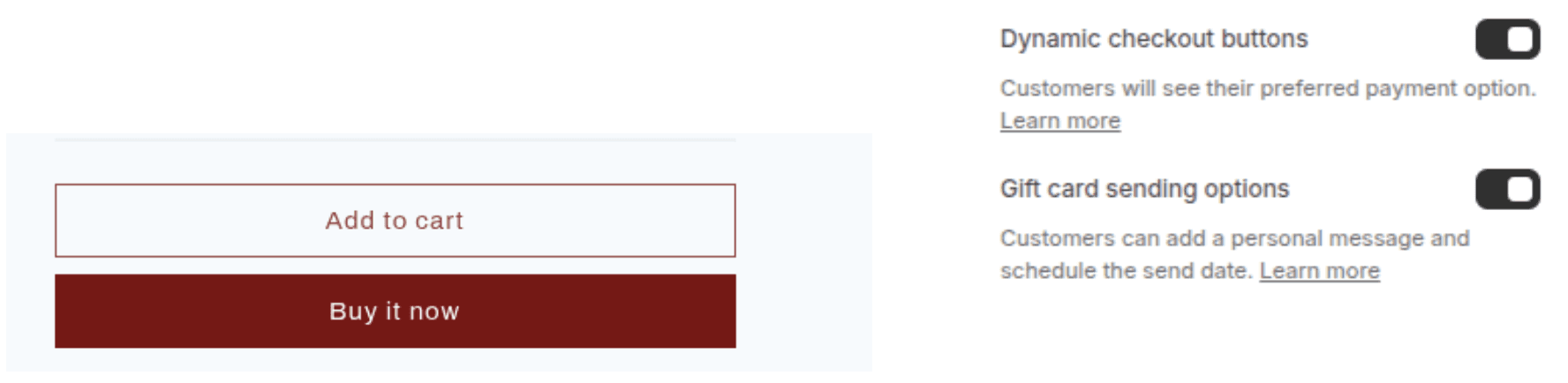
[Screenshot: Buy buttons showing Add to Cart and dynamic checkout buttons]
Description
The "Add to Cart" button plus optional dynamic checkout buttons and gift card recipient fields.
Settings
TYPE
Description
Default
Display style
Select
Expanded (always visible) or Dropdown (collapsible accordion).
Expanded
Show heading
Checkbox
Displays a heading above the description content.
Enabled
Heading text
Inline Richtext
Custom text for the heading.
Description
Show border bottom
Checkbox
Adds a separator line below the description.
Enabled
Open by default
Checkbox
If Dropdown style, starts the accordion in the open state.
Disabled
Heading font size
Range (12–32px, step 1)
Font size for the heading.
18px
Heading text color
Color
Custom color for the heading text.
Auto
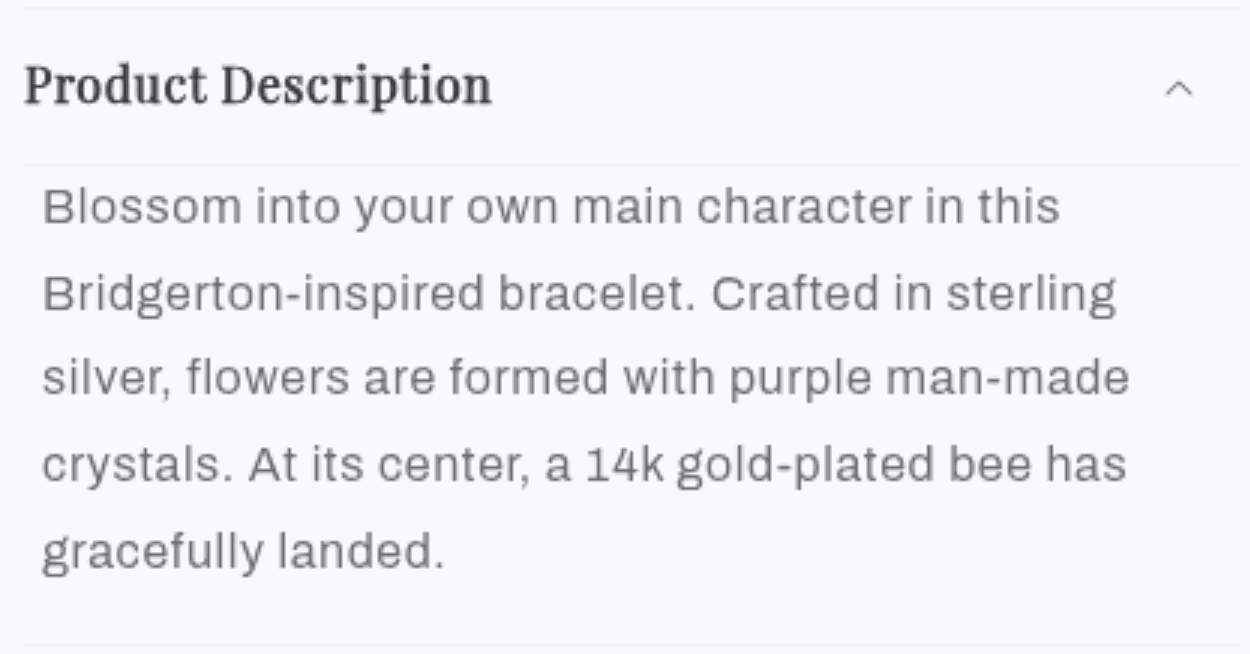
[Screenshot: Description block in expanded style with heading]

[Screenshot: Description block in dropdown/accordion style]
Collapsible Tab
An accordion row for detailed info like Shipping, Returns, Materials, or Care Instructions.
Settings
TYPE
Description
Default
Open by default
Checkbox
Expands the tab automatically on page load.
Disabled
Heading
Inline Richtext
The clickable title of the accordion row.
Collapsible Row
Heading font size
Range (12–32px, step 1)
Size of the tab heading.
18px
Heading text color
Color
Custom color for the heading.
Auto
Background color
Color
Background color for the collapsible row.
Transparent
Background gradient end
Color
End color for a gradient background (left-to-right).
Transparent
Background padding
Range (12–48px, step 2)
Internal spacing when a background is set.
20px
Icon
Select
Icon next to the heading (44 options including: Check mark, Truck, Ruler, Heart, Leaf, Return, Box, etc.).
Check mark
Content
Richtext
Rich text content displayed inside the tab.
—
Content text color
Color
Text color for the content area.
#000000
Border radius
Range (0–30px, step 1)
Rounds the corners of the tab container.
0px
Page
Page Picker
Select a Shopify page to pull content from instead of using the Content field.
—
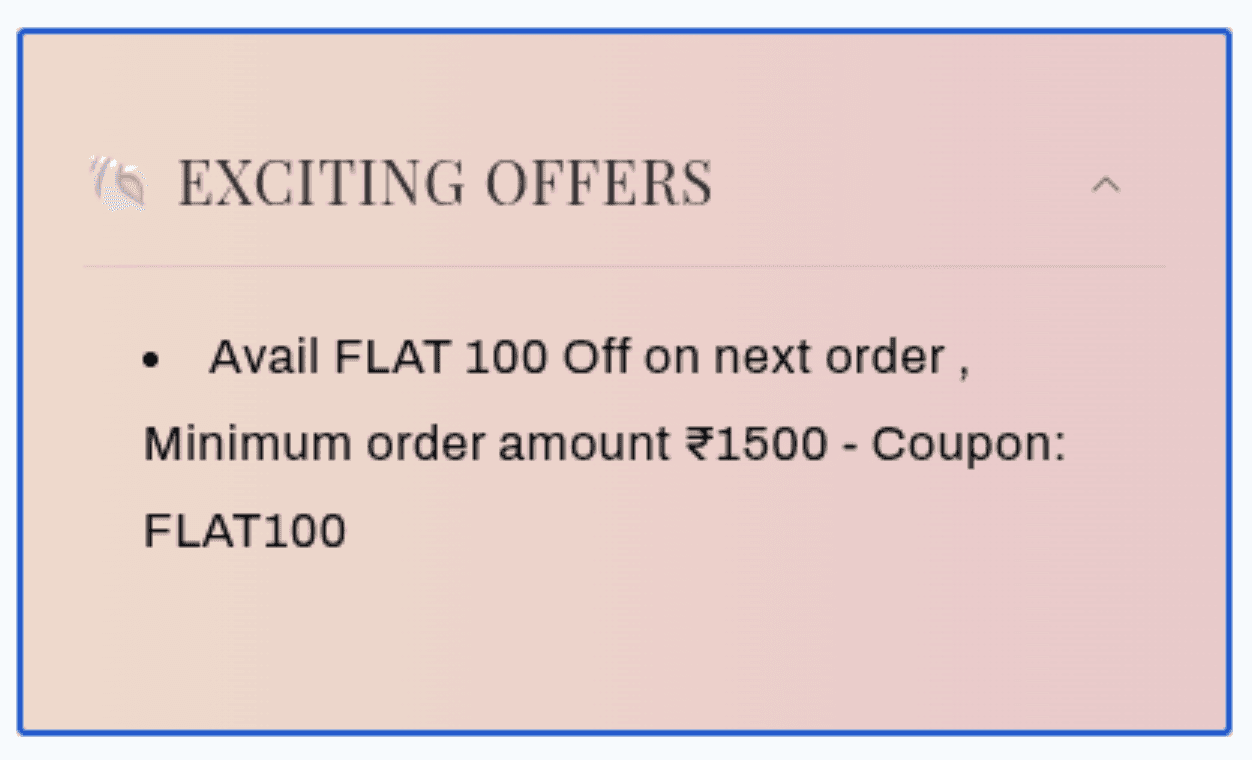
[Screenshot: Stack of collapsible tabs for Shipping, Returns, and Materials with icons]
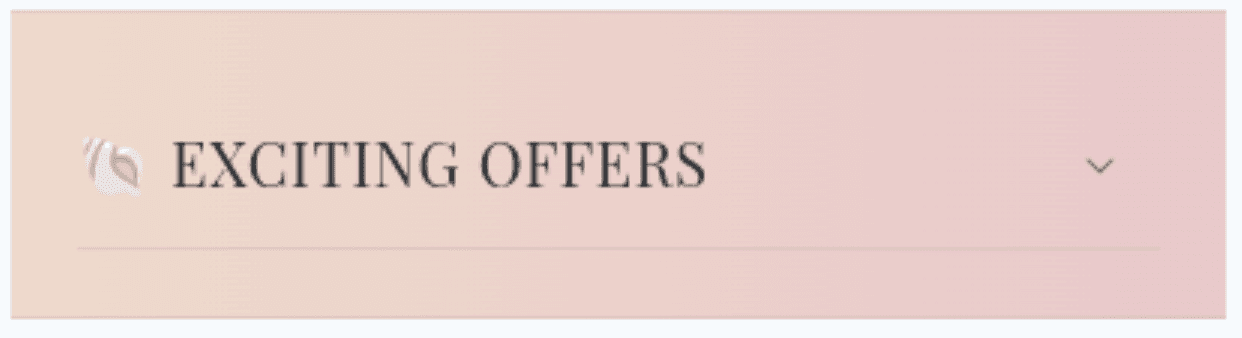
[Screenshot: Collapsible tab with a custom background color and gradient]
Popup
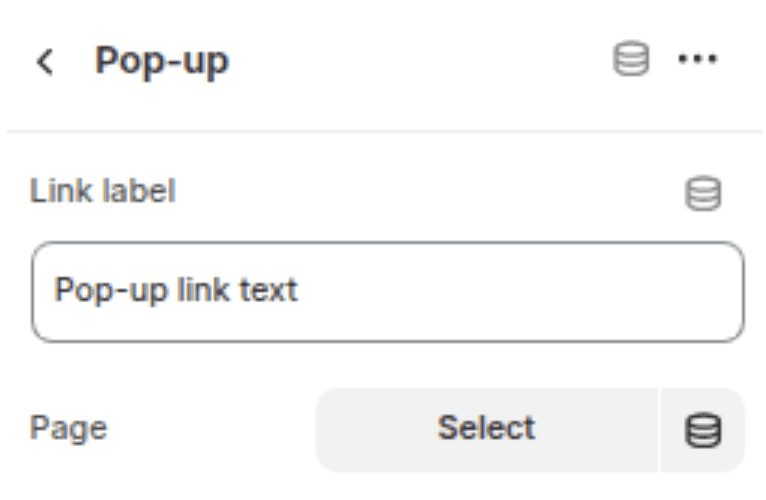
A text link that opens a centered modal popup window with page content.
Settings
TYPE
Description
Default
Link label
Text
Clickable text that triggers the popup (e.g., "Size Chart").
Pop-up link
Page
Page Picker
Shopify page whose content is displayed inside the modal.
—
11. Product Guide
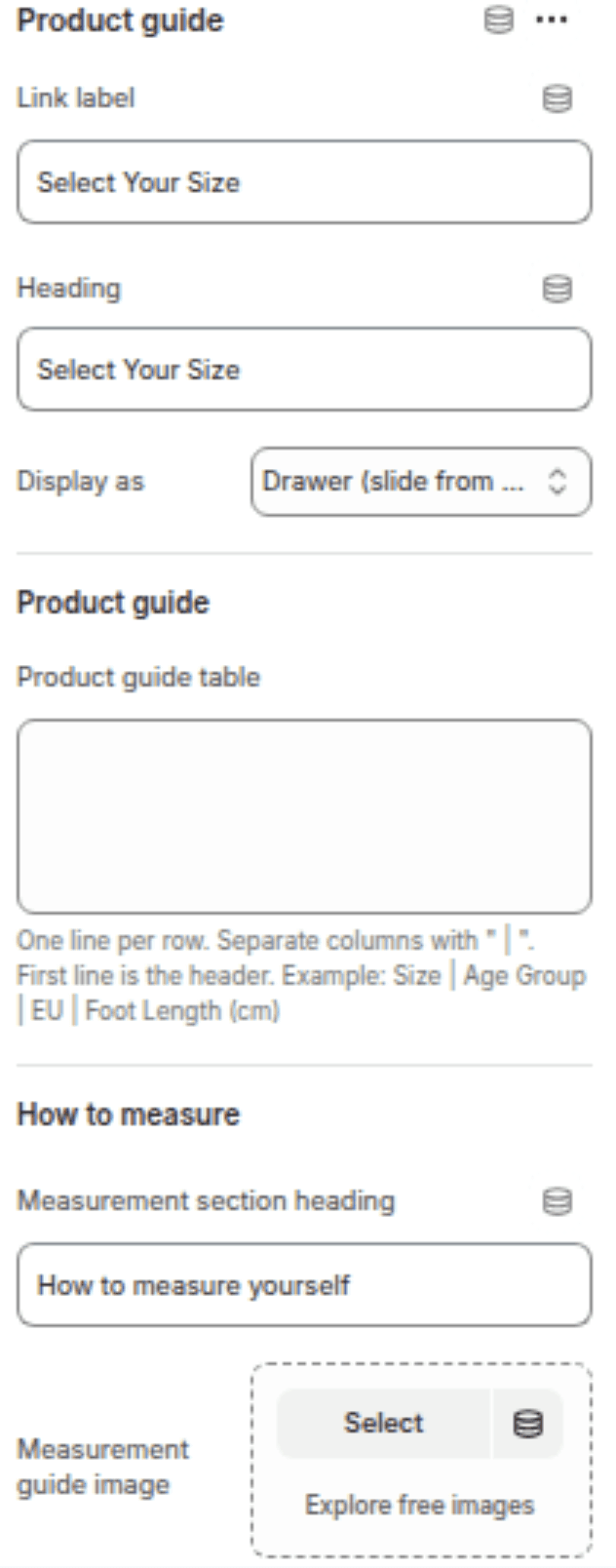
A specialized size guide or technical specification block with table support and measurement diagrams.
Settings
TYPE
Description
Default
Link label
Text
Text link to open the guide (e.g., "Size Guide").
Size Guide
Heading
Text
Title shown inside the guide modal/drawer.
Select Your Size
Display style
Select
Popup (centered modal) or Drawer (slide-out from right).
Drawer
Product guide text
Textarea
HTML/text content for your size chart or guide table. Supports HTML tables.
—
Measurement heading
Text
Heading for the measurement diagram section below the table.
—
Measurement image
Image Picker
Image showing how to take body measurements.
—
12. Share
Displays a share link/button for the product.
Settings
TYPE
Description
Default
Share label
Text
Text for the share link.
Share
13. Text
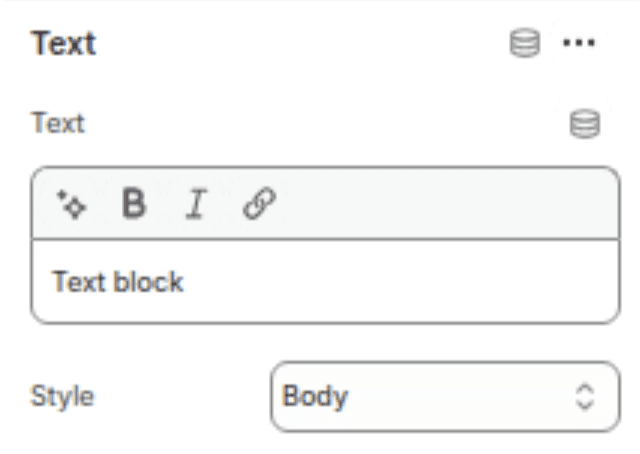
A versatile block for adding an extra line of text or message.
Settings
TYPE
Description
Default
Text
Inline Richtext
The text content. Supports Liquid variables.
Text block
Text style
Select
Visual style: Body, Subtitle, or Uppercase.
Body
14. Rating
Displays the product's star rating from a compatible reviews app (requires reviews.rating metafield).
No configurable settings. Requires a reviews app that populates product metafields.
15. Complementary Products
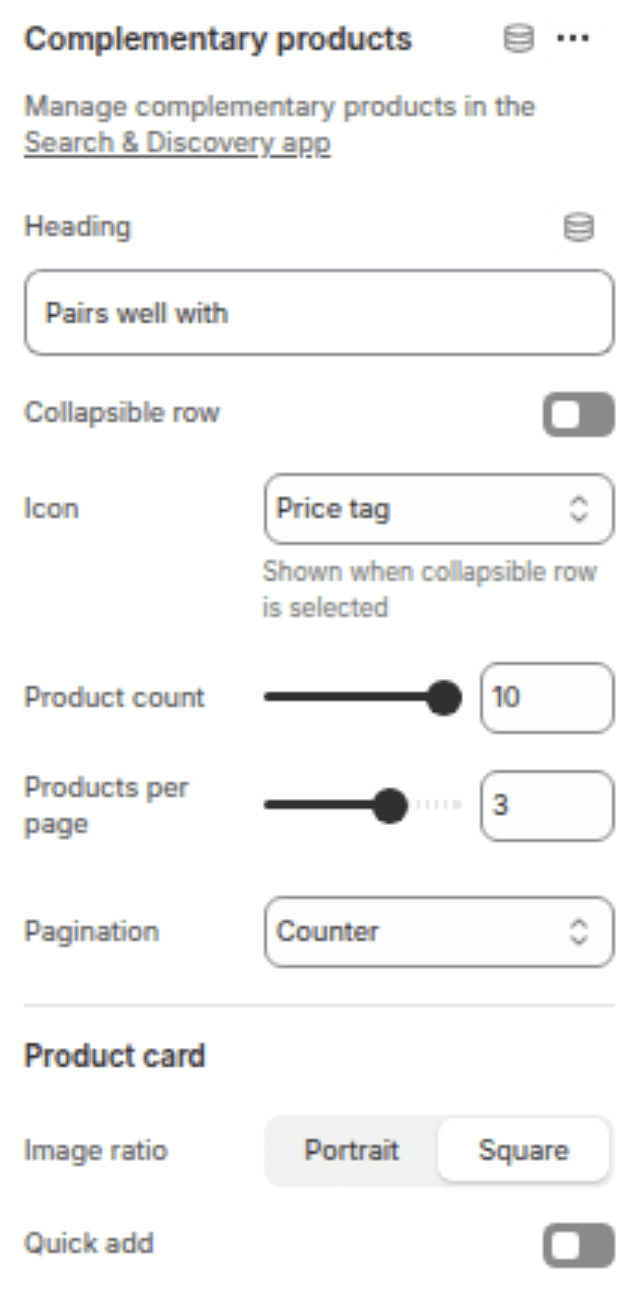
A slider displaying recommended products (configured via Shopify's Search & Discovery app).
Settings
TYPE
Description
Default
Block heading
Text
Title for the recommendations section.
Pairs well with
Make collapsible row
Checkbox
Wraps the product list inside an accordion tab.
Disabled
Icon
Select
Icon shown when displayed as a collapsible row (44 options).
Price tag
Product list limit
Range (1–10, step 1)
Maximum number of complementary products to load.
10
Products per page
Range (1–4, step 1)
Number of products shown per slider slide.
3
Pagination style
Select
Slider navigation: Dots, Counter (1/4), or Numbers.
Counter
Image ratio
Select
Aspect ratio for product card images: Portrait or Square.
Square
Enable Quick Add
Checkbox
Adds "Add to Cart" buttons to the complementary product cards.
Disabled
16. Product Feature Badges
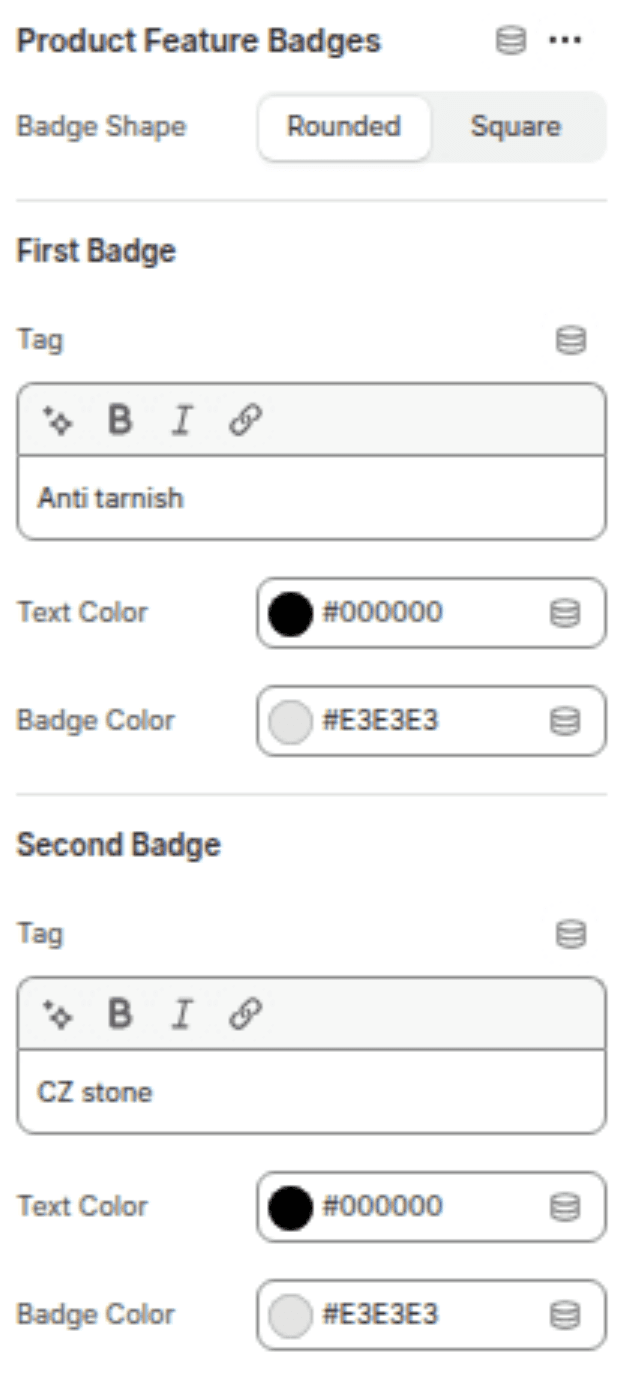
Displays up to 4 colorful badges to highlight key selling points (e.g., "Organic", "Best Seller", "Free Shipping").
Settings
TYPE
Description
Default
Badge shape
Select
Rounded (pill) or Square.
Rounded
Badge Items (1–4): Each badge has the following settings:
Settings
TYPE
Description
Default
Text
Inline Richtext
Badge label.
Badge 1 / Badge 2 / Badge 3 / Badge 4
Text color
Color
Color of the badge text.
#000000 / #FFFFFF / #FFFFFF / #FFFFFF
Background color
Color
Background fill of the badge.
#FFBA17 / #2B9A66 / #0488F0 / #DC3E42

17. Icons With Text
Displays a list of up to 4 feature highlights with custom icons (e.g., "Free Shipping", "Lifetime Warranty", "Eco-Friendly").
Settings
TYPE
Description
Default
Layout
Select
Horizontal (side-by-side) or Vertical (stacked list).
Vertical
Items (1–4): Each item has the following settings:
Settings
TYPE
Description
Default
Image
Image Picker
Custom icon image.
—
Heading
Inline Richtext
Feature title.
Heading
Description
Textarea
Additional details (optional).
—
Highlight color
Color
Accent/background color for the item.
Transparent
Heading text color
Color
Specific color for the heading text.
Auto
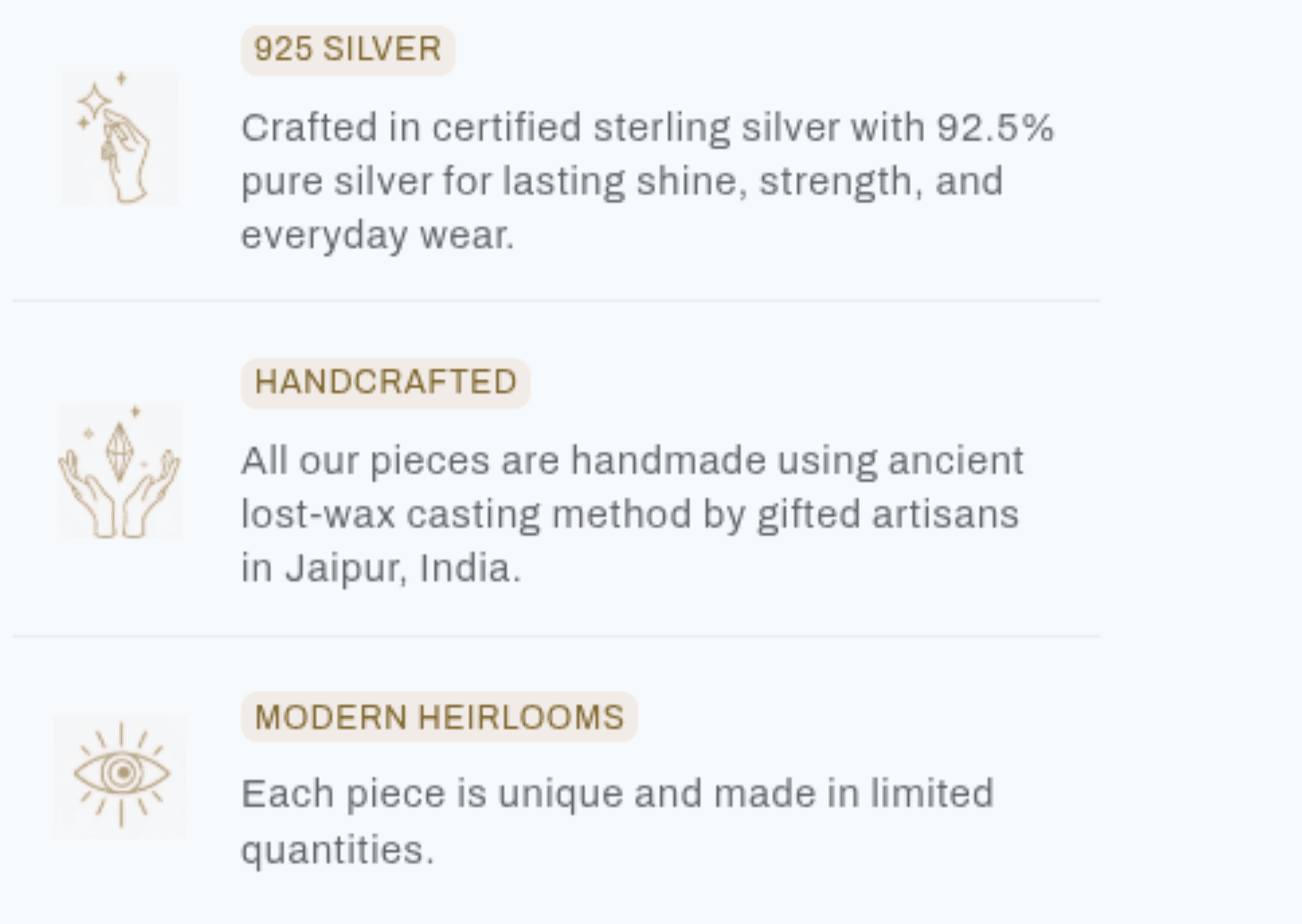
[Screenshot: Icon with Text block showing 3 features with custom icons in vertical layout]
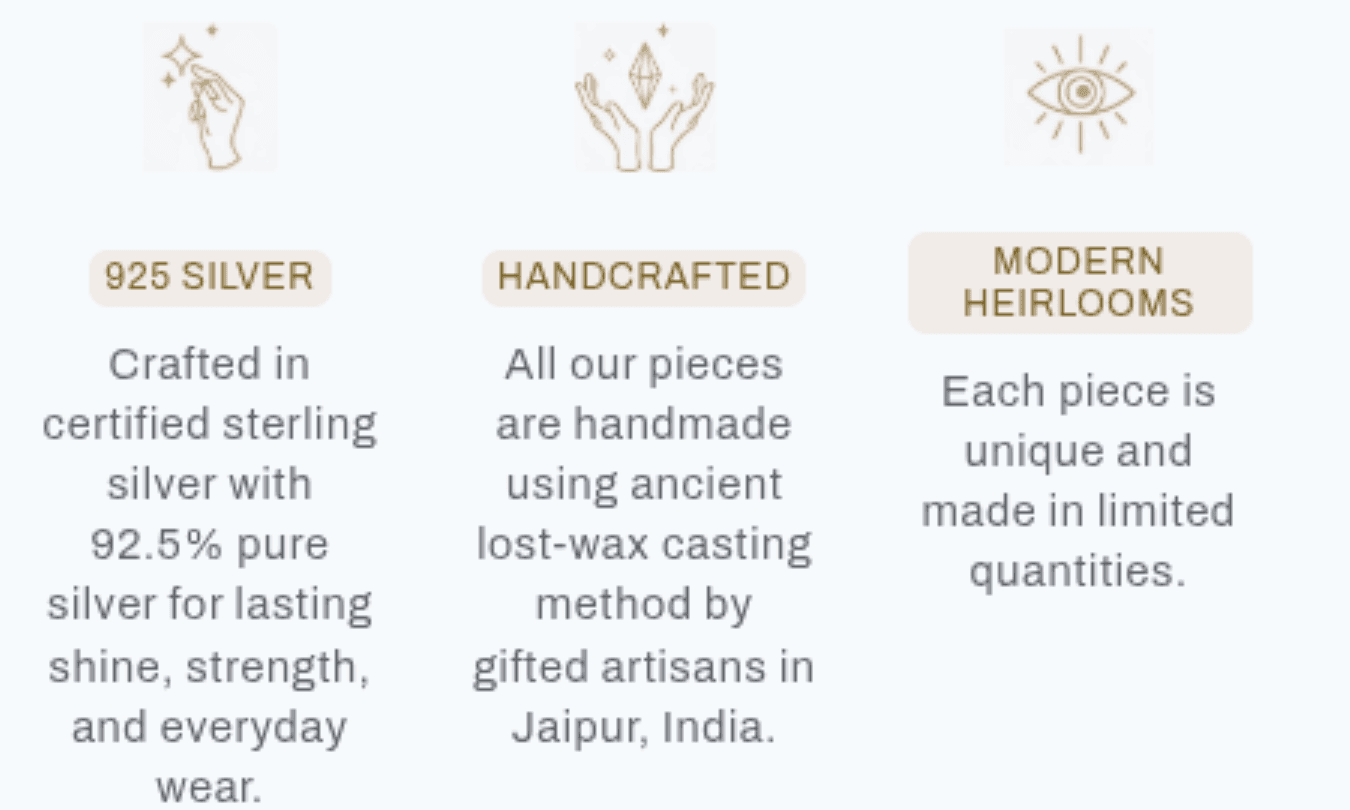
[Screenshot: Icon with Text block in horizontal layout]
18. Top Seller Badge
A prominent badge to mark the product as a top seller, automatically linking to the product's first collection.
Settings
TYPE
Description
Default
Badge text
Richtext
Text displayed inside the badge (e.g., "Best Seller", "#1 Top Rated").
Best Seller
Badge background
Color
Background color for the badge.
Auto
Badge text color
Color
Text color for the badge.
Auto
Category text color
Color
Color for the "in [Category]" collection link.
Auto
Badge shape
Color
Rounded (pill) or Square.
Auto
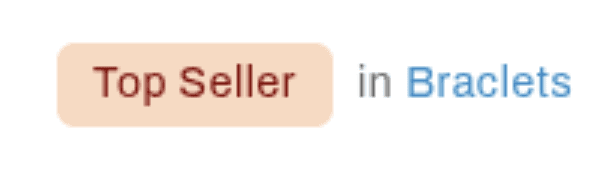
[Screenshot: Top Seller badge showing "Best Seller in Running Shoes" with collection link]
19. Custom Liquid
For advanced users to insert custom code, app snippets, or Liquid logic.
Settings
TYPE
Description
Default
Custom Liquid
Liquid
Enter any valid Liquid code, HTML, or app embed code.
—