
Subtotal Section Documentation
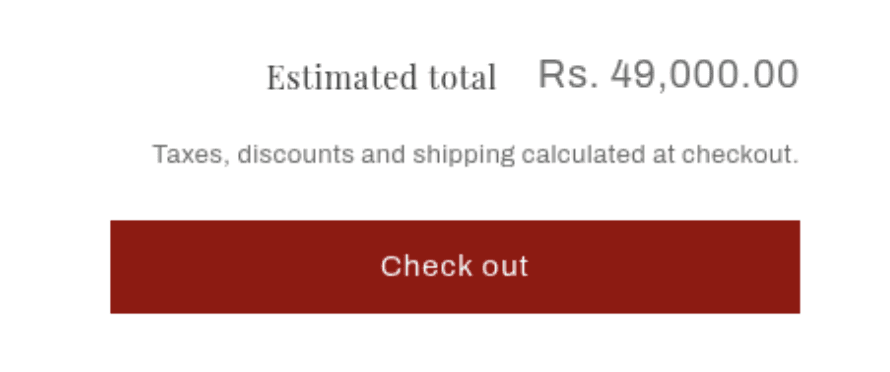
The Subtotal section appears at the bottom of the cart page (/cart), below the list of cart items. It displays the cart's estimated total price, any active cart-level discounts, a tax and shipping notice, and the checkout and payment buttons. The section is built around blocks, allowing the subtotal summary and checkout buttons to be arranged independently.
Features
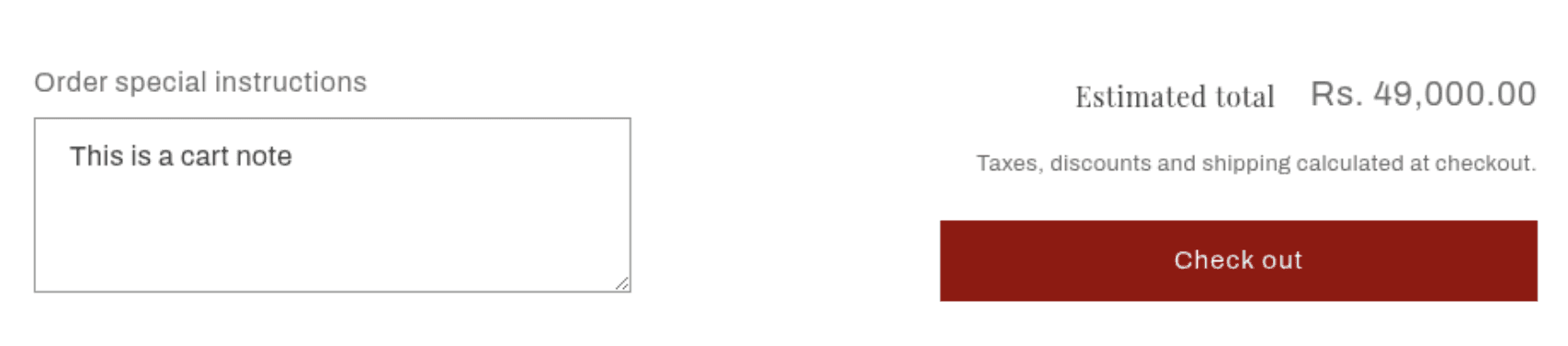
Estimated Total: Displays the cart's total price with currency, updating automatically as items are added or removed.
Cart-Level Discounts: Automatically shows any active discount codes or automatic discounts applied to the whole cart, including the discount title and amount saved.
Tax and Duties Notice: Displays a contextual message below the total based on the store's tax and duties settings (taxes included, duties included, or calculated at checkout). Links to the store's shipping policy if one is configured.
Checkout Button: A prominent button that submits the cart and takes the customer to checkout. Automatically disabled when the cart is empty.
Dynamic Checkout Buttons: Shows additional payment method buttons (such as Shop Pay, PayPal, Google Pay) if enabled in Shopify checkout settings.
Cart Note: If enabled in Theme Settings, a text area for customers to leave an order note appears above the subtotal blocks.
Color Scheme: The section background and text can be styled using the theme's color schemes.
Settings
The following settings are available to customize the appearance of the Subtotal section.
Settings
Description
Default
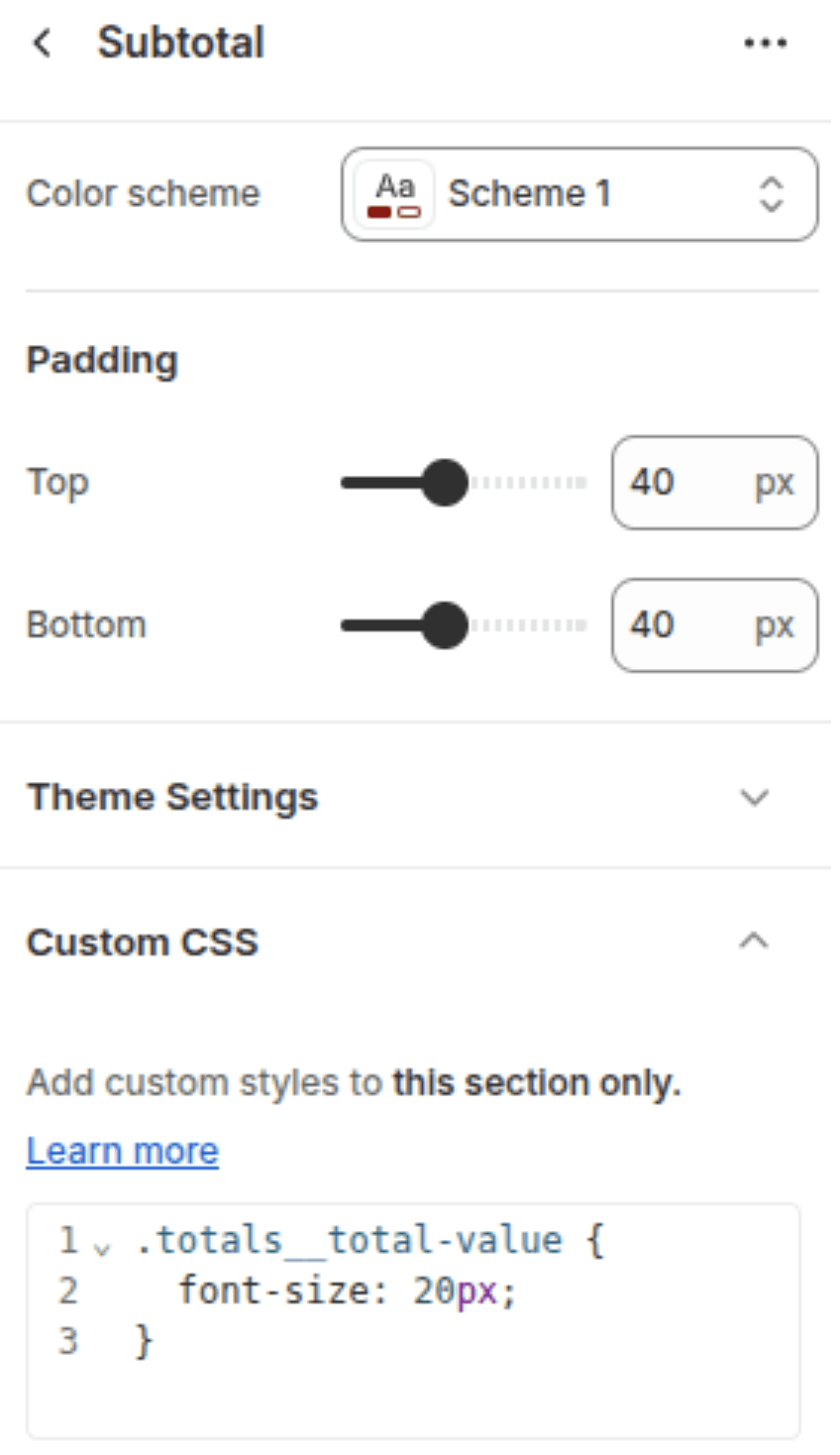
Color scheme
Sets the background and text color of the section.
Scheme 1
Padding top
Space above the section content. Range: 0–100 px, steps of 4 px.
40 px
Padding bottom
Space below the section content. Range: 0–100 px, steps of 4 px.
40 px
Blocks
The section supports up to 3 blocks. The Subtotal and Buttons blocks are each limited to one instance.
Subtotal Block
Displays the estimated order total, any applied cart-level discount labels, and the tax/duties/shipping notice text below the total.
Settings
TYPE
Description
—
—
No configurable settings. All content is generated automatically from the cart data.
Buttons Block
Displays the main Checkout button and, if enabled in Shopify, the dynamic checkout buttons (Shop Pay, PayPal, Google Pay, etc.) beneath it.
Settings
TYPE
Description
—
—
No configurable settings. The checkout button is always present; dynamic checkout buttons are controlled by Shopify Payments settings.
App Block
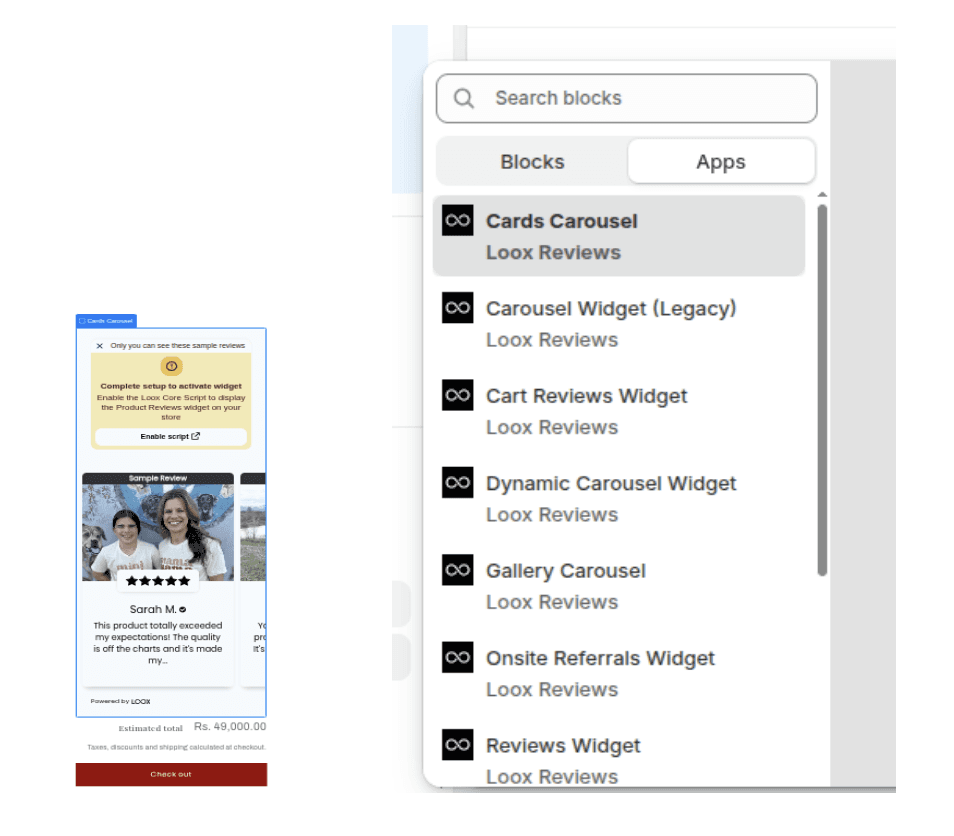
Allows a third-party Shopify app to inject content into the cart footer area (e.g. a gift wrapping option, upsell widget, or loyalty points summary).
Settings
TYPE
Description
—
App
Rendered automatically by the installed app. No manual settings required.
Customization Tips
Cart note: The order note text area is not controlled by this section. It is toggled in Theme Settings → Cart → Enable cart note. When enabled, it appears above the subtotal blocks automatically.
Dynamic checkout buttons: Buttons such as Shop Pay, PayPal, and Google Pay are enabled in Shopify Admin → Settings → Payments → Wallets & accelerated checkouts. They will not appear in this section unless activated there first.
Tax and shipping notice: The message shown below the estimated total is determined automatically by your store's tax and duties configuration. To change the wording, adjust your settings in Shopify Admin → Settings → Taxes and duties.
Shipping policy link: If a shipping policy is configured in Shopify Admin → Settings → Policies, the tax notice will automatically include a clickable link to it. Without a policy, the notice renders without the link.
Block order: The visual stacking order of blocks on the cart page follows the order they appear in the Theme Editor. The Subtotal block should be placed above the Buttons block for a logical layout.