
Slideshow Section Documentation
The Slideshow section displays a rotating carousel of full-width hero slides, each with its own image, heading, subheading, and button. It is primarily used on homepages to cycle through multiple promotions, campaigns, or seasonal messages in a single banner area.

Features
Multiple Slides: Supports up to 5 slides, each independently configured with its own image, content, and layout.
Auto-Rotate: Optional automatic playback with a pause/play toggle button for customers.
Slide Navigation: Choose from three navigation indicator styles — dots, a numeric counter, or clickable slide numbers.
Per-Slide Overlay: Each slide has its own image overlay opacity control for independent contrast management.
Per-Slide Content Box: Each slide independently controls its content position (9 positions), text alignment, color scheme, and whether the content box background is shown.
Image Animation: Optional ambient floating animation applied globally across all slides.
Layout Options: Full bleed (edge to edge) or contained page-width layout.
Mobile Text Below: Option to push slide content below the image on mobile for better readability.
Accessibility: Configurable accessible label for the slideshow region, with full keyboard navigation support.
Settings
The following settings are available to customize the behavior and appearance of the Slideshow section.
Layout & Height
Settings
Description
Default
Layout
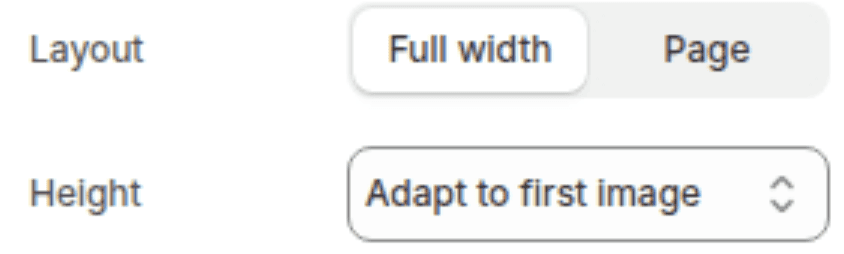
Controls whether the slideshow spans the full browser width or is contained within the page width. Options: Full bleed, Grid (page width).
Full bleed
Slide height
Sets the height of the slideshow. Options: Adapt to first image (uses the first slide's aspect ratio), Small, Medium, Large.
Medium
Navigation & Playback
Settings
Description
Default
Slide indicator style
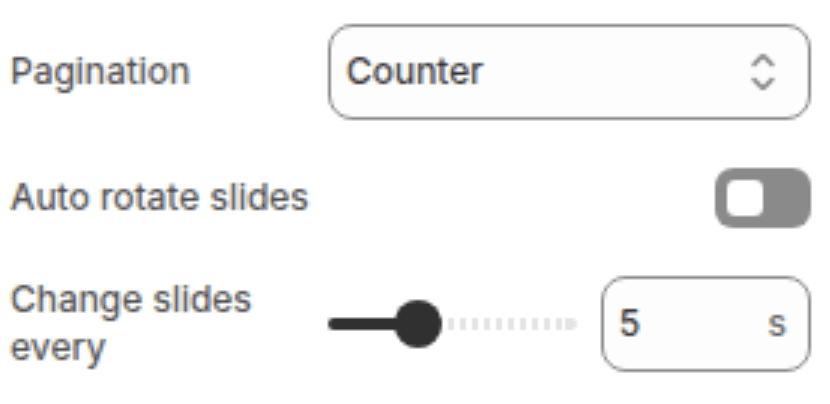
Sets the visual style of the slide navigation indicators. Options: Dots, Counter (e.g. "1 / 3"), Numbers (clickable slide numbers).
Counter
Auto-rotate slides
Automatically advances through slides without customer interaction. Displays a pause/play button when enabled.
Disabled
Change slides every
Sets how long each slide is displayed before advancing to the next. Range: 3s – 9s (in 2s increments). Only applies when auto-rotate is enabled.
5s
Image
Settings
Description
Default
Image behavior
Applies an animation to all slide images. Options: None, Ambient (slow floating motion).
None

Mobile
Settings
Description
Default
Show text below image on mobile
When enabled, the slide content box moves below the image on mobile rather than overlaying it.
Enabled

Accessibility
Settings
Description
Default
Slideshow
description
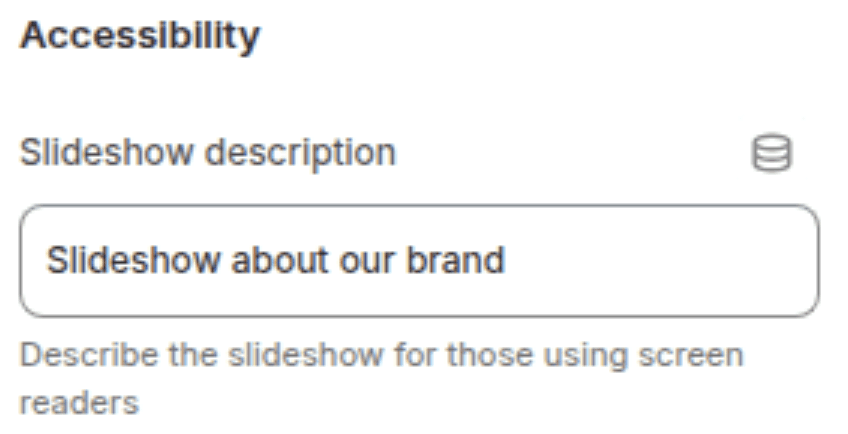
A descriptive accessible label for the slideshow region, read by screen readers.
"Slideshow about our brand"
Blocks
The section supports one block type: Slide.
Slide Block
(Limit: 5)
Each slide block represents one slide in the carousel. All content and layout settings are configured per slide, allowing each slide to look completely different.
Settings
TYPE
Description
Default
Image
Image picker
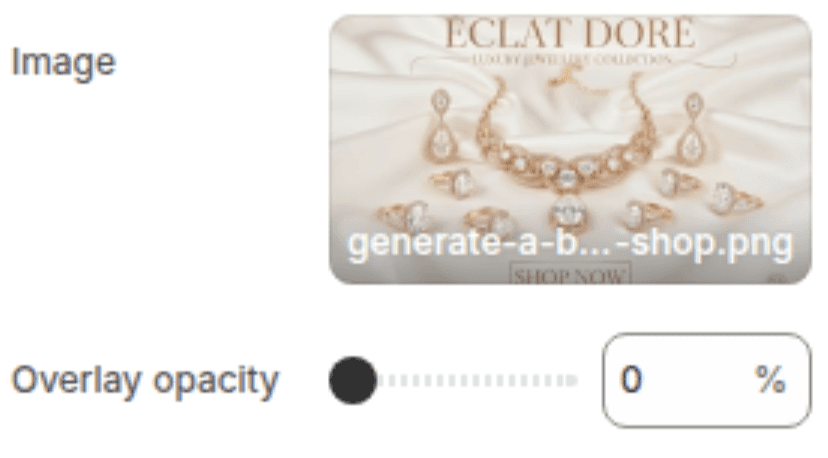
The background image for this slide. Displays a placeholder if left blank.
(empty)
Image overlay opacity
Range
Sets the darkness of the overlay on this slide's image. Range: 0% – 100% (in 10% increments).
0%
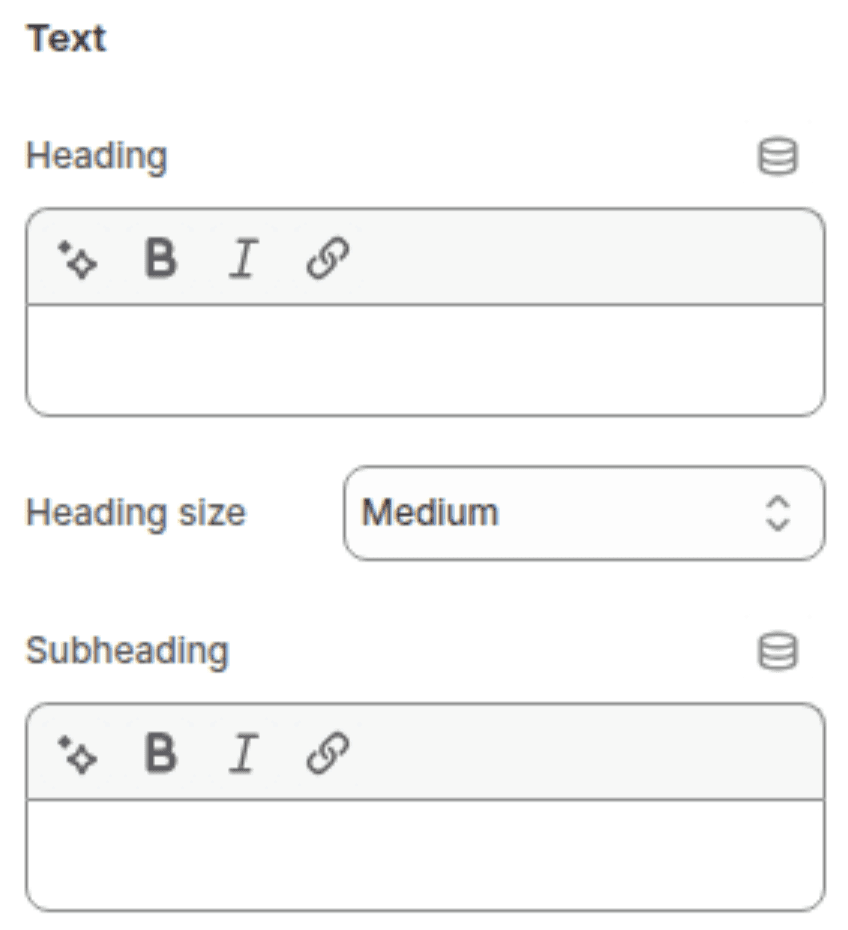
Text
(Limit: 1)
Displays a supporting line of text beneath the heading. Supports inline rich text formatting.
Settings
TYPE
Description
Default
Heading
Inline rich text
The main headline for this slide. Supports bold, italic, and links.
"Image slide"
Heading size
Select
Controls the visual size of the heading. Options: Small (h2), Medium (h1), Large (h0), Extra Large (hxl), Extra Extra Large (hxxl).
Medium (h1)
Subheading
Inline rich text
A supporting line of text displayed beneath the heading.
"Tell your brand's story through images"
Button
(Limit: 1)
Displays up to two call-to-action buttons on the banner. Both buttons live within a single block.
Settings
TYPE
Description
Default
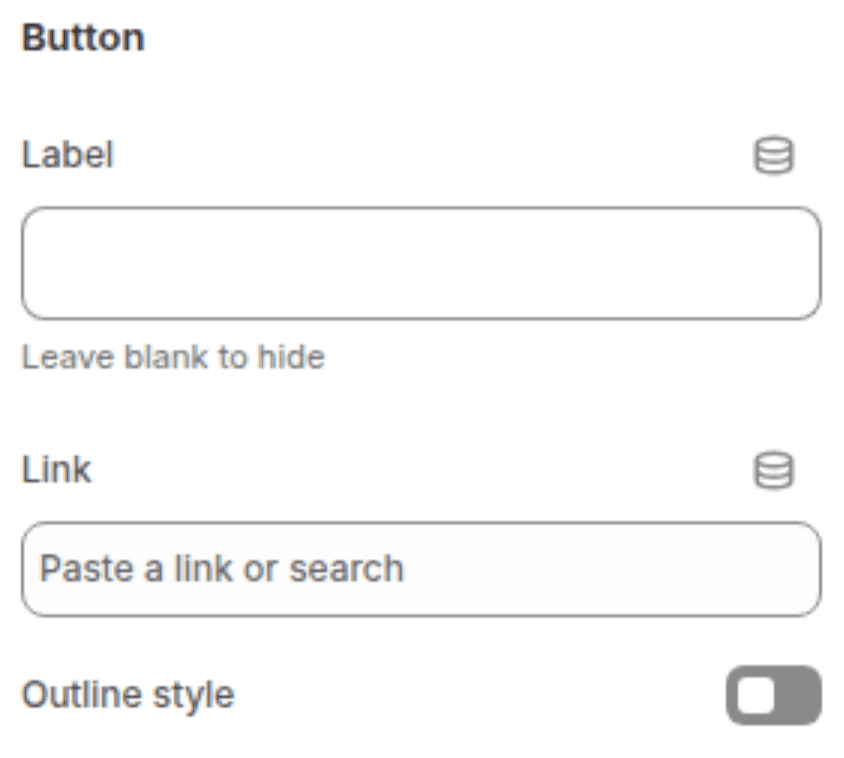
First Button label
Text
The visible text on the button. Leave blank to hide the button.
"Shop all"
First Button link
URL
The URL the first button links to.
(empty)
Use outline button style
Checkbox
When enabled, renders the button as a secondary (outline) style.
Disabled
Layout
(Limit: 1)
Displays up to two call-to-action buttons on the banner. Both buttons live within a single block.
Settings
TYPE
Description
Default
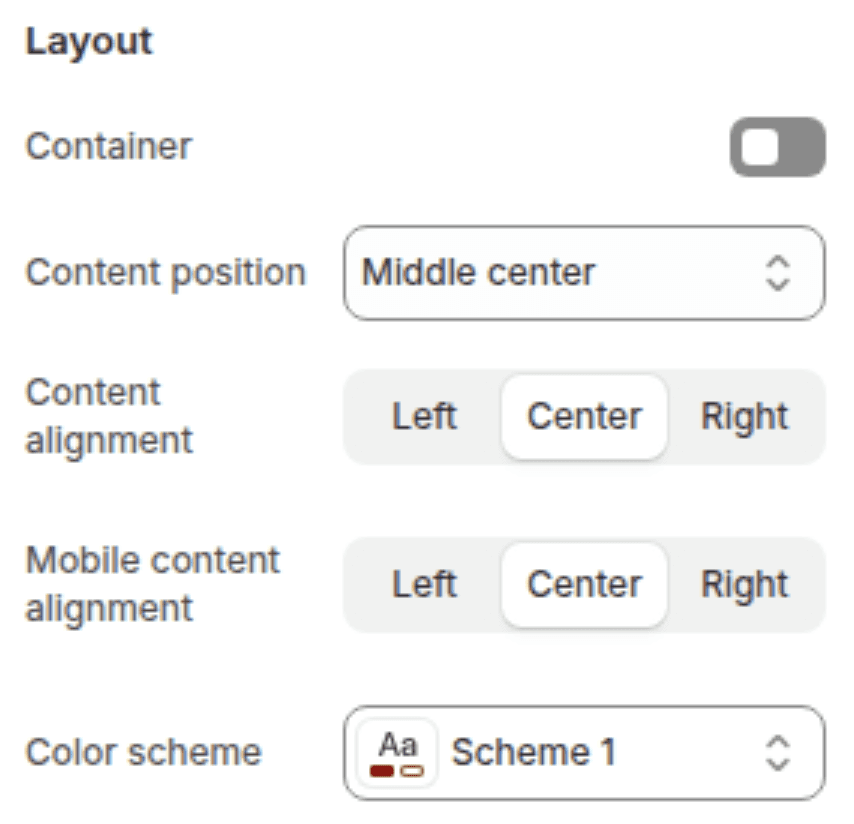
Show content box background
Checkbox
When enabled, a colored box (based on the color scheme) appears behind the slide content. Disable for a transparent overlay look.
Enabled
Content position
Select
Sets where the content box sits over the slide. 9 options across Top, Middle, Bottom × Left, Center, Right.
Middle center
Desktop text alignment
Select
Sets text alignment inside the content box on desktop. Options: Left, Center, Right.
Center
Mobile text alignment
Select
Sets text alignment inside the content box on mobile. Options: Left, Center, Right.
Center
Color scheme
Color scheme
Sets the background and text color of the content box for this slide.
Scheme 1
Customization Tips
Per-Slide Overlay: Because each slide has its own overlay opacity setting, you can compensate for images with different brightness levels individually. Dark images may need 0% overlay while bright images may need 40-60% to keep text readable.
Slide Height and Adapt to Image: When using Adapt to image, the slideshow height is driven by the first slide's image aspect ratio. If other slides have images with different proportions, they will be cropped to match. Use consistent image dimensions across all slides for the best result.
Auto-Rotate and Navigation: When auto-rotate is enabled, the navigation controls (prev/next arrows, indicator, pause button) appear above the slideshow. When disabled, they appear below. This is controlled automatically by the theme.
Counter vs. Dots vs. Numbers: Counter (e.g. "2 / 5") is compact and works well with many slides. Dots are minimal and suit 2-3 slides. Numbers are clickable and let customers jump directly to a specific slide, which works best with 3-5 named slides where order matters.
Per-Slide Color Scheme: Each slide can have a different color scheme for its content box. This is useful if some slides have dark backgrounds and others have light ones - you can switch the content box color to maintain contrast without relying solely on overlay opacity.
Transparent Content Box: Disabling "Show content box background" on a slide removes the colored panel behind the text. Combine this with a higher image overlay opacity on that slide so the text remains legible.
Ambient Animation: The image behavior setting applies globally to all slides - it cannot be set per slide. If any slide's image does not suit the ambient animation, consider leaving it set to None.
Mobile Text Below: This setting applies globally to all slides. When enabled, the content box stacks below the image on every slide, giving both the image and text full width on mobile.