
Collapsible Content Section Documentation
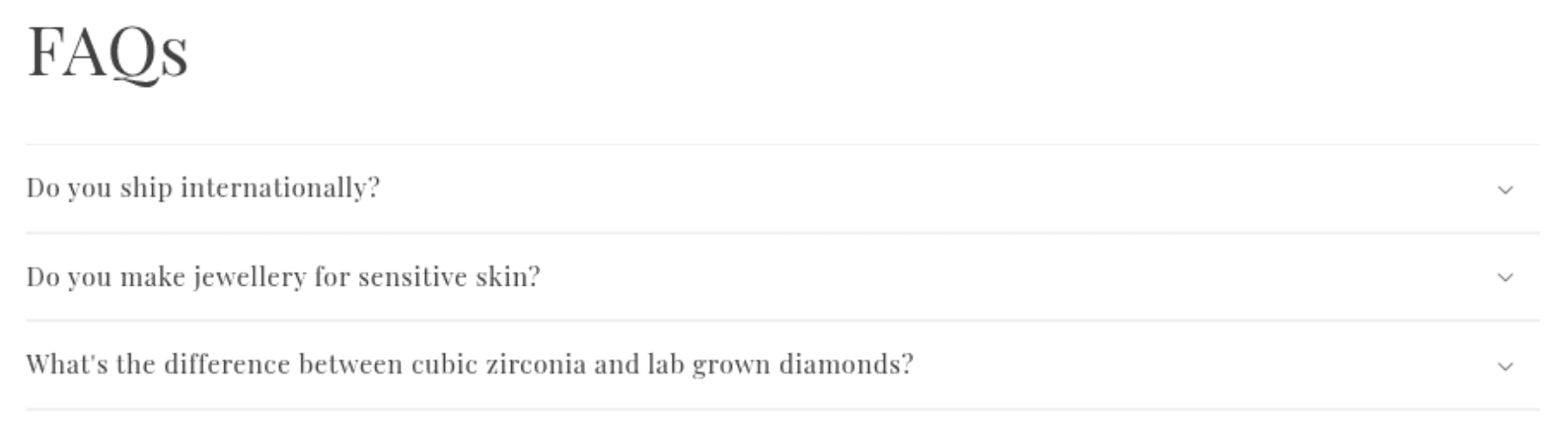
The Collapsible Content section displays a list of expandable accordion rows, each with a heading, an optional icon, and rich text or page content that reveals when clicked. It is commonly used for FAQs, product care instructions, size guides, shipping policies, or any content that benefits from a compact, expandable format. An optional side image can be added to create a two-column layout with the accordion on one side.
Features
Accordion Rows: Each row expands and collapses on click to reveal its content, keeping the page clean and scannable.
Per-Row Icons: Choose from 43 built-in icons displayed beside each row heading to add visual context.
Rich Text or Page Content: Each row can display manually written rich text, or pull its content directly from a Shopify Page for easier long-form content management.
Optional Side Image: Add an image to create a two-column layout — accordion on one side, image on the other.
Three Layout Modes: Control whether each accordion row, the entire section, or neither gets a distinct container background.
Open First Row by Default: Optionally pre-expand the first accordion row when the section loads.
Caption and Heading: An optional section-level caption and heading appear above the accordion list.
Scroll Animations: The section header and accordion grid animate in on scroll if animations are enabled in Theme Settings.
Settings
Heading
Settings
Description
Default
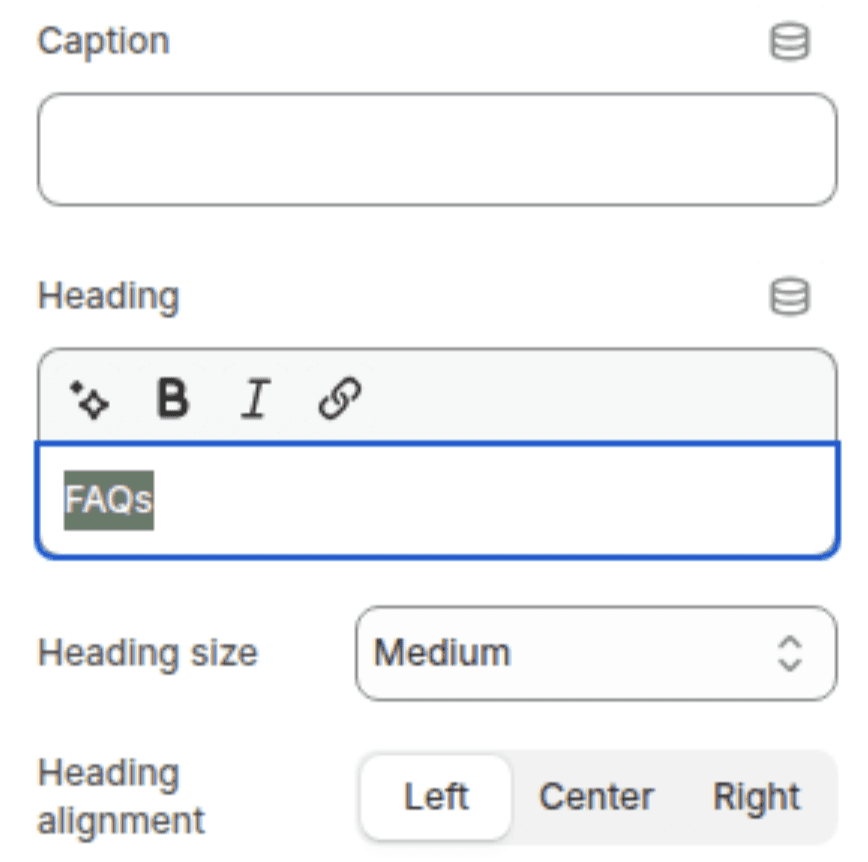
Caption
A small label displayed above the section heading in uppercase with letter spacing. Leave blank to hide.
(empty)
Heading
The section title displayed above the accordion list. Supports inline rich text (bold, italic, links). Leave blank to hide.
"Frequently asked questions"
Heading size
Controls the visual size of the section heading. Options: Small (h2), Medium (h1), Large (h0), Extra Large (hxl), Extra Extra Large (hxxl).
Medium (h1)
Heading alignment
Sets the horizontal alignment of the caption and heading. Options: Left, Center, Right.
Center
Layout
Settings
Description
Default
Layout
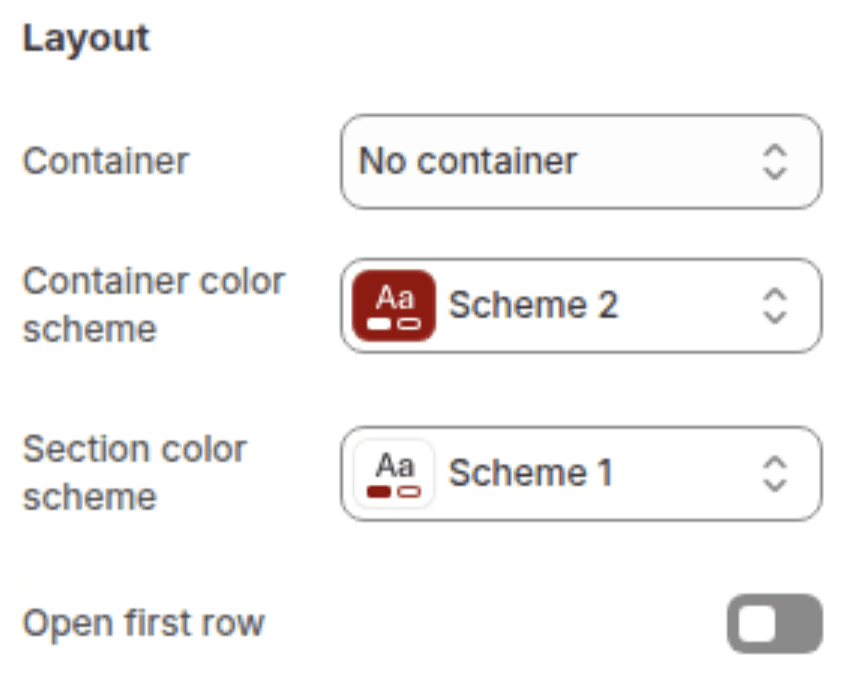
Controls how the container background is applied. Options: No container (accordion rows have no individual background — the section background shows through), Row (each accordion row gets its own distinct container background using the container color scheme), Section (the entire accordion list is wrapped in a single container with the container color scheme).
No container
Container color scheme
Sets the background color applied to the container — either each individual row or the full section wrapper, depending on the Layout setting. Only visible when Layout is set to Row or Section.
Scheme 2
Section color scheme
Sets the background color of the outer section wrapper that sits behind the accordion content.
Scheme 1
Open first row by default
When enabled, the first accordion row is pre-expanded when the section loads, without requiring a customer click.
Disabled
Image
Settings
Description
Default
Image
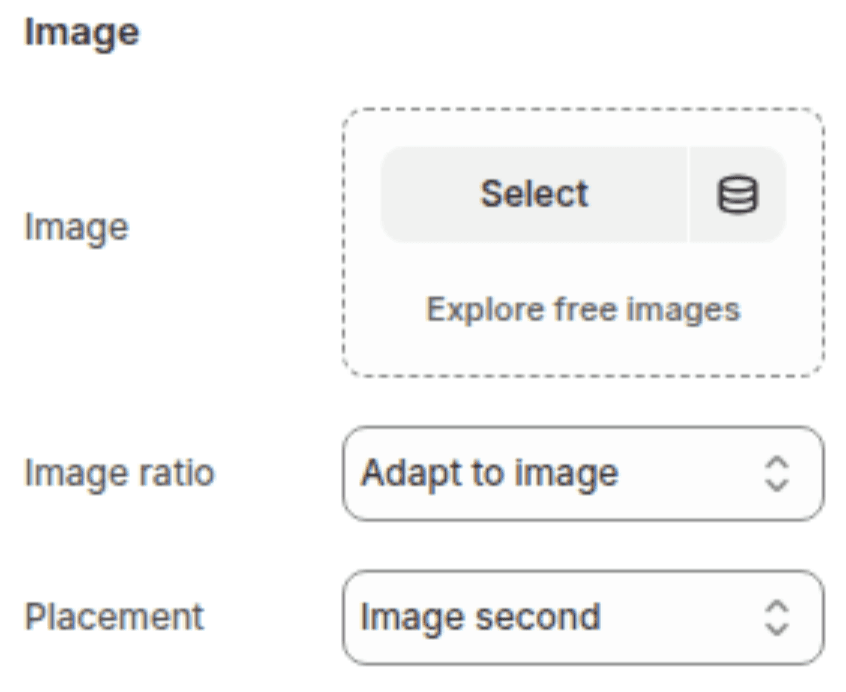
An optional image displayed alongside the accordion list. When set, the section switches to a two-column layout — image on one side, accordion on the other. If left blank, the accordion list is displayed in a narrow centered column.
(empty)
Image ratio
Sets the aspect ratio of the image panel. Options: Adapt to image (uses the image's natural aspect ratio), Small, Large.
Adapt to image
Desktop image position
Controls which side the image appears on in the two-column layout. Options: Image first (image on the left, accordion on the right), Image second (accordion on the left, image on the right).
Image second
Spacing
Settings
Description
Default
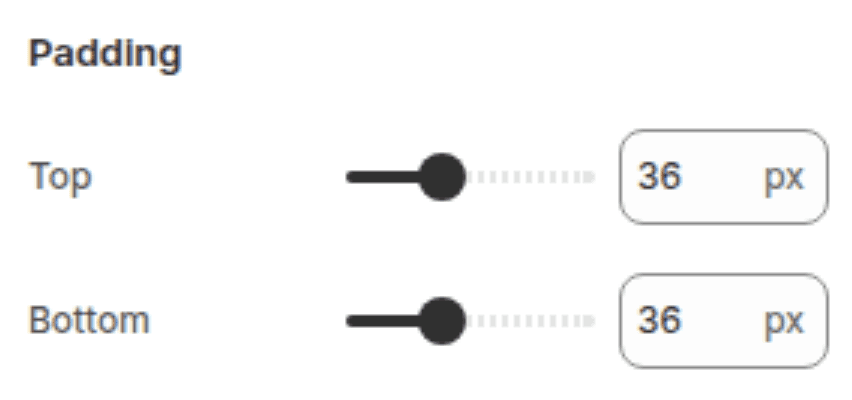
Padding top
Sets the top padding of the section (0px – 100px).
36px
Padding bottom
Sets the bottom padding of the section (0px – 100px).
36px
Blocks
The section supports one block type: Collapsible Row. There is no enforced block limit, so you can add as many rows as needed.
Collapsible Row Block
Each block represents one expandable row in the accordion list.
Settings
TYPE
Description
Default
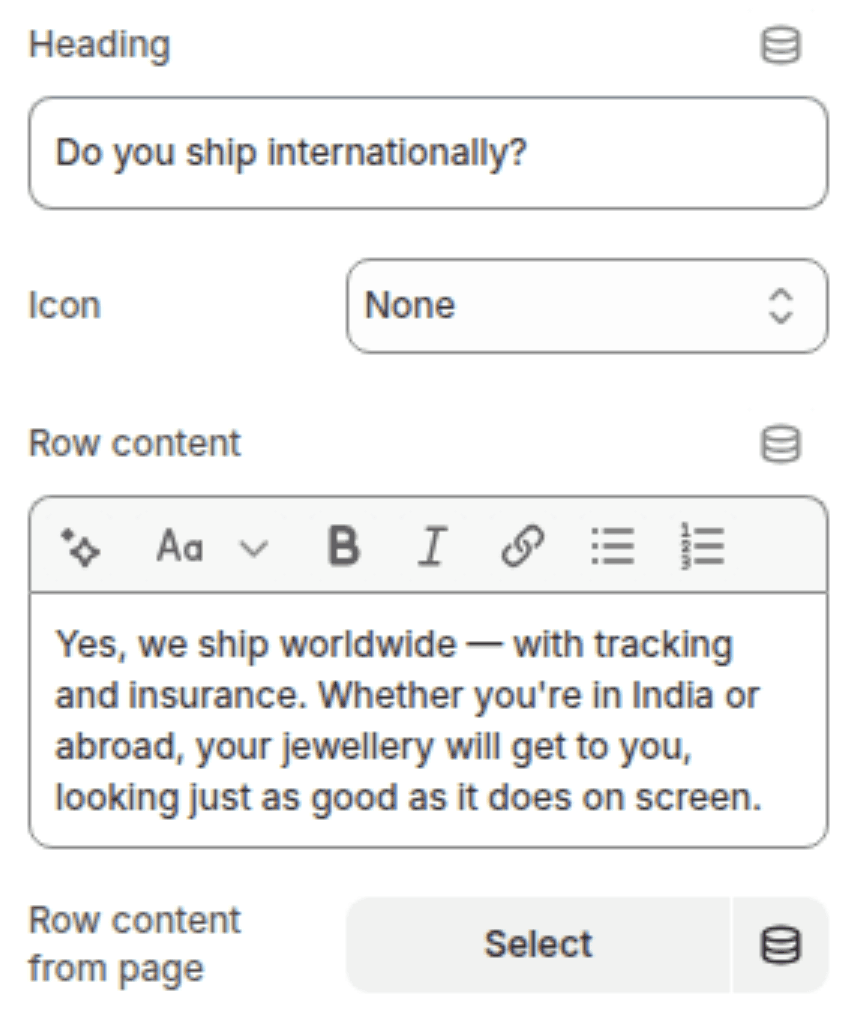
Heading
Text
The clickable label displayed on the collapsed row. This is what customers see before expanding the row.
"Collapsible row"
Icon
Select
An optional icon displayed to the left of the row heading. Choose from 43 built-in icons or select None to show no icon.
Check mark
Row content
Rich text
The content revealed when the row is expanded. Supports full rich text formatting (paragraphs, bold, italic, lists, links). Leave blank if using a Page instead.
(empty)
Page
Page picker
An alternative to Row content — links a Shopify Page and displays its full content when the row is expanded. If both Row content and a Page are set, both will render inside the expanded row.
(empty)
Customization Tips
Row Content vs. Page: Each row supports two content sources — the Row content rich text field and a linked Shopify Page. Using a Page is recommended for long or frequently updated content (e.g. a full return policy) since it can be edited from the Pages section of Shopify Admin without opening the theme editor. If both are filled in, both will display inside the expanded row, one after the other.
Layout — Row vs. Section: The Row layout gives each accordion item its own visible card, which works well when rows contain varied content and you want clear visual separation. The Section layout wraps all rows in one large card, which looks cleaner when rows are closely related (like a standard FAQ list). No container is the most minimal option and works best when the section color scheme already provides enough visual context.
Container Color Scheme Visibility: The Container color scheme setting only has a visible effect when Layout is set to Row or Section. When Layout is set to No container, this setting is ignored entirely — changing it will have no effect on the storefront.
Open First Row by Default: This is useful for FAQ sections where you want the most common question pre-answered without any interaction, reducing friction for customers. Use it sparingly — if multiple rows are relevant to most visitors, keeping them all collapsed encourages exploration.
Image Layout on Mobile: When an image is added, the two-column layout collapses to a single column on mobile. The image stacks above the accordion list regardless of the Desktop image position setting.
Narrow Column Without Image: When no image is set, the accordion list renders in a narrow centered column. This is intentional design — it keeps the accordion readable and well-proportioned on wide screens. Adding an image expands the section to full page width.
Icon Usage Tips: Icons work best when they are semantically meaningful for the row content. For example, use the Truck icon for shipping rows, Return for returns policy, Ruler for sizing guides, and Check mark for general FAQ rows. Avoid using different icons that look similar in small sizes — clarity matters more than variety.
Page Content Formatting: When linking a Page as the row content, the page's full HTML content is rendered inside the accordion. Format the page content carefully in the Shopify Pages editor since all headings, lists, and links will appear inside the narrow accordion panel.