
Contact Form Section Documentation
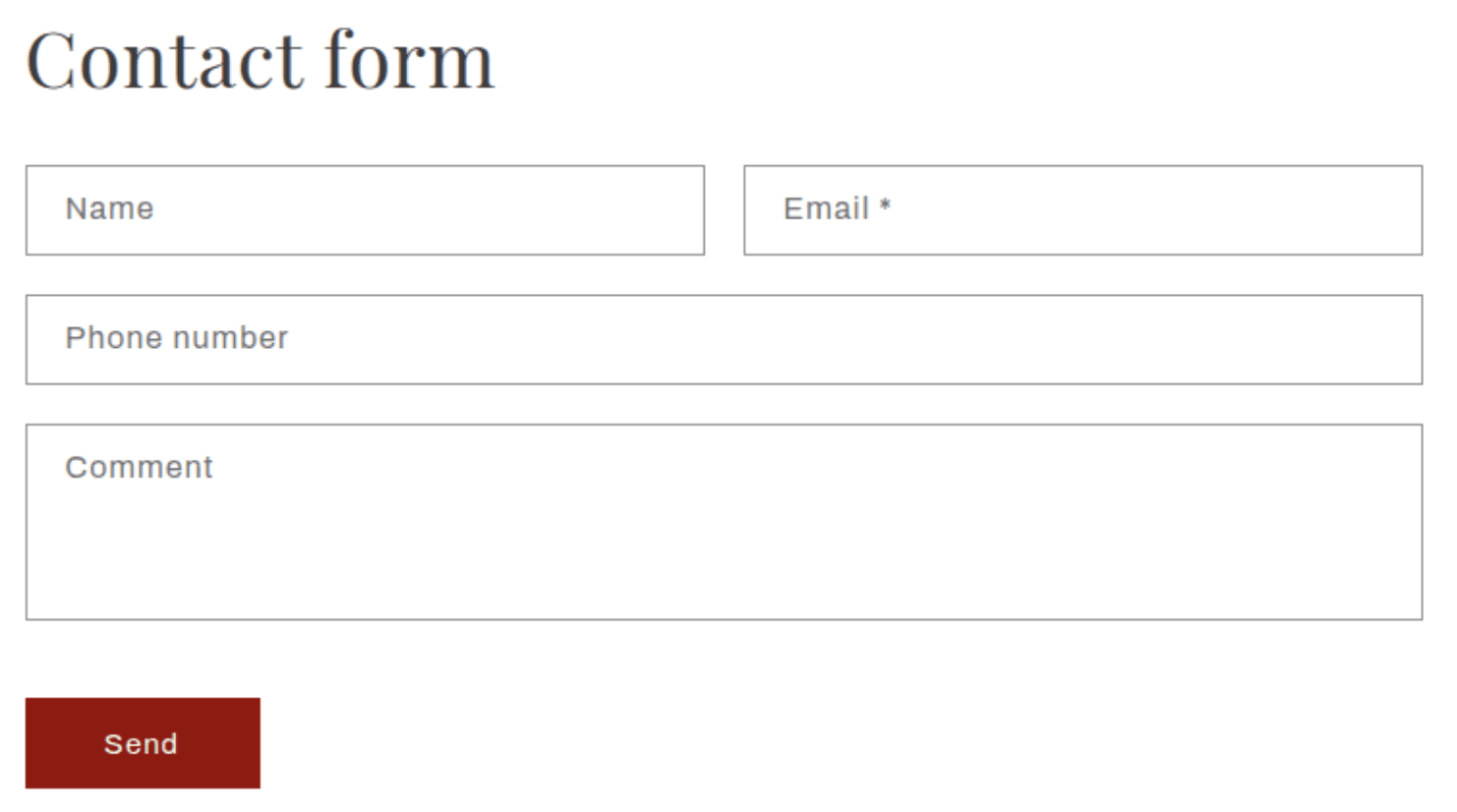
The Contact Form section renders a built-in customer contact form with four fields - Name, Email, Phone, and Message. Submissions are sent directly to the store owner's email address configured in Shopify Admin and are also recorded in the Shopify Admin inbox. The form has no blocks — all fields are hardcoded into the section and cannot be added, removed, or reordered. Only the heading, heading size, color scheme, and spacing can be customised.
Features
Four Fixed Fields: Name, Email (required), Phone, and Message (large textarea) are always present and cannot be removed or reordered.
Auto-fill for Logged-in Customers: If a customer is logged into their account, the Name, Email, and Phone fields are pre-filled with their account details automatically.
Email Validation: The Email field is marked as required. Submitting with a blank or invalid email triggers an inline error message.
Success and Error States: The form displays inline feedback after submission — a success message on successful send, or a detailed error list if validation fails.
Narrow Centered Layout: The form always renders in a narrow page-width column, keeping it readable and well-proportioned regardless of page width.
Scroll Animation: The heading and form animate in on scroll if animations are enabled in Theme Settings.
Settings
Heading
Settings
Description
Default
Heading
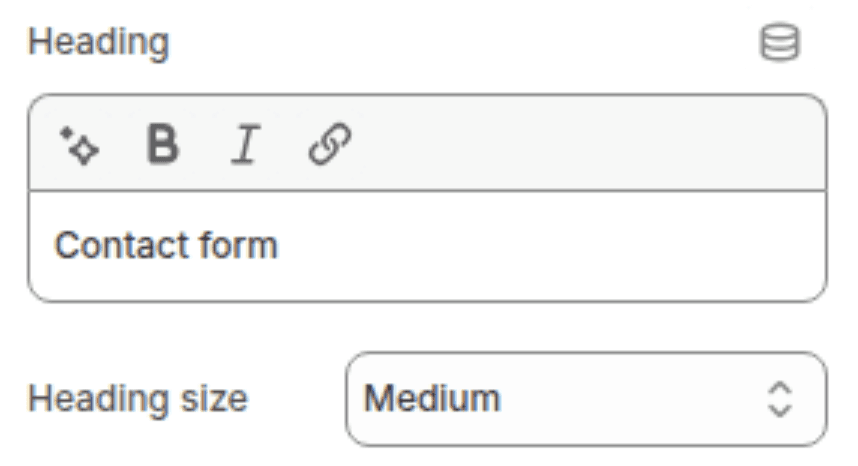
The section title displayed above the form. Supports inline rich text (bold, italic, links). Leave blank to hide the visible heading — a visually hidden heading is still rendered for screen readers.
"Contact"
Heading size
Controls the visual size of the section heading. Options: Small (h2), Medium (h1), Large (h0), Extra Large (hxl), Extra Extra Large (hxxl).
Medium (h1)
Colors
Settings
Description
Default
Color scheme
Sets the background and text color of the section.
Scheme 1

Spacing
Settings
Description
Default
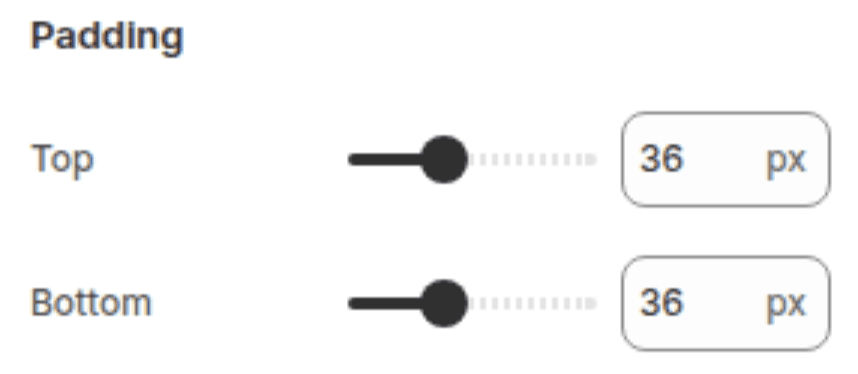
Padding top
Sets the top padding of the section (0px – 100px).
36px
Padding bottom
Sets the bottom padding of the section (0px – 100px).
36px
Customization Tips
Where Submissions Go: Form submissions are sent to the store's sender email address configured in Shopify Admin under Settings > Notifications > Sender email. They also appear in the Inbox section of Shopify Admin (under Orders > Inbox or the dedicated Inbox app). There is no way to redirect submissions to a different email address from within the theme — this is controlled entirely by Shopify Admin settings.
Required Fields: Only the Email field is required. Name, Phone, and Message are all optional. Customers can submit the form with only a valid email address and all other fields blank — keep this in mind when reviewing submissions, as messages without a name or body text are valid.
Phone Field Format: The Phone field uses HTML
telinput type and only accepts digits and hyphens via a pattern attribute. Letters and special characters other than hyphens will not pass browser-level validation. International formats with+country codes may not validate correctly depending on the browser.Auto-fill for Logged-in Customers: Logged-in customers have their Name, Email, and Phone fields pre-filled automatically from their account profile. This reduces friction significantly for returning customers making enquiries — it is not a setting that can be disabled.
No Blocks or Custom Fields: The Contact Form section has no blocks and no way to add custom fields (e.g. Order number, Subject, dropdown selectors). If additional fields are required, a third-party form app such as Shopify Forms, Hulk Form Builder, or Grapevine will be needed.
Narrow Column Layout: The form always renders in a narrow centered column regardless of how the section is placed on the page. This is by design and cannot be widened through settings. If a wider form layout is needed, a custom section or third-party app is required.
Spam Protection: Shopify's contact form includes built-in spam protection via a hidden honeypot field. No additional CAPTCHA configuration is required within the theme.