
Featured Collection Section Documentation
The Featured Collection section is used to showcase a curated set of products from a specific collection on any page of your store. It supports both grid and slider layouts, making it ideal for homepages, landing pages, or campaign pages where you want to highlight best-sellers or new arrivals.
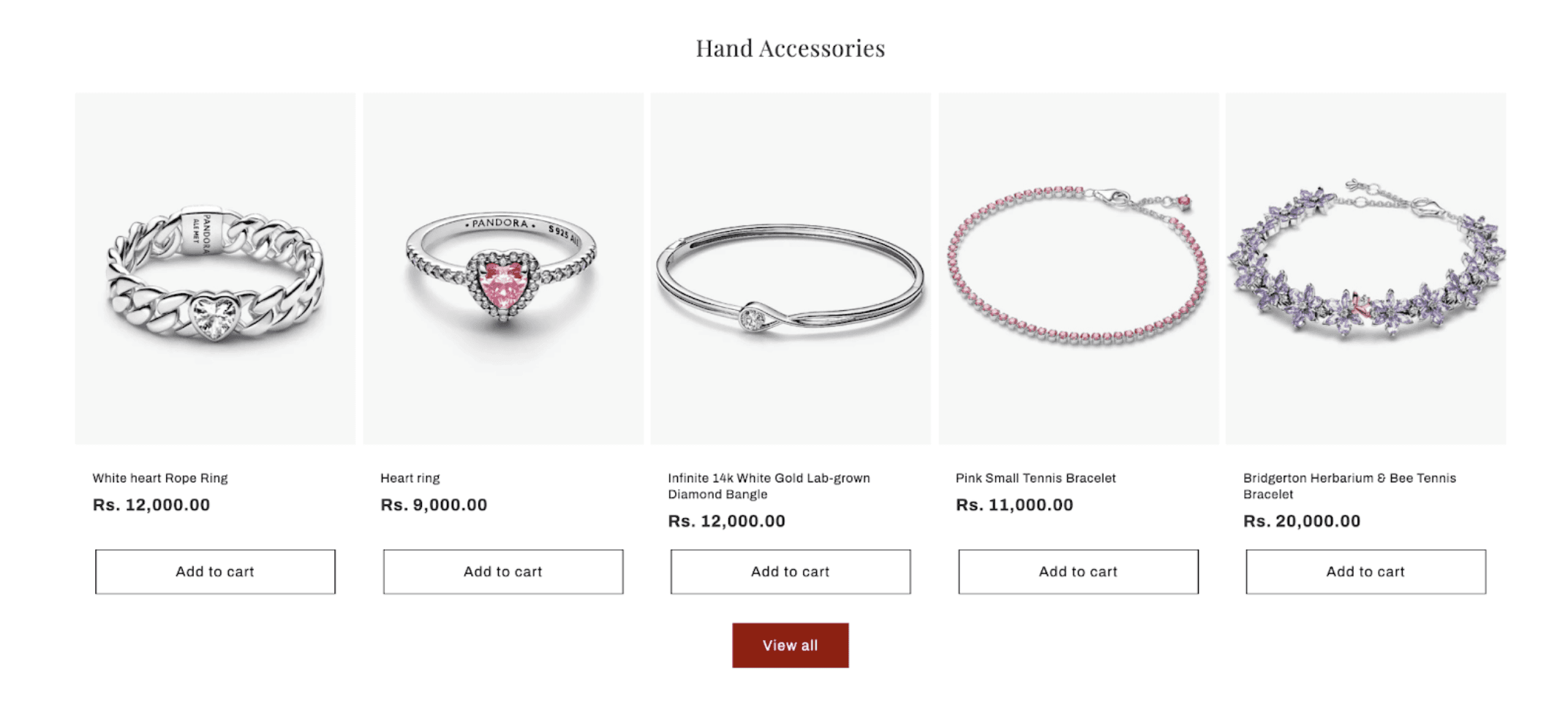
[Screenshot: Featured Collection section on homepage – showing product grid with title and "View All" button]
Features
Collection Picker: Select any published collection to display its products.
Flexible Grid: Choose between 1–5 columns on desktop and 1–2 columns on mobile.
Slider Mode: Enable a horizontal slider on desktop and/or swipe on mobile.
Full-Width Layout: Stretch the section edge-to-edge for a bold visual impact.
Quick Add: Let customers add products to cart directly from the grid (Standard or Bulk).
Product Card Options: Show secondary images, vendor, ratings, and configure image shapes/ratios.
View All Button: Optionally link back to the full collection page.
Color Scheme: Apply any of your theme's color schemes to the section background.
Section Padding: Fine-grained control over top and bottom spacing.
Settings
Collection
Settings
Description
Default
Collection
The Shopify collection whose products will be displayed.
(none)
Products to show
Number of products to display (2–25)
5
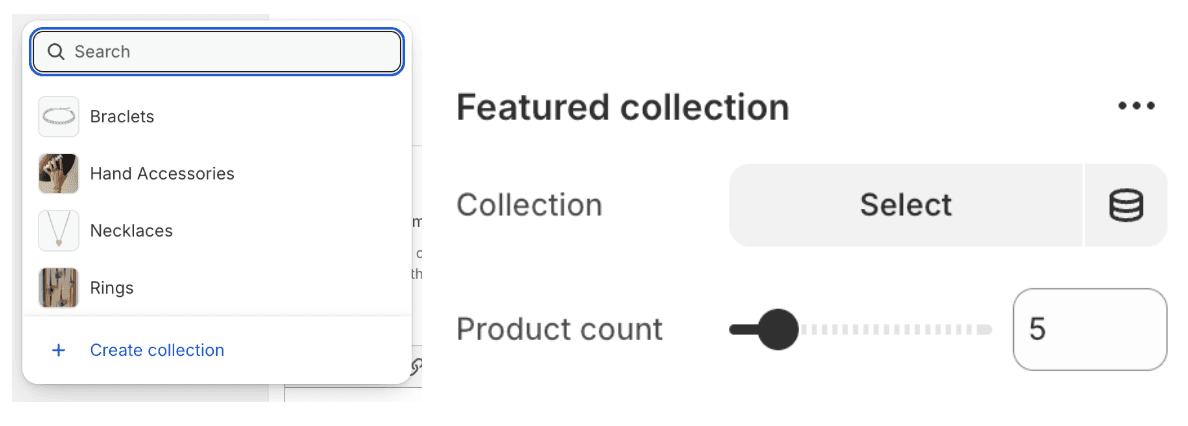
[Screenshot: Theme Editor > Featured Collection > Collection picker]
Text / Heading
Setting
Description
Default
Use collection name as title
When enabled, the collection's name is used automatically as the section heading instead of the custom title field.
Enabled
Title
Custom heading text displayed above the product grid (used only when "Use collection name as title" is disabled).
(blank)
Heading size
Controls the visual size of the title (Small → Extra Extra Large).
H2
Description
A custom body of text displayed below the heading.
(blank)
Show collection description
Displays the collection's own description from Shopify admin instead of the custom description field.
Enabled
Description style
Visual style of the description text: Body, Subtitle, or Uppercase.
Body
Text alignment
Aligns the heading and description: Left, Center, or Right.
Center

[Screenshot: Section heading "Necklaces" with subtitle text, center-aligned above the product grid]
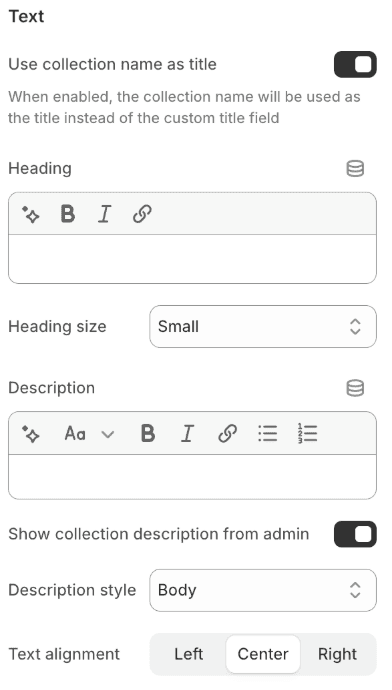
[Screenshot: Theme Editor > Featured Collection > Header Text settings panel]
Collection Layout
Setting
Description
Default
Columns on desktop
Number of product columns on desktop screens (1–5).
5
Enable desktop slider
Converts the grid into a horizontally scrollable slider on desktop when products exceed the column count.
Disabled
Full width
Stretches the product grid to the full browser width, removing page margins.
Disabled
Show "View All" button
Displays a link/button below the grid that navigates to the full collection page.
Enabled
"View All" button style
Appearance of the button: Link (underlined text), Outline (bordered), or Solid (filled).
Solid
Color scheme
Background and text color based on your theme's color schemes.
Scheme 1
[!NOTE] Screenshot Placeholder – Add a screenshot showing the desktop slider in action with navigation arrows visible.
[Screenshot: Featured Collection with desktop slider enabled, showing prev/next arrows and slide counter]
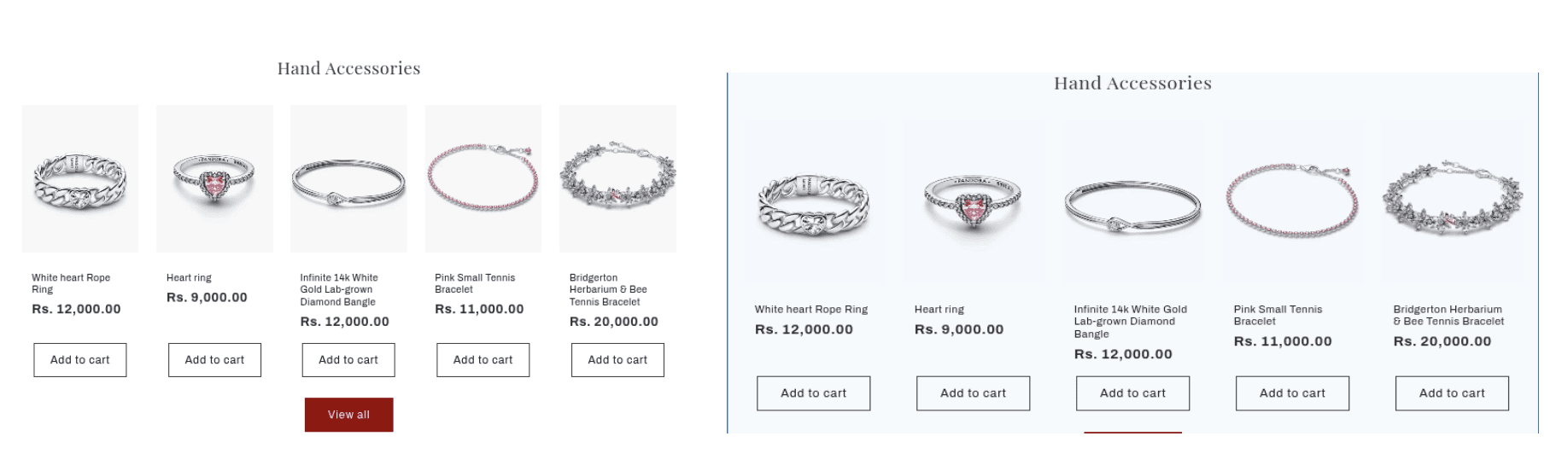
[Screenshot: Left – normal page-width grid; Right – full-width grid spanning edge to edge]

[Screenshot: Three "View All" button variants – Link, Outline, and Solid]
Product Card
Setting
Description
Default
Image ratio
Aspect ratio of the product image: Adapt (original), Portrait (2:3), or Square (1:1).
Portrait
Image shape
Shape mask applied to product images: Default, Arch, Blob, Chevron Left/Right, Diamond, Parallelogram, or Round.
Default
Hover image Mode
Controls what happens when a customer hovers over a product card image
Secondary Image
Max carousel images
Maximum number of product images to show in the hover carousel (only applies when hover mode is Carousel)
5
Carousel autoplay speed
Time between image transitions in milliseconds (only applies when hover mode is Carousel)
1200ms
Show vendor
Displays the product's vendor/brand name on the card.
Disabled
Show rating
Displays the product's star rating (requires a ratings app).
Disabled
Quick Add
Adds a quick-add button on product cards: None, Standard (single variant), or Bulk (quantity selector).
Disabled
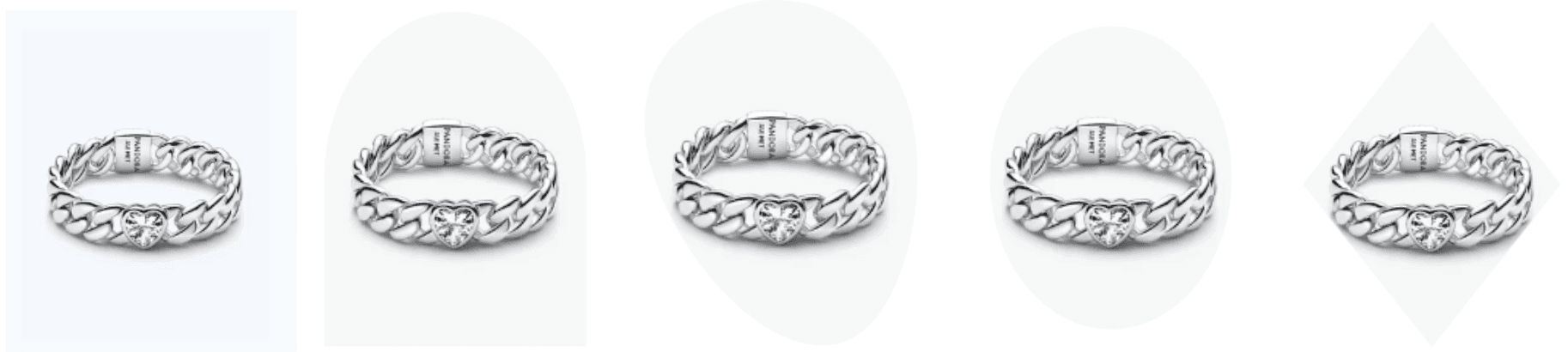
[Screenshot: Product card image shape variants – Default, Arch, Blob, Round, Diamond]
[Screenshot: Left – Standard Quick Add "+" button overlay; Right – Bulk mode with quantity popover]
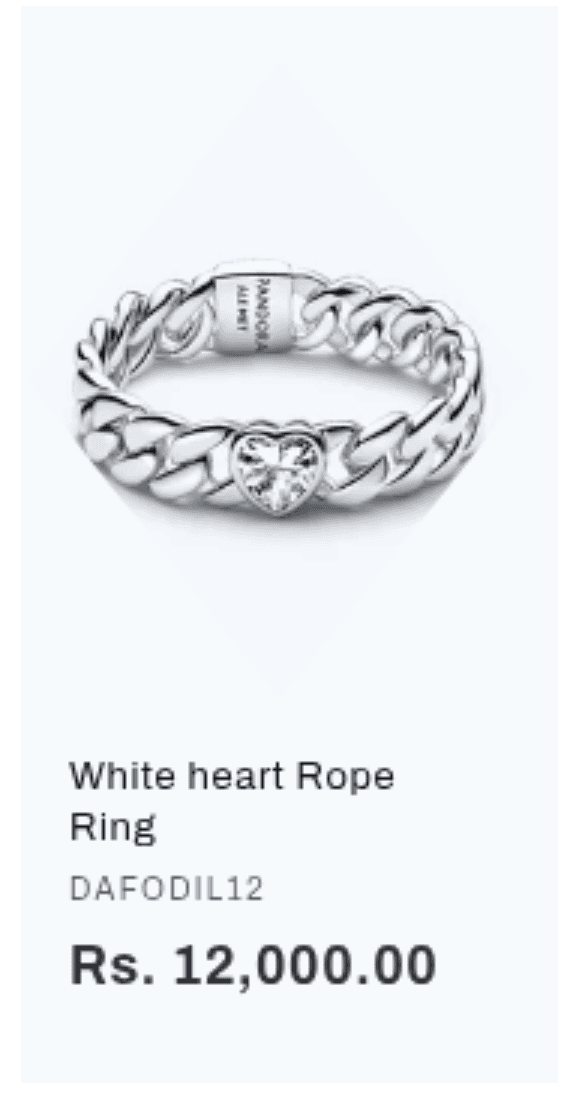
* rating not coming
[Screenshot: Product card showing vendor "Brand Name" and 4-star rating beneath the product title]
Mobile
Setting
Description
Default
Columns on mobile
Number of product columns on mobile screens: 1 or 2.
2
Enable swipe on mobile
Converts the grid into a horizontally swipeable slider on mobile.
Disabled
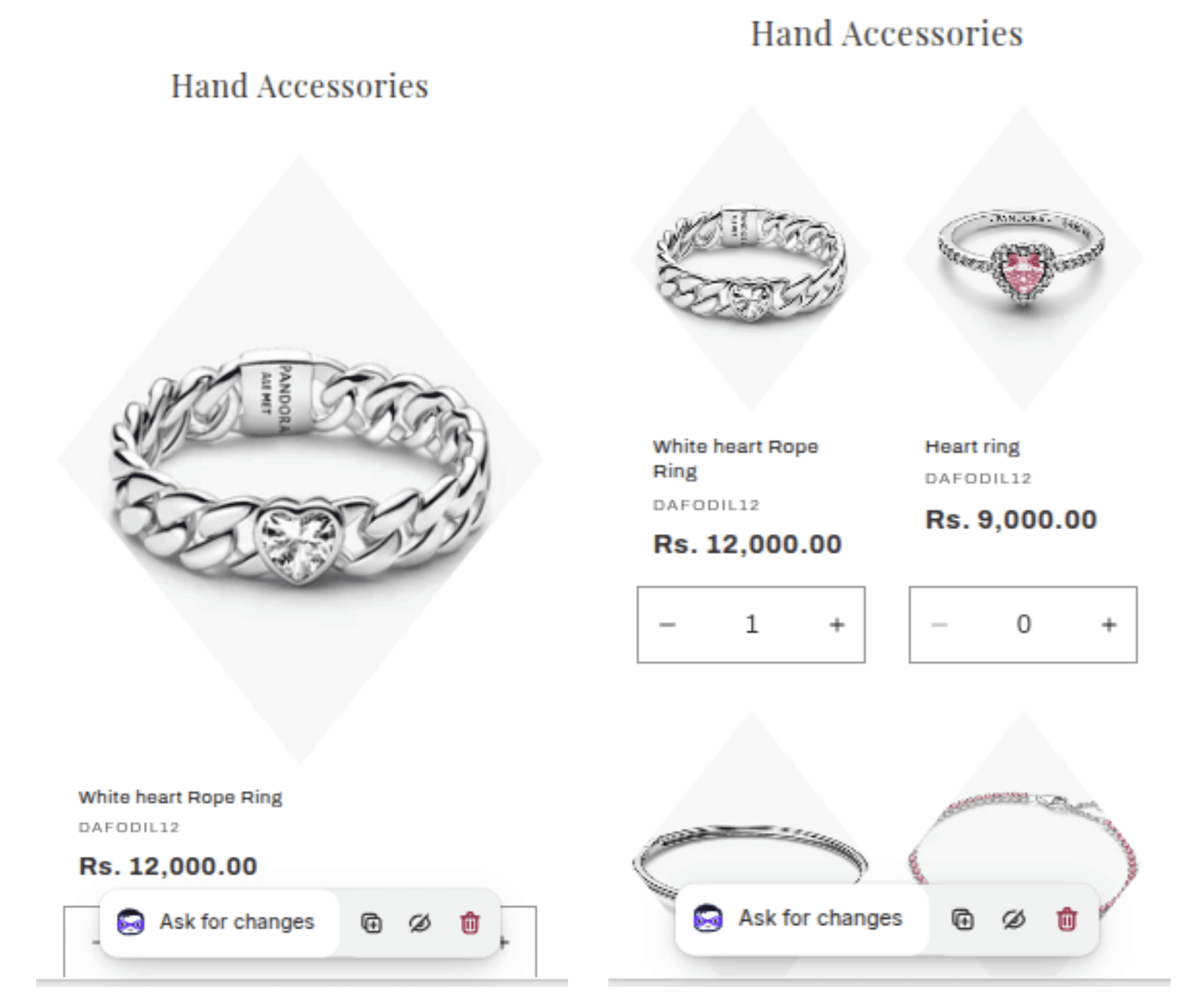
[Screenshot: Mobile view – Left: 1 column layout; Right: 2 column layout]
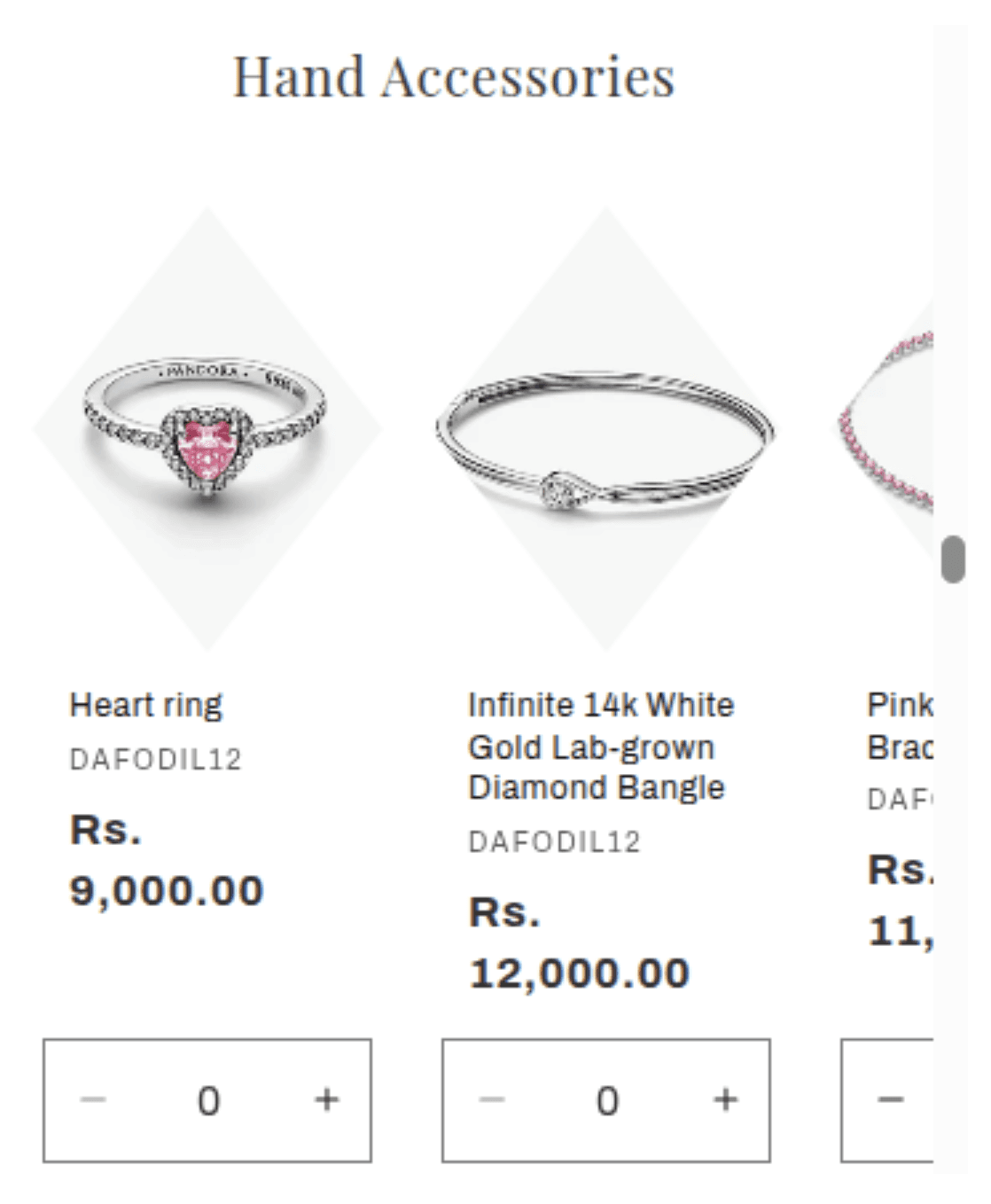
[Screenshot: Mobile swipe slider showing partial peek of next product card]
Section Padding
Setting
Description
Default
Padding top
Space above the section content (0–100px, in 4px steps).
36px
Padding bottom
Space below the section content (0–100px, in 4px steps).
36px
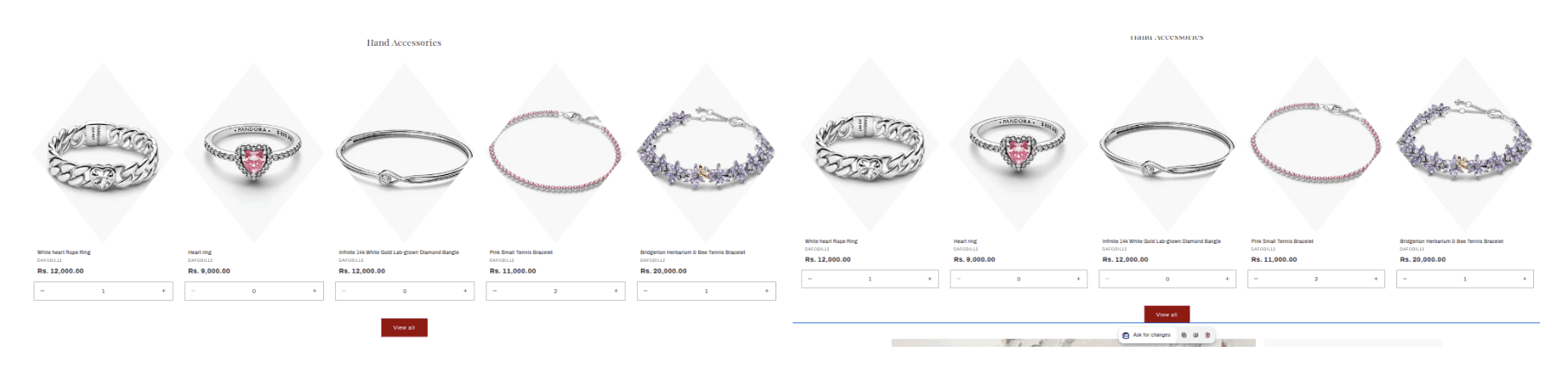
[Screenshot: Section with 36px padding (default) vs 0px padding, illustrating spacing difference]
Customization Tips
Collection Name as Title: Enable "Use collection name as title" to keep your heading automatically in sync with the collection name in Shopify admin — no need to update the theme every time the collection name changes.
Slider vs Grid: Enable the desktop slider when you want to show more products than your column count allows without overwhelming the layout. The slider adds prev/next navigation arrows and a slide counter automatically.
Quick Add – Bulk Mode: Bulk Quick Add is ideal for stores where customers typically buy multiple quantities (e.g., wholesale or consumables). It adds a quantity popover and price-per-item display directly on the card.
Image Shape: The "Blob" and "Arch" shapes load additional CSS mask files. These add visual flair but use them consistently across sections for a cohesive look.
Ratings: The "Show rating" option requires a third-party Shopify ratings/reviews app (e.g., Judge.me, Yotpo) with metafield support to display correctly.
Full Width + Slider: Combining "Full width" with the desktop or mobile slider gives a premium, magazine-style product carousel that spans the entire screen width.