
Page Section Documentation
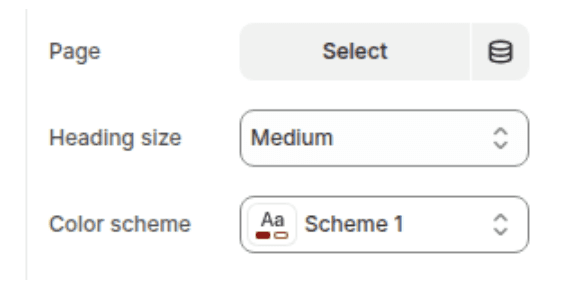
The Page section is the core content section of the page template. It renders the title and rich text content of whichever Shopify page the template is assigned to — content is managed entirely from the Shopify Admin Pages editor, not from the theme editor. This section exists in the page template by default and should not be removed. It has only two settings: top and bottom padding.
Features
Automatic Page Title: Renders the page's title from Shopify Admin as a large display heading (h0 size) automatically — the title cannot be changed from the theme editor.
Full Rich Text Content: Displays the page's complete content from the Shopify Admin page editor, including paragraphs, headings, bold, italic, lists, links, images, tables, and embedded videos.
Narrow Centered Layout: Content always renders in a narrow centered column for comfortable reading width, regardless of how wide the browser window is.
Scroll Animations: The page title fades in and the content slides in on scroll if animations are enabled in Theme Settings.
No Blocks: This section has no blocks — all content is managed through the Shopify Admin Pages editor.
Settings
Use this option when uploading a video file directly to your Shopify store via the Files section in Admin (Settings > Files) or the theme editor's video picker.
Spacing
Settings
Description
Default
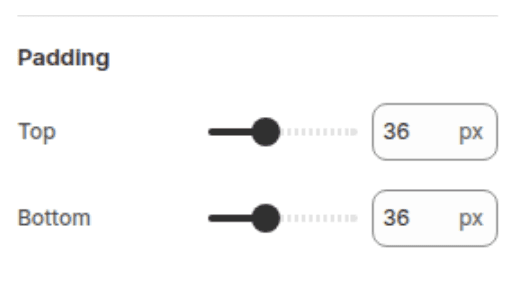
Padding top
Sets the top padding of the section (0px – 100px).
36px
Padding bottom
Sets the bottom padding of the section (0px – 100px).
36px
Content Management
All content displayed by this section is authored in the Shopify Admin Pages editor. The section itself only controls spacing — everything else is part of the page record.
Settings
Managed in
notes
Page title
Admin Pages editor — Title field
Rendered on the storefront as a large h0 display heading. Cannot be styled or hidden from the theme editor.
Page content
Admin Pages editor — Content body
Supports full rich text: paragraphs, H2–H4 headings, bold, italic, lists, links, images, tables, and HTML embeds.
Page URL (handle)
Admin Pages editor — URL and handle field
Determines the page's URL slug (e.g. /pages/about-us).
SEO title and description
Admin Pages editor — Search engine listing preview
Controls what appears in search engine results for this page.
Page visibility
Admin Pages editor — Visibility setting
Set to visible to publish, or hidden to draft the page without removing it from the template.
Customization Tips
Content Is Not Editable in the Theme Editor: Unlike most other sections, clicking on the text content in the theme editor preview does not open an editable panel. All text changes must be made in Shopify Admin > Online Store > Pages. This is by design — the Page section is a read-only renderer of the page record.
Page Title Styling: The page title always renders at h0 size (the largest heading level in the theme). Its font, color, and weight are controlled by the global typography settings in Theme Settings > Typography and cannot be overridden per page from within this section.
Rich Text Formatting in the Editor: The Shopify Pages rich text editor supports H2, H3, and H4 headings within the content body. Using H2 for main subheadings and H3 for sub-subheadings creates a clean visual hierarchy beneath the automatic H1 page title. Avoid using H1 tags inside the page content — the page title already renders as H1.
Inserting Images: Images can be inserted directly into page content via the Insert image button in the Pages editor toolbar. Images are uploaded to Shopify's CDN and rendered inline within the page content. Image sizing is constrained by the narrow column width of the section — very wide images will be scaled down to fit.
Adding Videos: Videos can be embedded into page content using the Insert video button in the toolbar (for Shopify-hosted video) or by pasting a YouTube or Vimeo embed code in the HTML editor view. For a larger, more prominent video presentation, consider adding a separate Video section below the Page section on the page template instead.
Narrow Column is Fixed: The Page section always renders content in a narrow centered column — this width cannot be changed from the settings. If a full-width content layout is needed on a page (for example, a landing page with multiple wide sections), add other sections below this one or consider building the page without using the default page template.
Multiple Pages, One Template: The default page template (with this section) is shared across all pages assigned to it. Adjusting the padding settings in the theme editor changes the spacing for every page using that template — not just the one being previewed. To give a specific page different padding, it needs its own custom page template with a separate instance of this section.
Do Not Remove This Section: The Page section is the only content renderer on the page template. Removing it will cause the page title and all content to disappear from the storefront, leaving the page blank. Other sections can be added above or below it, but the Page section itself should always remain on the template.