
Collection Icon Carousel Section Documentation
The Collection Icon Carousel section displays a horizontal scrollable list of collection icons. It is designed for quick visual navigation, allowing customers to jump to specific categories using simple, recognizable icons or small images.
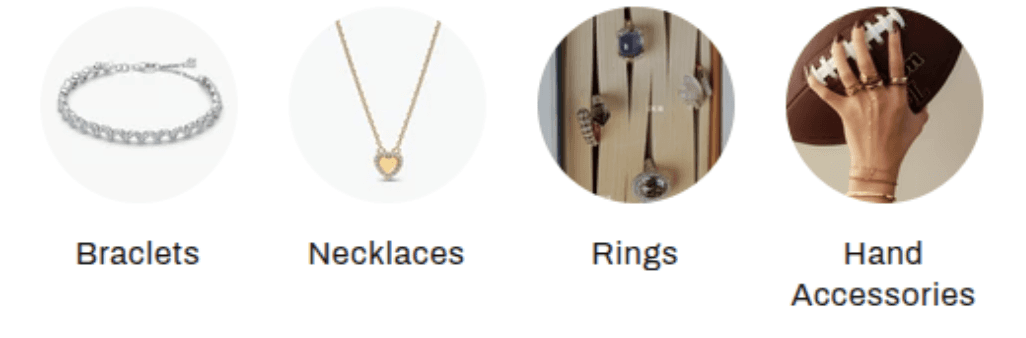
[Screenshot: Collection Icon Carousel showing a row of circular/square collection icons with titles]
Features
Visual Navigation: Uses small icons or featured images for a compact category list.
Auto-Scroll: Horizontal scrolling interaction on both desktop and mobile.
Flexible Sizing: independent control over icon sizes for desktop and mobile devices.
Smart Layout: Options to center the list if there are few items, or left-align for longer lists.
Custom Spacing: Adjust the gap between icons to control information density.
Settings
Heading
Settings
Description
Default
Title
Custom heading text displayed above the collection grid.
Collection List
Heading size
Controls the visual size of the title (Small → Extra Extra Large).
H1
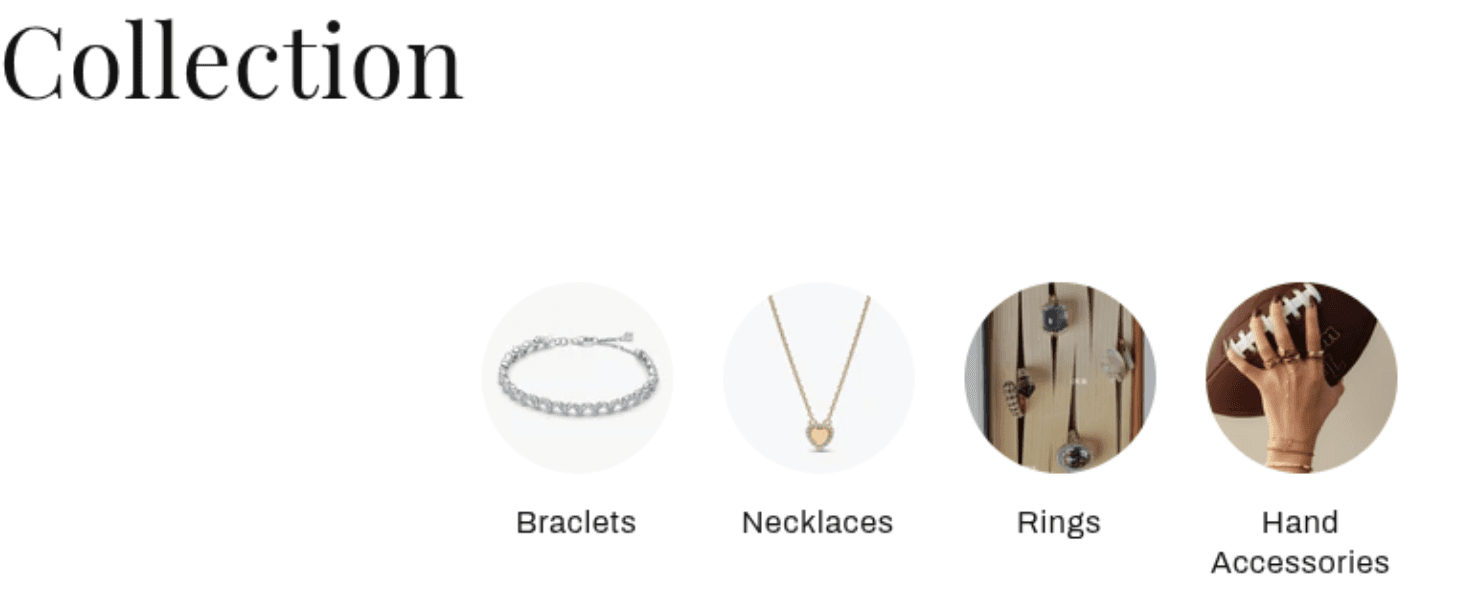
[Screenshot: Section with title "Browse by Category" above the icons]
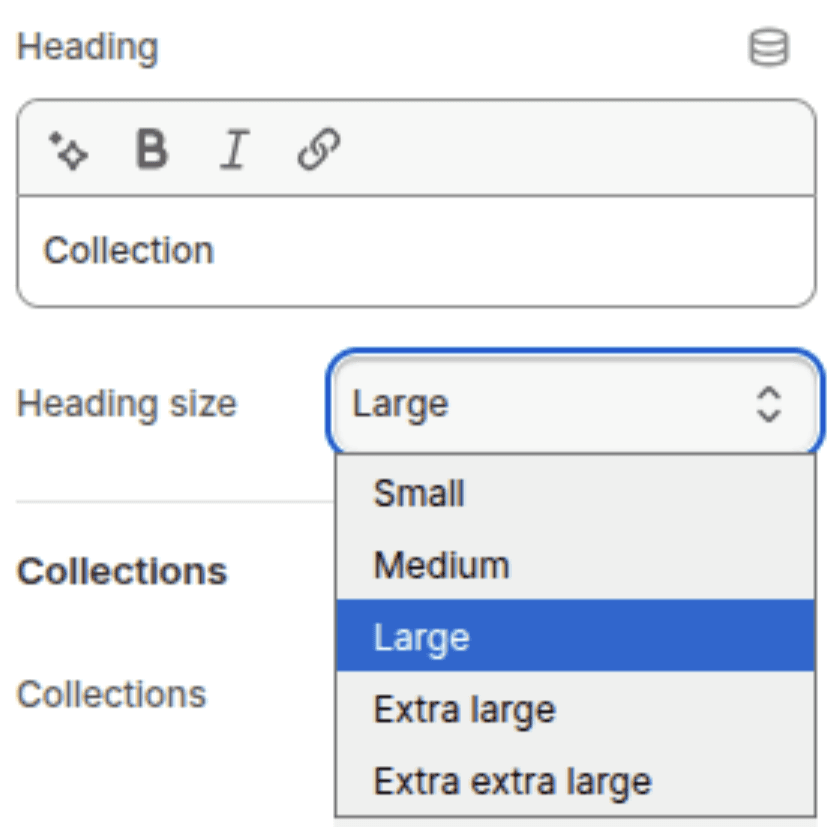
[Setting : Collection]
Collections
Settings
Description
Default
Collections
The list of collections to display.
none
Maximum collections to show
Limits the number of collections displayed from the selected list (0–50).
12
Center collections
Centers the icons in the container when they don't fill the full row width.
Enabled
Item spacing
Controls the horizontal gap between each icon (0px–60px).
16px
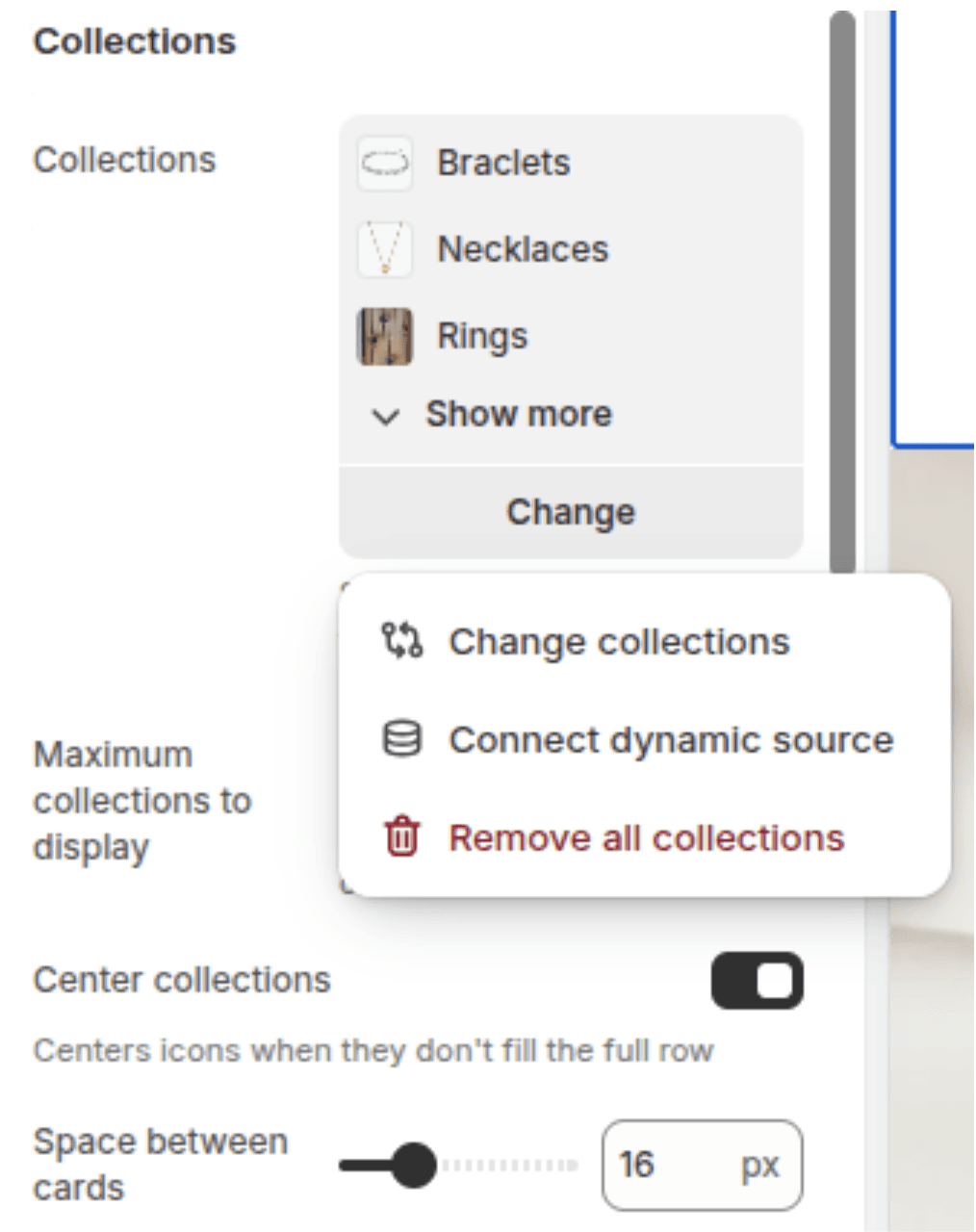
[Screenshot: Theme Editor showing the collection list selection interface]

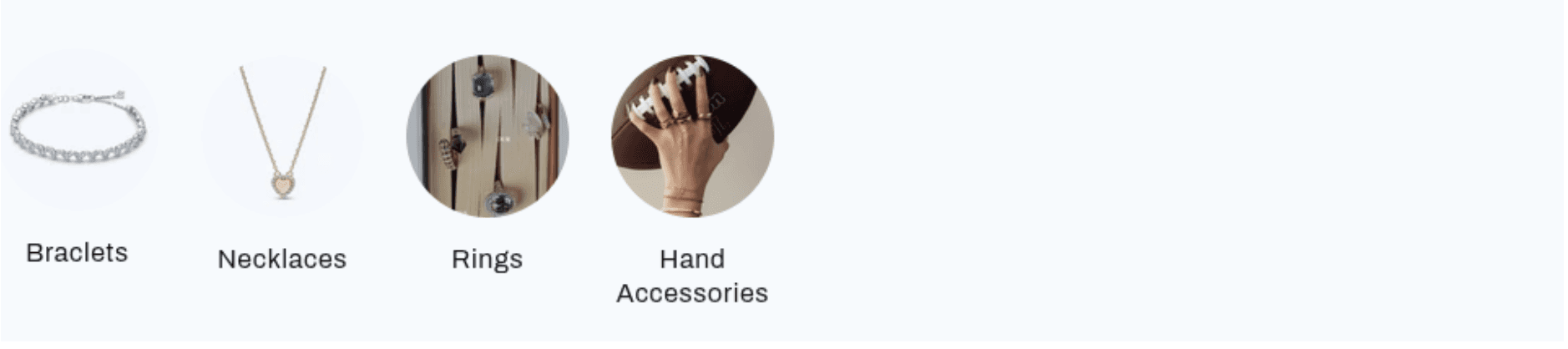
[Screenshot: Top: Icons centered in the middle of the screen; Bottom: Icons aligned to the left]
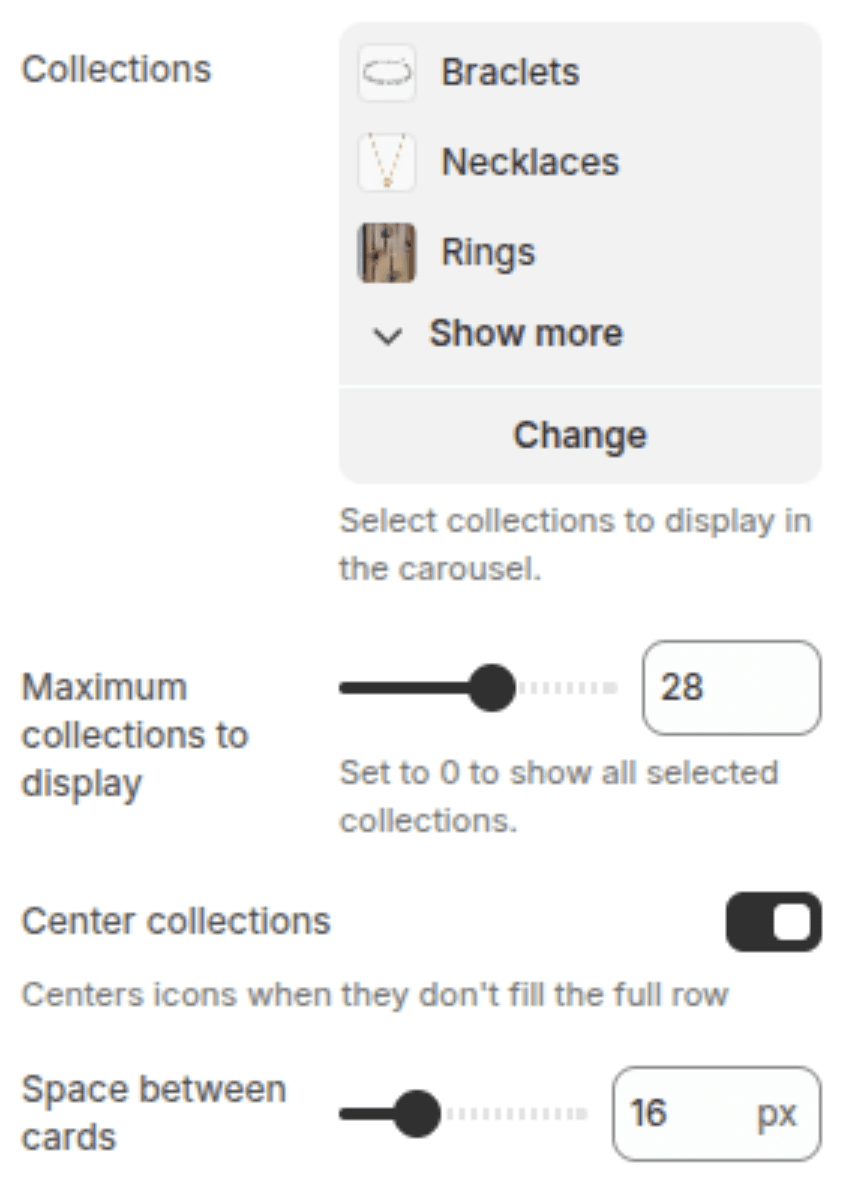
[Setting : Collection]
Icon Appearance
Settings
Description
Default
Icon size (Desktop)
Width/Height of the icons on desktop screens (60px–200px).
120px
Icon size (Mobile)
Width/Height of the icons on mobile screens (50px–150px).
100px
Color scheme
Sets the background and text colors based on your theme's color schemes.
Scheme 1
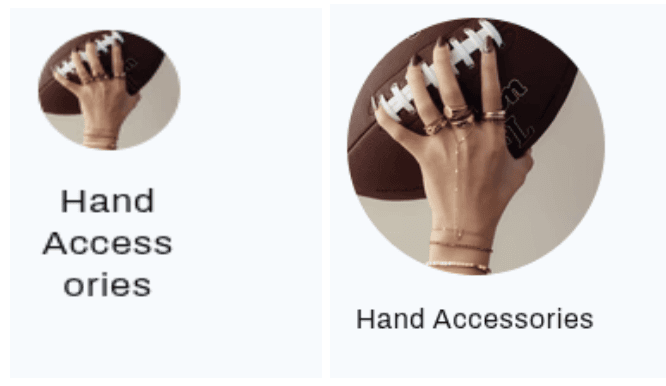
[Screenshot: Left: Small 60px icons; Right: Large 150px icons]
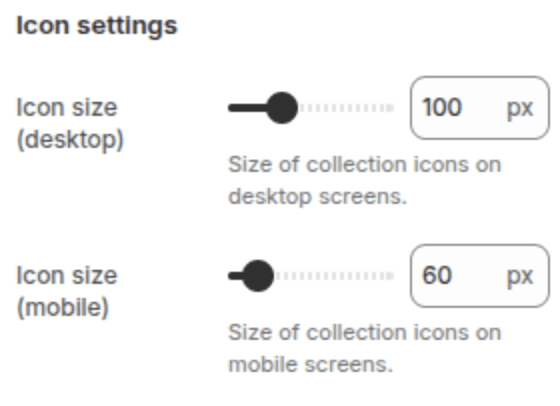
[Setting : Icon Setting]
Section Padding
Settings
Description
Default
Padding top
Space above the section content (0–100px, in 4px steps).
20px
Padding bottom
Space below the section content (0–100px, in 4px steps).
20px
[!NOTE] Screenshot Placeholder – Add a screenshot showing the section with minimal vertical padding.

[Screenshot: Compact view of the section with 20px top/bottom padding]
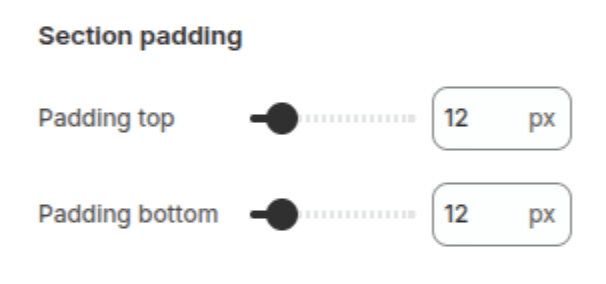
[Setting : Section Padding]
Customization Tips
Image Choice: This section works best with square images or icons. If using product photos, ensure they are cropped similarly to maintain a uniform look.
Navigation Use: Place this section near the top of the homepage (under the hero banner) to act as a primary navigation menu for your main categories.
Mobile Optimization: Use the Icon size (Mobile) setting to ensure icons are large enough to be tap-friendly but small enough to fit several on screen at once.
Placeholder Fallback: If a collection has no image, the theme will display a simple placeholder with the first letter of the collection name.