
Featured Collection List Section Documentation
The Collection List section allows you to feature a set of collections in a grid or slider layout. It's perfect for high-level navigation, category browsing on the homepage, or highlighting seasonal collections.
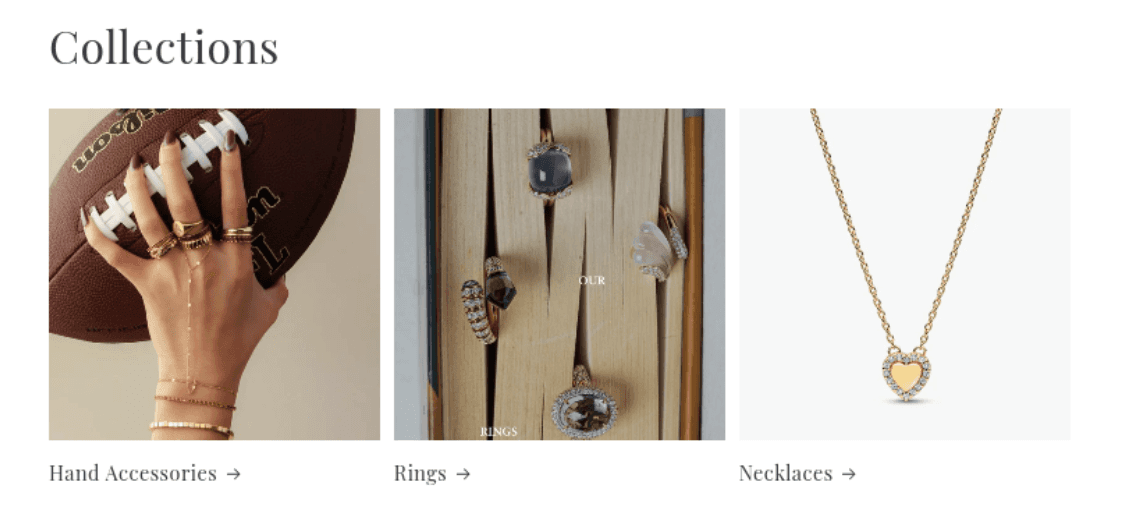
[Screenshot: Collection List section showing 3 featured collections in a row with a heading]
Features
Curated Selection: Manually choose which collections to display and in what order.
Flexible Grid: Display up to 6 columns on desktop and 1 or 2 columns on mobile.
Mobile Swipe: Optionally enable a swipeable slider on mobile devices.
Aspect Ratio Control: Uniformly control the image ratio (Portrait, Square, or Adapt) for a clean look.
View All Button: Optional link to the full collections index page.
Custom Styling: Adjust color schemes and section padding.
Settings
Heading
Settings
Description
Default
Title
Custom heading text displayed above the collection grid.
Collection List
Heading size
Controls the visual size of the title (Small → Extra Extra Large).
H1
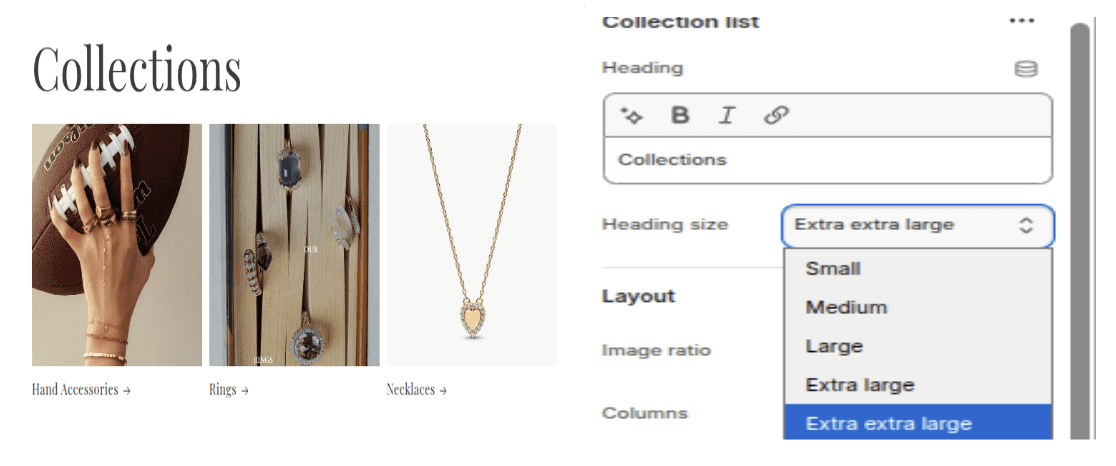
[Screenshot: Section title "Shop by Category" in H1 size]
Layout & Appearance
Settings
Description
Default
Image ratio
Aspect ratio of the collection images: Adapt (original), Portrait (2:3), or Square (1:1).
Square
Columns on desktop
Number of columns to display in a single row (1–6).
3
Color scheme
Sets the background and text colors based on your theme's color schemes.
Scheme 1
Show "View All" button
Displays a button linking to the /collections page if there are more collections than shown.
Disabled
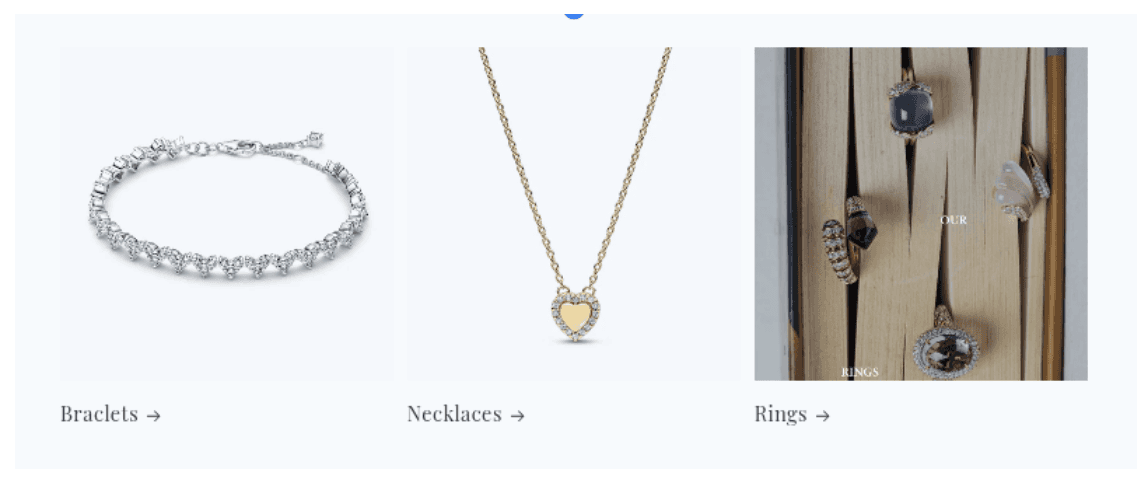
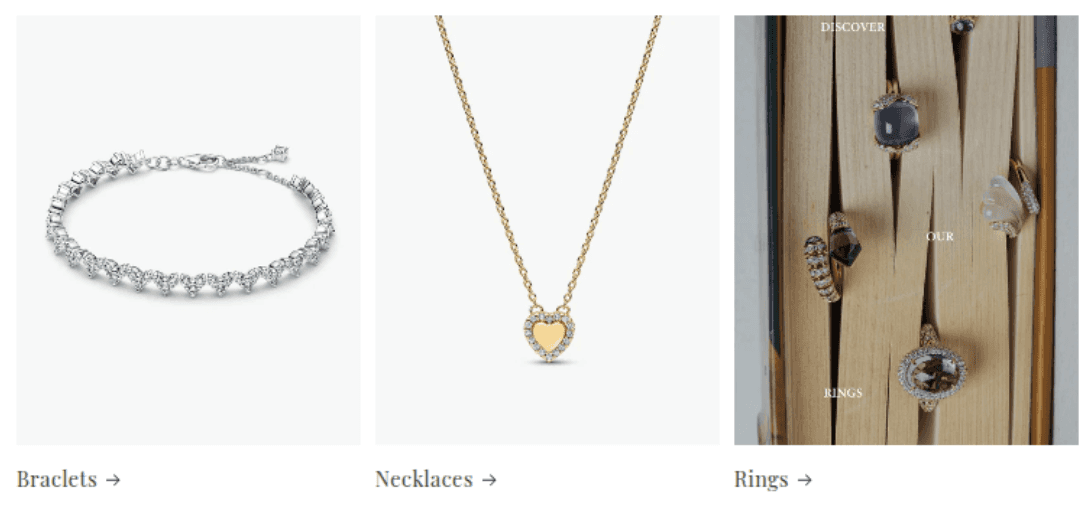
[Screenshot: Section title "Shop by Category" in H1 size]
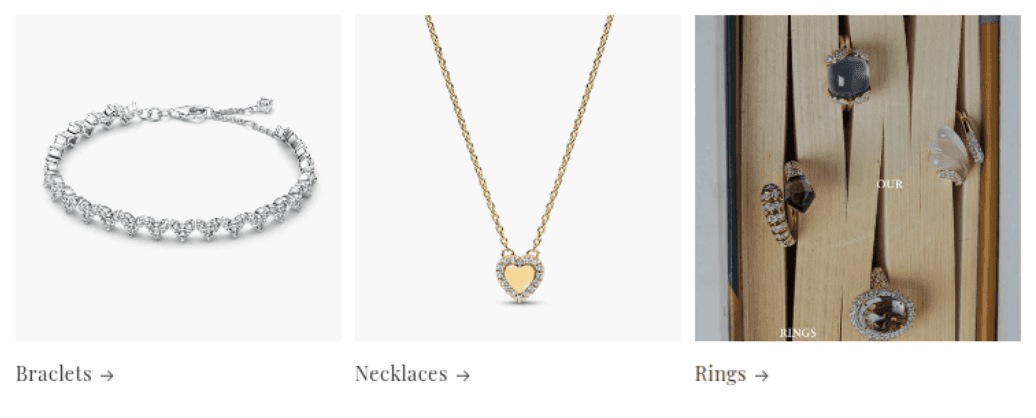
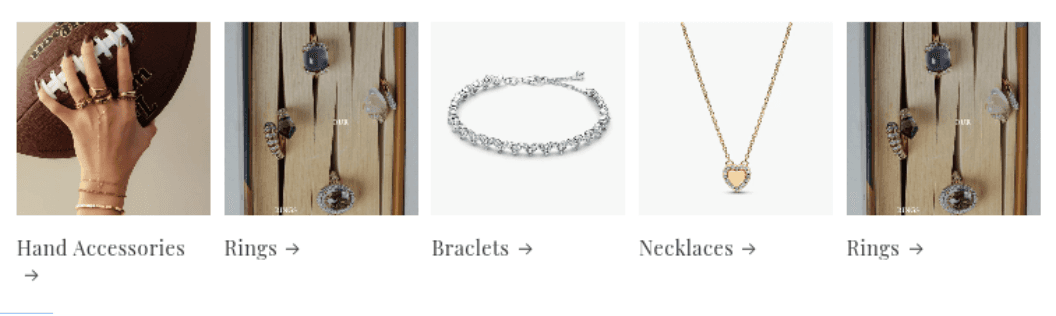
[Screenshot: Desktop view showing layout density changes with different column counts]
Mobile
Settings
Description
Default
Columns on mobile
Number of columns on mobile screens: 1 or 2.
1
Carousel
Converts the grid into a horizontally swipeable slider on mobile devices.
Disabled
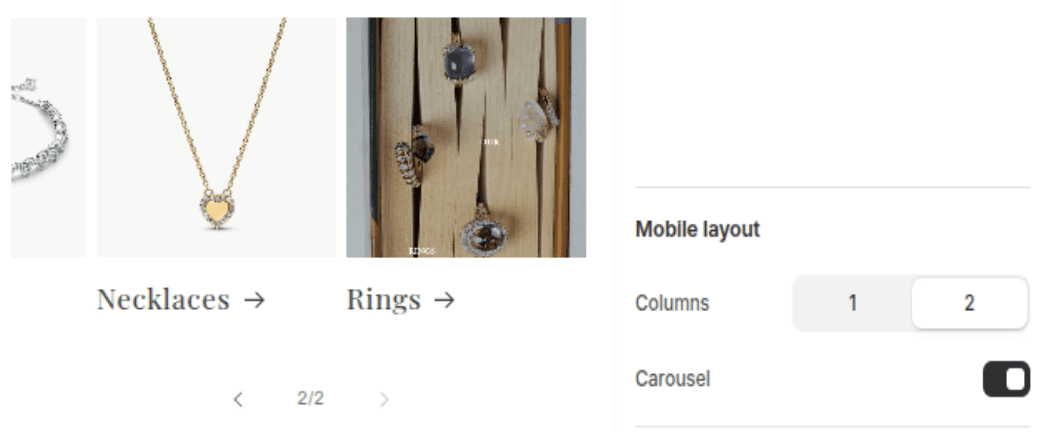
[Screenshot: Mobile interface showing a collection card partially peeking from the side indicating scroll]
Section Padding
Settings
Description
Default
Padding top
Space above the section content (0–100px, in 4px steps).
36px
Padding bottom
Space below the section content (0–100px, in 4px steps).
36pc
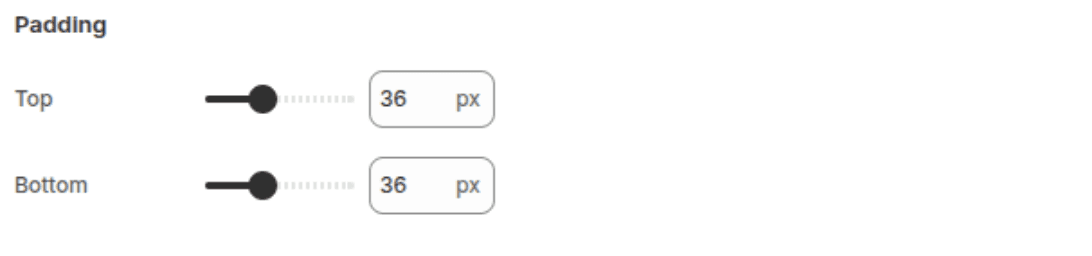
[Screenshot: Collection List section with standard top/bottom spacing]
Blocks
The section is built using individual blocks, where each block represents one collection.
Additional Content
Settings
Description
Default
Collection
The specific collection to link to and display an image from.
(None)
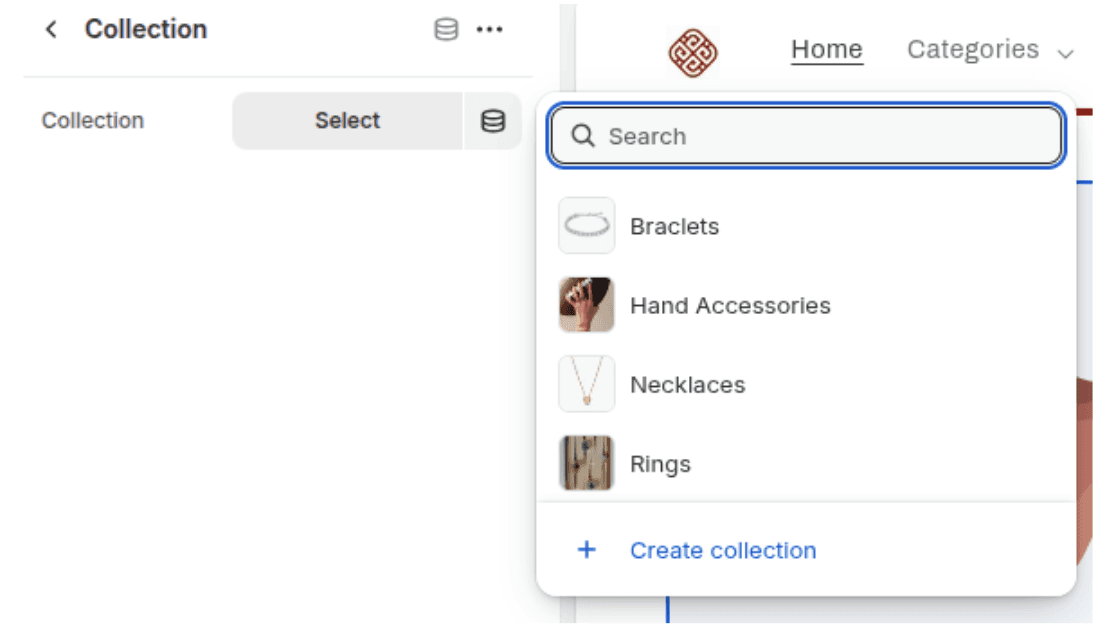
[Screenshot: Theme Editor block settings showing the Collection picker]
Customization Tips
Image Consistency: Use the Image ratio setting (Square or Portrait) to ensure all collection cards look uniform, even if the original collection images vary in size.
Mobile Experience: For lists with many collections (e.g., 6+), enable Swipe on mobile to keep the page length manageable on small screens.
Visual Hierarchy: Use a standard Heading size (H1 or H2) for main page sections, but consider smaller sizes if this section is used as a footer navigation aid.
Placeholder Content: If no collection is selected for a block, the theme will display a generic placeholder image.