
Featured Product Section Documentation
The Featured Product section allows you to highlight a specific product on any page of your store. It works similarly to the main product page, displaying detailed information, media, and purchase options, but within a standalone section that can be placed on homepages or landing pages.
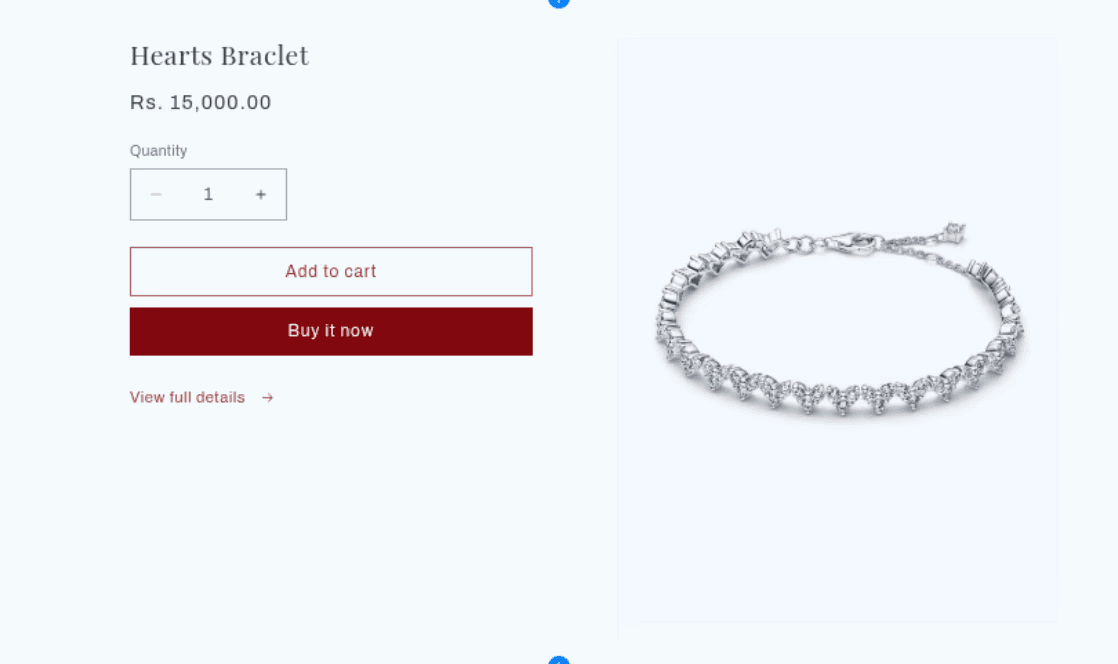
[Screenshot: Featured Product section showing product media on the left and details on the right]
Features
Product Highlighting: Select any active product to feature.
Media Options: Control media size, position (left/right), and fit (cover/contain).
Interactive Media: Supports image zoom (lightbox or hover) and video looping.
Flexible Layout: Adjust background colors and padding.
Rich Content Blocks: Customize the product details using blocks for title, price, variants, buy buttons, and more.
Icon with Text: Display key value propositions or guarantees using icons.
Settings
General & Layout
Settings
Description
Default
Product
The specific product to display.
(none)
Color scheme
Sets the color palette for the section.
Scheme 1
Secondary background
Applies a secondary background style/color if enabled.
Disabled
Media Size
Controls the width of the media column: Small, Medium, or Large.
Medium
Media Position
Aligns the media column to the Left or Right of the content.
Left
Color Constrain to viewport
Restricts media height so it fits within the screen, preventing excessive scrolling.
Enabled
Media fit
Determines how media fills its container: Contain (visible entirely) or Cover (fills area, may crop).
Scheme 1
Section padding
Controls top and bottom spacing (0px–100px).
Small icon shown in browser tabs and bookmarks. Must be a square PNG.
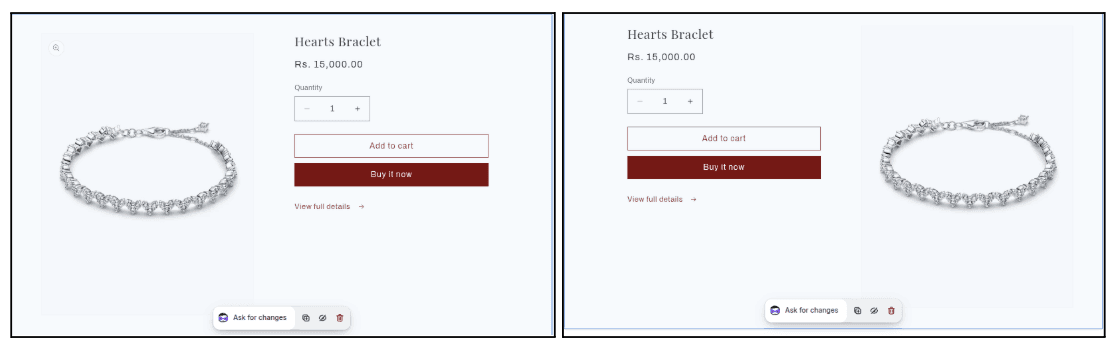
[Screenshot: Featured Product section showing product media on the left and details on the right]
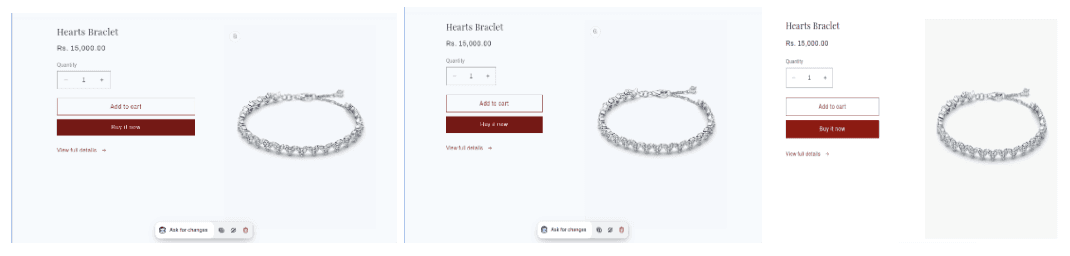
[Screenshot: Three examples side-by-side illustrating the different media column widths]
Media Behavior
This section uses blocks to build the product information column. You can add, remove, and reorder these blocks to customize the layout.
Title & Text
Block Type
Settings
Description
Title
Heading size (H1–HXXL)
Displays the product title.
Text
Text content, Text style (Body, Subtitle, Uppercase)
Displays custom text or dynamic sources like Vendor.
SKU
Text style
Displays the variant SKU.
Pricing & Purchasing
Block Type
Settings
Description
Price
(None)
Displays current price, sale price, and unit price.
Variant Picker
Type (Dropdown/Button), Swatch shape (Circle/Square/None)
Allows customers to select options like Size or Color.
Quantity Selector
(None)
Input field to adjust quantity before adding to cart.
Buy Buttons
Show dynamic checkout, Show gift card recipient
Adds "Add to Cart" and "Buy Now" buttons.
[Screenshot: Product options displayed as pill buttons vs a dropdown menu]
Additional Content
Block Type
Settings
Description
Description
(None)
Displays the product's full description.
Share
Share label
Social sharing buttons.
Ratings
(None)
Displays star rating (requires a reviews app).
Custom Liquid
Liquid Code
Insert custom code or app snippets.
Icon with Text
Layout (Horizontal/Vertical), Icons, Images, Headings
Displays up to 3 icons with accompanying text (e.g., "Free Shipping").
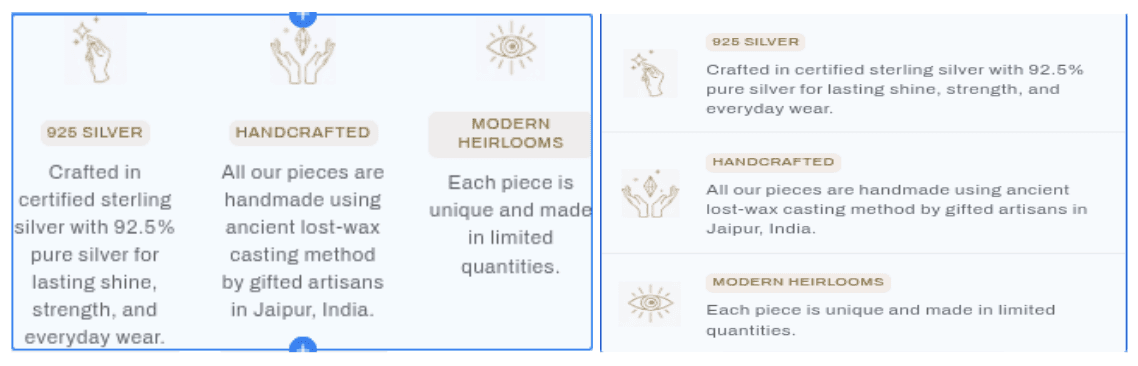
[Screenshot: Product options displayed as pill buttons vs a dropdown menu]
Customization Tips
Media Fit: Use Cover if you want images to fill the space completely for a modern look, but be aware some cropping may occur. Use Contain if seeing the entire product image is critical.
Variant Picker: Use Buttons (pills) for options with few choices (e.g., S/M/L) for better UX. Use Dropdowns if you have many variants to save space.
Icons: The "Icon with Text" block is great for trust signals. Use it to highlight policies like "Free Returns," "Secure Checkout," or "Organic Materials."
Viewport Constraint: Keep "Constrain to viewport" enabled if your product images are very tall, ensuring the buy buttons remain visible "above the fold" on desktop.