
Main Collection Product Grid Section Documentation
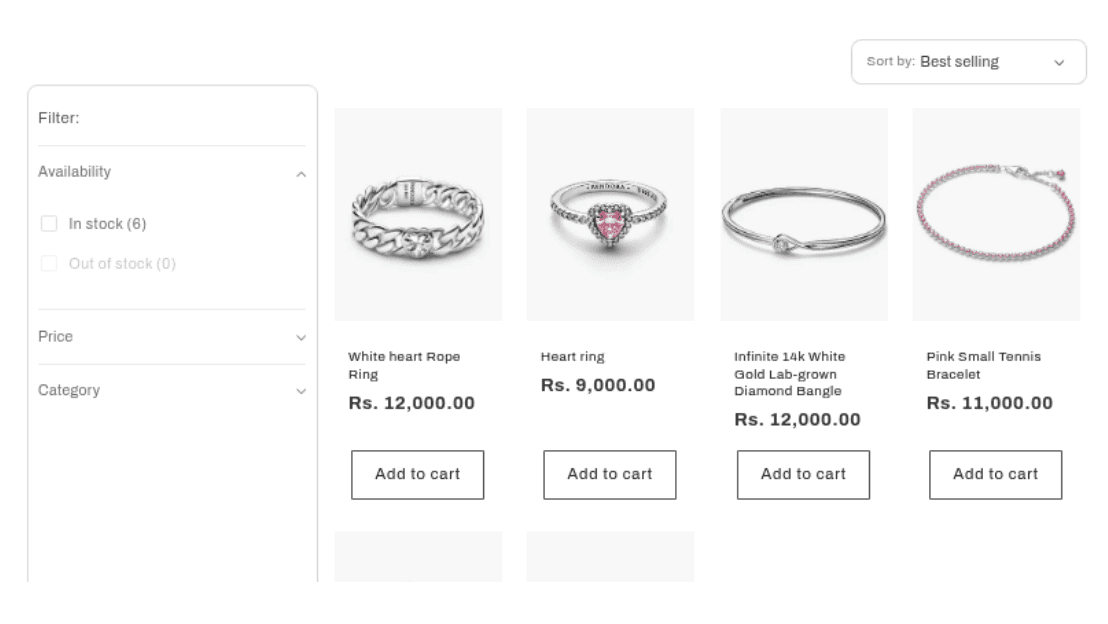
The Main Collection Product Grid section is the primary template for displaying products on collection pages. It provides a robust interface for browsing your catalog with powerful filtering, sorting, and layout controls.
Features
Advanced Filtering: Enable customers to refine products by availability, price, color, size, and more.
Sorting Controls: Allow customers to sort products by best selling, price, date, or alphabetical order.
Responsive Layout: Configure different column counts for desktop and mobile screens.
Product Card Customization: Control image aspect ratios, shapes, and display additional info like vendor and ratings.
Quick Add: Enable "Add to Cart" buttons directly on the grid (Standard or Bulk mode).
Pagination: Handle large catalogs by splitting products across multiple pages.
Settings
Grid Layout
Settings
Description
Default
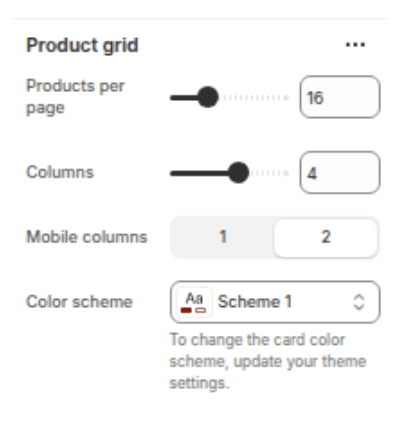
Products per page
Number of products to display on each page (8–36).
16
Columns on desktop
Number of columns in the grid on desktop (1–6).
4
Columns on mobile
Number of columns on mobile (1 or 2).
2
Color scheme
Sets the background and text colors for the section.
Scheme 1
Product Card
Settings
Description
Default
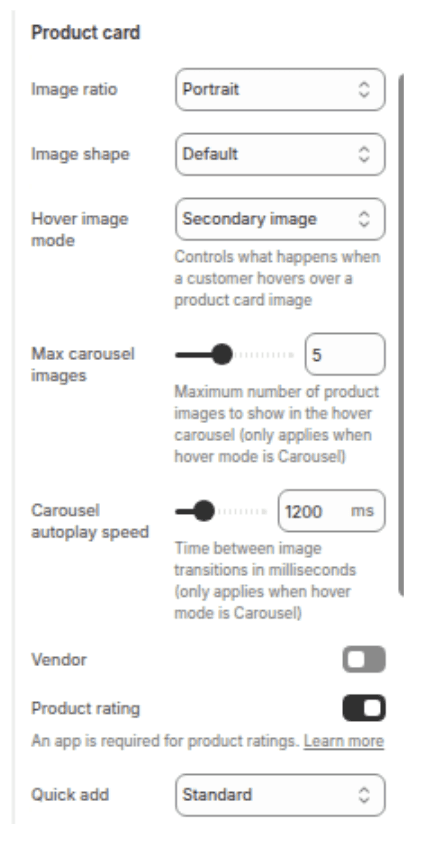
Image ratio
Aspect ratio of product images: Adapt, Portrait, or Square.
Portrait
Image shape
Mask shape for images: Default, Arch, Blob, Round, etc.
Default
Hover image mode
Controls what happens when a customer hovers over a product card image
Secondary Image
Max carousel images
Maximum number of product images to show in the hover carousel (only applies when hover mode is Carousel)
5
Carousel autoplay speed
Time between image transitions in milliseconds (only applies when hover mode is Carousel)
1200ms
Show vendor
Displays the brand/vendor name.
Disabled
Show ratings
Displays star ratings (requires app).
Disabled
Quick add
"Add to Cart" button style: None, Standard, or Bulk.
Standard
Filtering & Sorting
Settings
Description
Default
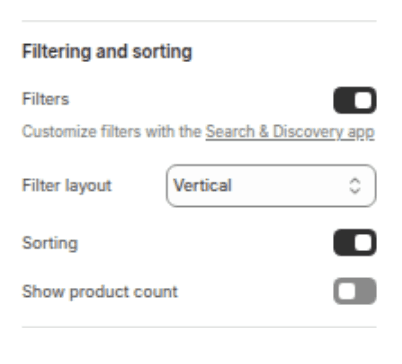
Enable filtering
Shows filter options based on your store's navigation settings.
Enabled
Filter type
Layout of filters: Horizontal, Vertical, or Drawer.
Vertical
Enable sorting
Shows the "Sort by" dropdown menu.
Enabled
Show product count
Displays the total number of products found.
Enabled
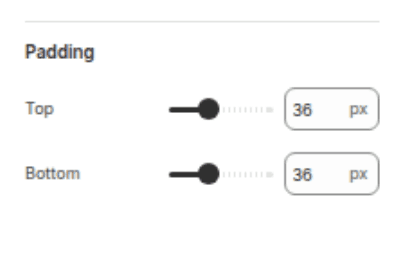
Section Padding
Settings
Description
Default
Padding top
Space above the section content (0–100px).
36px
Padding bottom
Space below the section content (0–100px).
36px
Customization Tips
Filter Experience: Use the Vertical filter type for large catalogs with many attributes (size, color, brand), as it keeps filters always visible. Use Horizontal or Drawer for a cleaner look with fewer products.
Mobile First: Set Columns on mobile to "2" to show more products at once, or "1" if your product images have detailed features that need more space.
Quick Shopping: Enable Quick add (set to "Standard" or "Bulk") to reduce friction for returning customers who already know what they want.
Visual Consistency: Ensure the Image ratio matches your other product grids (Featured Collection, etc.) for a cohesive site design.