
Image Banner Section Documentation
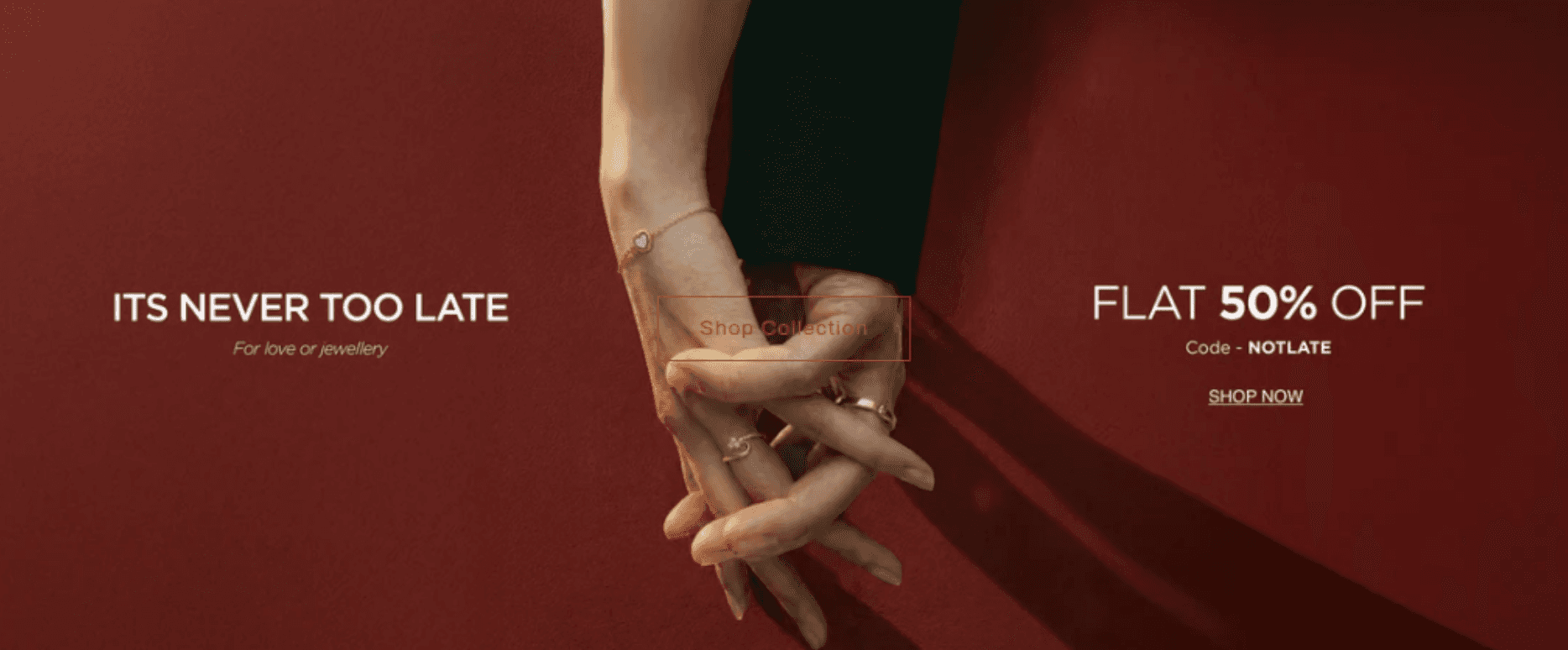
The Image Banner section displays a large full-width hero image with overlaid text content and call-to-action buttons. It is most commonly used as the first section on a homepage to create a strong visual impression, but can be placed on any page. It supports a second image for a split-screen layout, a dark overlay for text legibility, and several image animation effects.
Features
Full-Width Hero Image: Displays one image spanning the full page width with text overlaid on top.
Split-Screen Mode: Upload a second image to create a side-by-side two-image layout with the content centered between them.
Image Overlay: Adjustable dark overlay on the image to improve text contrast and readability.
Four Height Options: Adapt to image, or lock to a fixed small, medium, or large height.
Image Animations: Choose from ambient movement, parallax fixed, or zoom-in effects.
9-Point Content Positioning: Place the content box at any of nine positions across the banner (top/middle/bottom × left/center/right).
Optional Content Box Background: Toggle the colored content box background on or off for a transparent overlay look.
Mobile Controls: Independent text alignment for mobile, option to show text below the image on mobile, and control over whether dual images stack vertically.
Scroll Animations: Banner fades in and content slides in on scroll if animations are enabled in Theme Settings.
Settings
The following settings are available to customize the behavior and appearance of the Image Banner section.
Image
Settings
Description
Default
First image
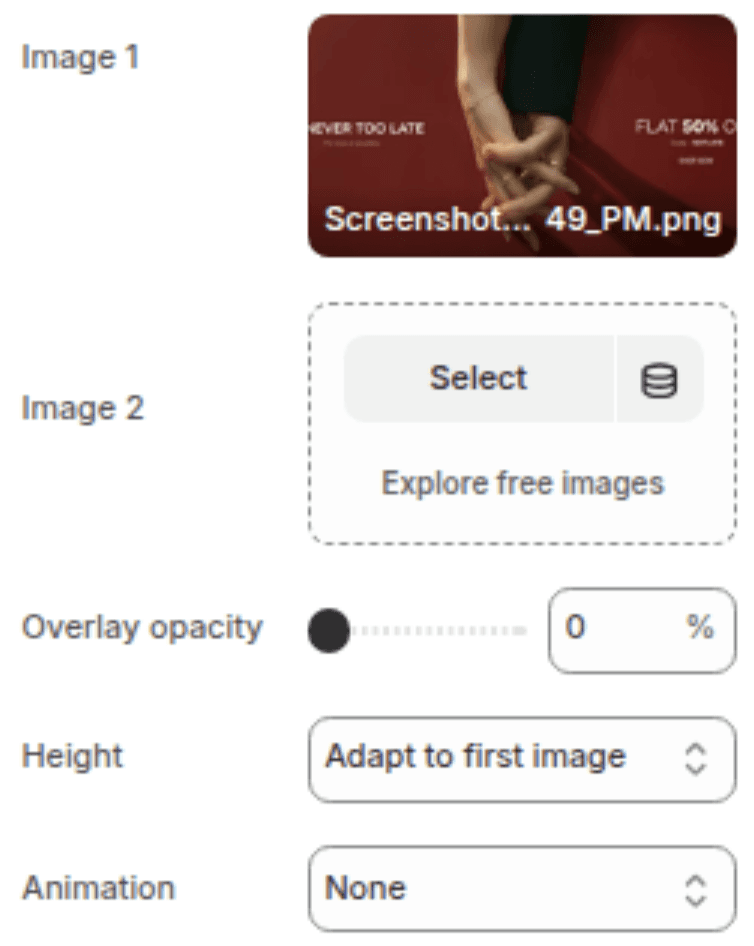
The primary banner image. If left blank, a placeholder is shown.
(empty)
Second image
An optional second image. When set, both images display side by side at half-width each.
(empty)
Image overlay opacity
Sets the darkness of the overlay applied on top of the image(s) to improve text legibility. Range: 0% (no overlay) – 100% (fully opaque).
0%
Banner height
Controls the height of the banner. Options: Adapt to image (uses natural aspect ratio), Small, Medium, Large.
Medium
Image behavior
Adds an animation to the image. Options: None, Ambient (slow floating motion), Fixed (parallax effect), Zoom in (zooms in on scroll).
None
Content
Settings
Description
Default
Desktop content position
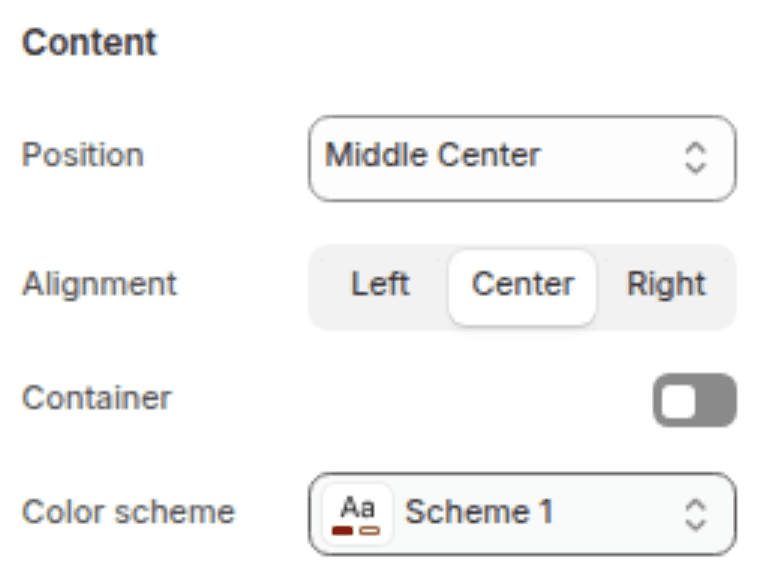
Sets where the content box sits over the banner on desktop. Options: 9 positions across Top, Middle, Bottom × Left, Center, Right.
Middle center
Desktop content alignment
Sets the text alignment inside the content box on desktop. Options: Left, Center, Right.
Center
Show content box background
When enabled, the content box displays a colored background (based on the color scheme). Disable for a fully transparent text overlay.
Enabled
Color scheme
Sets the background and text color of the content box.
Scheme 1
Mobile
Settings
Description
Default
Stack images on mobile
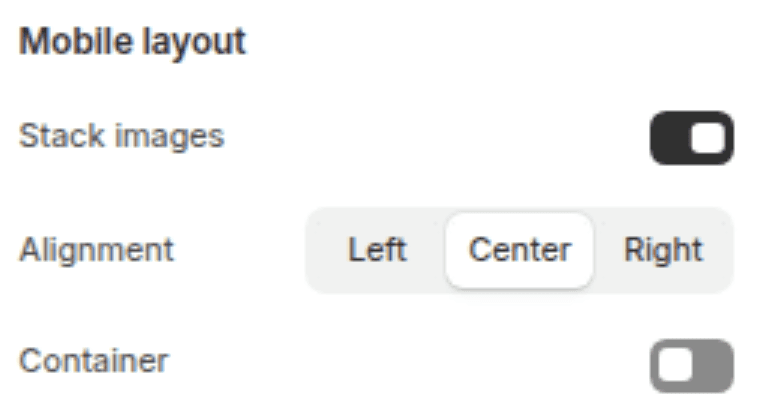
When using two images, stacks them vertically on mobile instead of side by side.
Enabled
Mobile content alignment
Sets the text alignment inside the content box on mobile. Options: Left, Center, Right.
Center
Show text below image on mobile
When enabled, the content box moves below the image on mobile rather than overlaying it.
Enabled
Blocks
The section supports three block types, each limited to one instance.
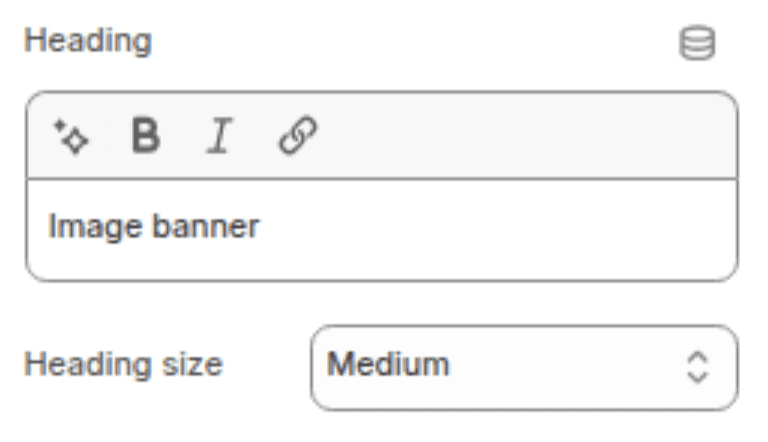
Heading Block
(Limit: 1)
Displays the main banner headline. Supports inline rich text formatting (bold, italic, links).
Settings
TYPE
Description
Default
Heading
Inline rich text
The headline text to display on the banner.
"Image with text"
Heading size
Select
Controls the visual size of the heading. Options: Small (h2), Medium (h1), Large (h0), Extra Large (hxl), Extra Extra Large (hxxl).
Medium (h1)
Text Block
(Limit: 1)
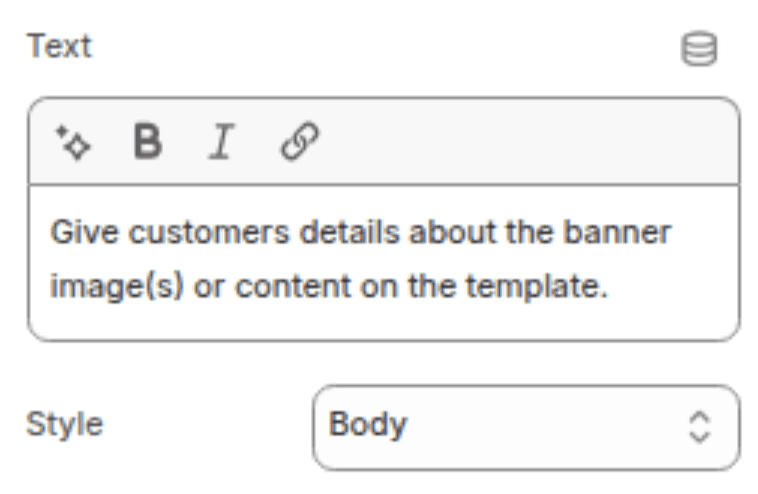
Displays a supporting line of text beneath the heading. Supports inline rich text formatting.
Settings
TYPE
Description
Default
Text
Inline rich text
The supporting text to display beneath the heading.
"Give customers details about the banner image(s)..."
Text style
Select
Controls the typographic style of the text. Options: Body, Subtitle, Uppercase with letter spacing.
Body
Button Block
(Limit: 1)
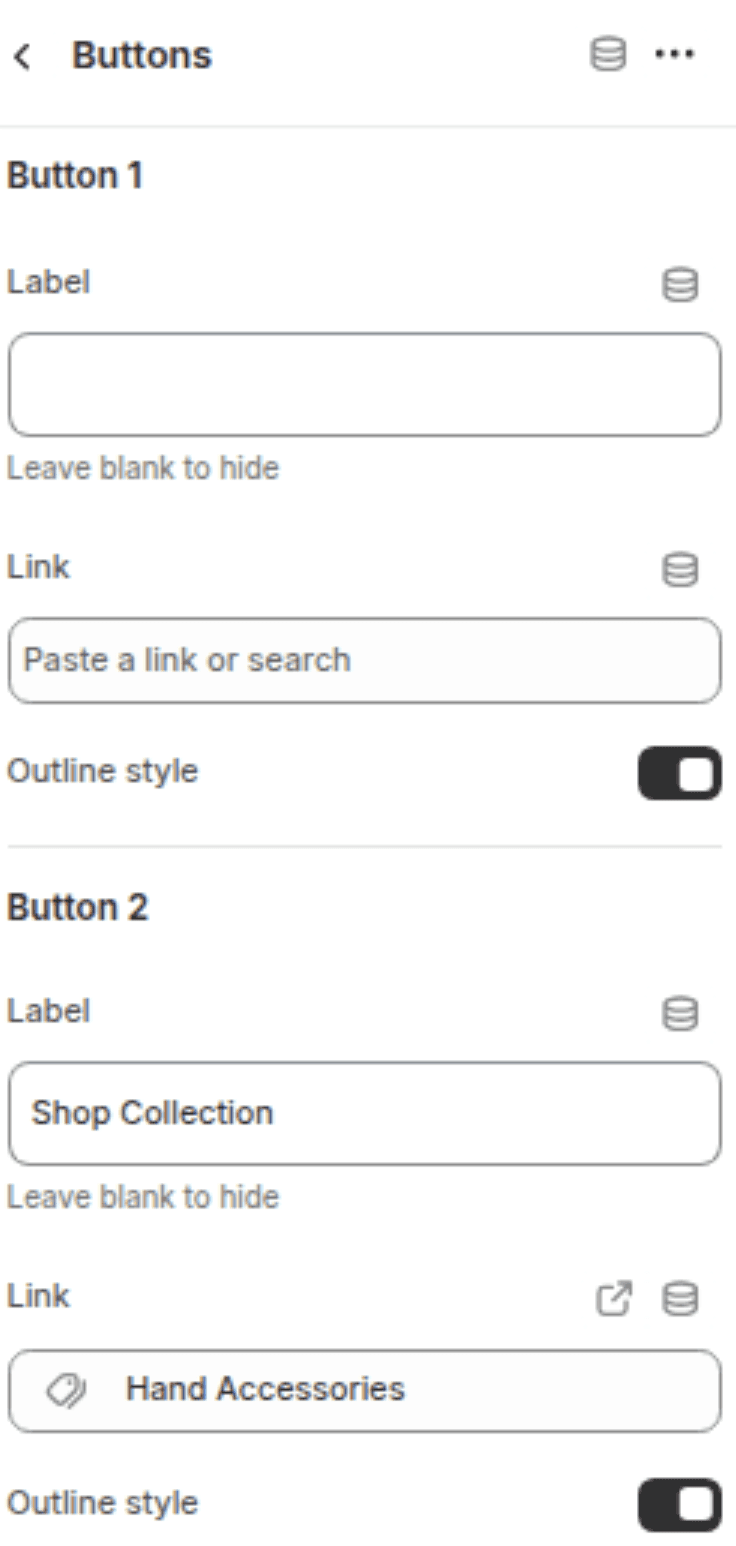
Displays up to two call-to-action buttons on the banner. Both buttons live within a single block.
Button 1
Settings
TYPE
Description
Default
First Button label
Text
The visible text on the first button. Leave blank to hide.
"Shop all"
First Button link
URL
The URL the first button links to.
(empty)
Use outline button style
Checkbox
When enabled, renders the first button as a secondary (outline) style.
Disabled
Button 2
Settings
TYPE
Description
Default
Second Button label
Text
The visible text on the second button. Leave blank to hide.
"Learn more"
Second Button link
URL
The URL the second button links to.
(empty)
Use outline button style
When enabled, renders the second button as a secondary (outline) style.
Disabled
Customization Tips
Overlay for Readability: If your banner image is light or busy, increase the Image overlay opacity to darken it and make the heading text easier to read. A value of 30–50% is a good starting point for most images.
Transparent Content Box: Disabling "Show content box background" removes the colored panel behind the text, giving a clean overlay effect. Combine this with a higher overlay opacity on the image so the text remains legible against the background.
Split-Screen Layout: Adding a second image splits the banner into two equal halves. The content box remains centered and overlays both images. This works best when both images have the same height and a consistent visual tone.
Stack Images on Mobile: When using two images, enabling this option stacks them vertically on mobile so neither image is too small to read. Disabling it keeps them side by side, which can make them very narrow on small screens.
Show Text Below on Mobile: This moves the entire content box below the image on mobile, giving both the image and the text full-width display. This is the recommended setting for most stores as it prevents small text from overlapping a cropped image on mobile.
Image Behavior and Performance: Ambient and Zoom in modes request larger image sizes to allow room for the animation. For performance on slower connections, use None unless the animation meaningfully adds to the design.
Fixed (Parallax) Effect: The Fixed image behavior creates a parallax scrolling effect where the image stays in place while the page scrolls over it. This only works correctly when the banner height is set to Small, Medium, or Large — not Adapt to image.
Content Position vs. Alignment: Desktop content position controls where the content box is placed on the banner (e.g. middle-left). Desktop content alignment controls the text alignment inside that box (e.g. left-aligned text). These can be mixed freely.