
Multirow Section Documentation
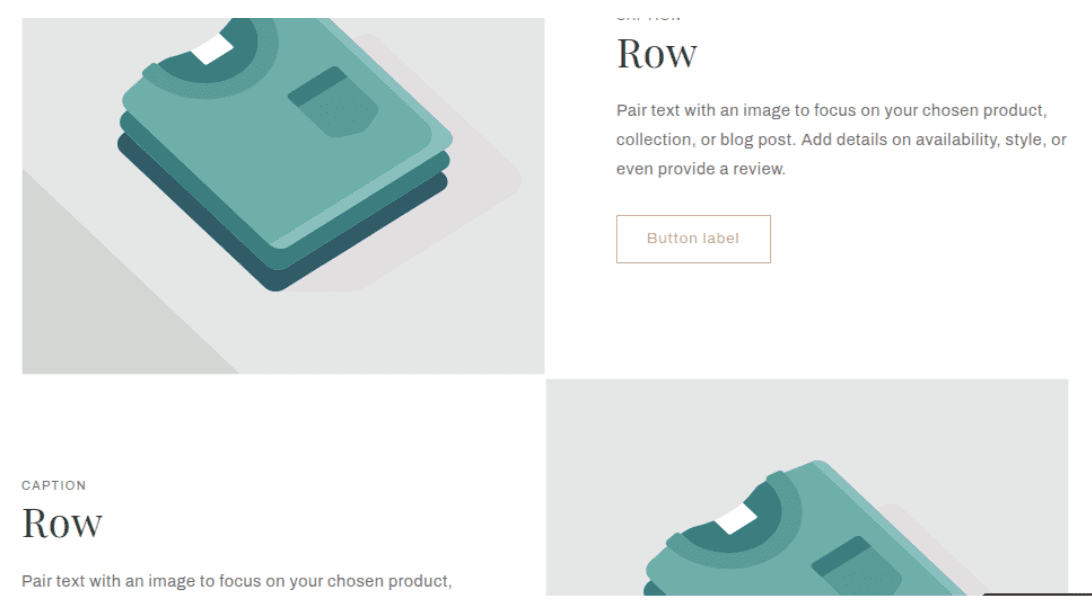
The Multirow section displays a vertical stack of image-and-text rows, where each row pairs a full-width image panel with a content panel containing a caption, heading, body text, and button. It is commonly used for detailed feature breakdowns, step-by-step storytelling, or any content that benefits from a repeated alternating layout. All layout and styling settings are shared globally across every row — individual rows only control their own content.
Features
Repeating Row Layout: Stack as many image-and-text rows as needed, each with its own image and content.
Alternating Image Position: Automatically alternate the image between left and right on each row, or lock all images to the same side.
Image Width Control: Set the image column to small, medium, or large relative to the text column.
Image Height Options: Adapt to each image's natural aspect ratio, or fix all rows to a consistent height (small, medium, large).
Global Content Styling: Heading size, text style, button style, content position, and alignment are all controlled once and applied uniformly to every row.
Dual Color Schemes: Set independent color schemes for the outer section background and the inner row content panel.
Scroll Animations: Each row animates in with a slide-in effect if animations are enabled in Theme Settings.
Settings
Image
Settings
Description
Default
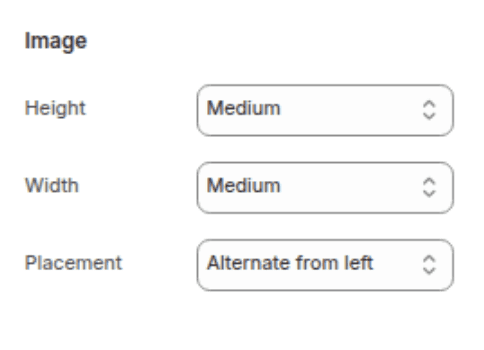
Image height
Sets the height of the image panel for every row. Options: Adapt to image (each row uses its own image's natural aspect ratio), Small, Medium, Large.
Medium
Desktop image width
Sets how wide the image column is relative to the text column on desktop. Options: Small (1/3 image, 2/3 text), Medium (1/2 image, 1/2 text), Large (2/3 image, 1/3 text).
Medium
Image layout
Controls the horizontal position of images across rows. Options: Alternate starting left (first row image left, second right, and so on), Alternate starting right (first row image right, second left, and so on), Always left (all images on the left), Always right (all images on the right).
Alternate starting left
Content
Settings
Description
Default
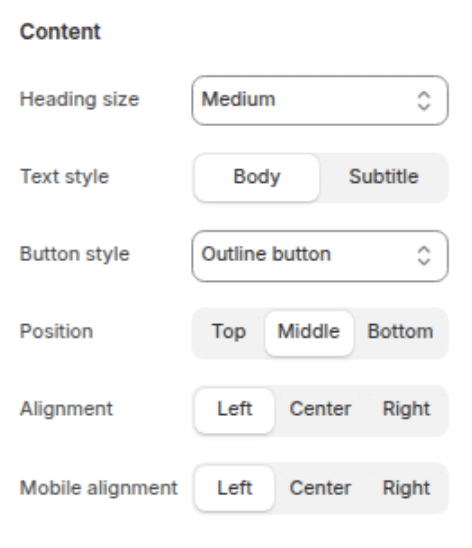
Heading size
Sets the visual size of the heading in every row. Options: Small (h2), Medium (h1), Large (h0), Extra Large (hxl), Extra Extra Large (hxxl).
Medium (h1)
Text style
Sets the typographic style of the body text in every row. Options: Body (standard paragraph style), Subtitle (slightly larger, often used for lead text).
Body
Button style
Sets the visual style of the button in every row. Options: Primary (filled button), Secondary (outline button).
Secondary
Desktop content position
Sets the vertical alignment of the text panel relative to the image on desktop. Options: Top, Middle, Bottom.
Middle
Desktop content alignment
Sets the horizontal text alignment inside the content panel on desktop. Options: Left, Center, Right.
Left
Mobile content alignment
Sets the horizontal text alignment inside the content panel on mobile. Options: Left, Center, Right.
Left
Colors
Settings
Description
Default
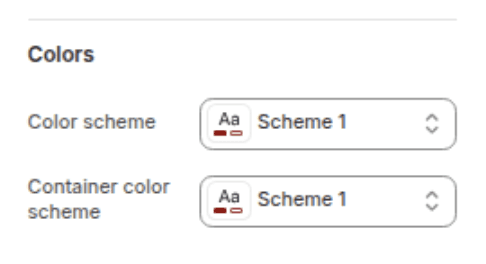
Section color scheme
Sets the background color of the outer section wrapper that sits behind all rows.
Scheme 1
Row color scheme
Sets the background color of each row's image panel and text content panel. When this matches the section color scheme, the row panels blend into the section background and internal padding and borders collapse automatically.
Scheme 1
Spacing
Settings
Description
Default
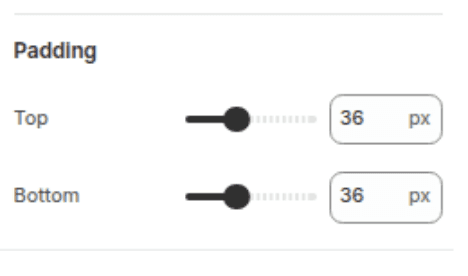
Padding top
Sets the top padding of the entire section (0px – 100px).
36px
Padding bottom
Sets the bottom padding of the entire section (0px – 100px).
36px
Blocks
The section supports one block type: Row. There is no enforced block limit, so you can add as many rows as needed. All layout and styling settings (image width, heading size, button style, alignment, etc.) are shared across every row and cannot be overridden per block.
Row Block
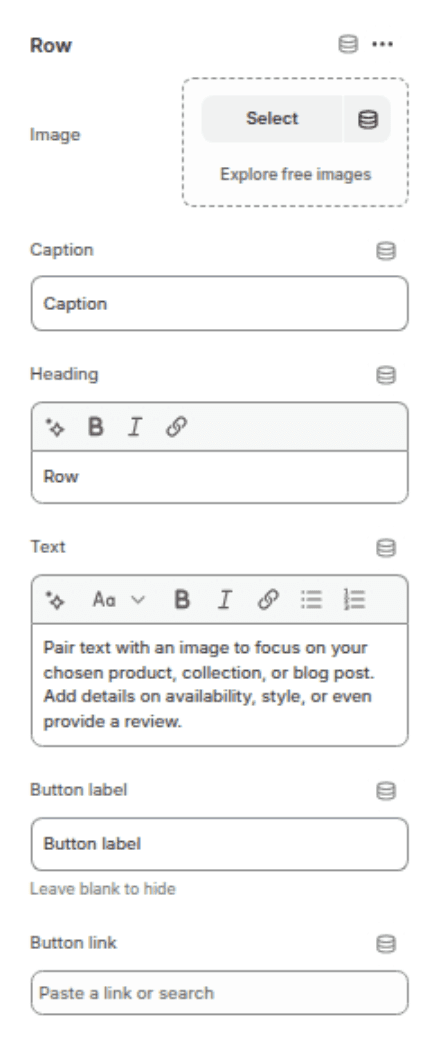
Each row block represents one image-and-text row in the section.
Settings
TYPE
Description
Default
Image
Image picker
The image displayed on one side of the row. If left blank, a placeholder image is shown.
(empty)
Caption
Text
A small label displayed above the heading, typically used as an eyebrow or category label. Renders in uppercase with letter spacing. Leave blank to hide.
"Caption"
Heading
Inline rich text
The main heading for this row. Supports bold, italic, and links. Leave blank to hide.
"Row"
Text
Rich text
The body text for this row. Supports full rich text formatting (paragraphs, bold, italic, lists, links). Leave blank to hide.
"Pair large text with an image to tell a story..."
Button label
text
The visible text of the button for this row. Leave blank to hide the button.
"Button label"
Button link
Url
The URL the button in this row links to.
(empty)
Customization Tips
Global vs. Per-Row Settings: All visual settings (image width, height, heading size, text style, button style, alignment) apply uniformly to every row in the section. If you need rows with significantly different layouts or styles, use separate Multirow sections or the Image with Text section for individual image-and-text pairs.
Alternating Layout: The Alternate starting left/right options automatically flip the image position on each new row — you do not need to configure this per block. The direction (which side the first row starts on) is the only choice you make.
Image Height — Adapt vs. Fixed: With Adapt to image, each row's height is driven by its own image's aspect ratio, which can result in rows of different heights if your images have different proportions. Using Small, Medium, or Large locks all rows to the same consistent height regardless of image dimensions, which gives the page a more uniform, structured appearance.
Color Scheme Matching: When the Row color scheme matches the Section color scheme exactly, the theme automatically removes padding, borders, and corner rounding from the row panels so they blend seamlessly into the section background. This gives a clean, edge-to-edge look. Setting them to different schemes adds visible card separation between each row and the background.
Caption Style: The caption field always renders in uppercase with letter spacing regardless of the text style setting — it has a fixed typographic style. It is best used for short labels like "New", "Step 01", or a category name.
Button Style is Global: The button style (Primary or Secondary) applies to every row's button. If you need different button styles on different rows, this section does not support it — consider using multiple separate Image with Text sections instead.
Mobile Layout: On mobile, the image always stacks above the text content for every row, regardless of the Image layout setting. Mobile content alignment only controls the text alignment within the stacked text panel below the image.