Items Section Documentation
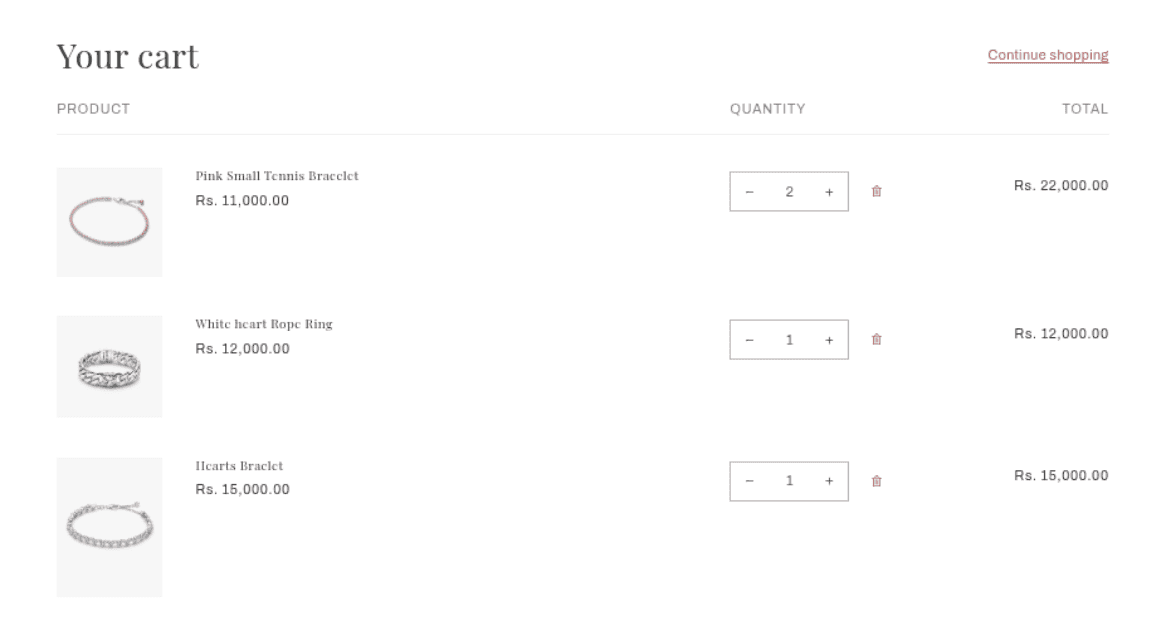
The Items section appears on the cart page (/cart) and displays the full list of products a customer has added to their cart. Each row shows the product image, title, selected variant options, unit price, quantity controls, line-level discounts, and the line total. The section handles real-time quantity updates, item removal, compare-at pricing, volume pricing rules, and quantity restrictions — all without a page reload.
Features
Product Table: Displays all cart items in a structured table with columns for product details, quantity, and line total.
Product Image: Each item shows a clickable thumbnail that links back to the product page.
Variant Details: Selected options (size, color, etc.), custom properties, and selling plan names are displayed below the product title.
Compare-at Price & Discount Percentage: When enabled, shows the original (compare-at) price struck through alongside the sale price and a calculated percentage discount badge (e.g. "20% off").
Line-Level Discounts: Any discount codes or automatic discounts applied to individual line items are listed below the product title with a discount icon.
Quantity Stepper: Inline +/− buttons and a number input let customers update quantities directly on the cart page without a reload.
Quantity Rules Popover: If a product has minimum, maximum, or increment quantity rules, an info popover appears beside the stepper explaining the restrictions.
Volume Pricing Popover: If a product has volume (tiered) pricing, a popover shows the price breaks available at different quantities.
Remove Button: Each item has a remove button to delete it from the cart entirely.
Empty Cart State: When the cart is empty, a message and a "Continue shopping" button are shown. If customer accounts are enabled and the customer is not logged in, a prompt to log in is also displayed.
Color Scheme: The section background and text can be styled using the theme's color schemes.
Vendor Display: If "Show vendor" is enabled in global Theme Settings, the product vendor is shown above the product title on each row.
Settings
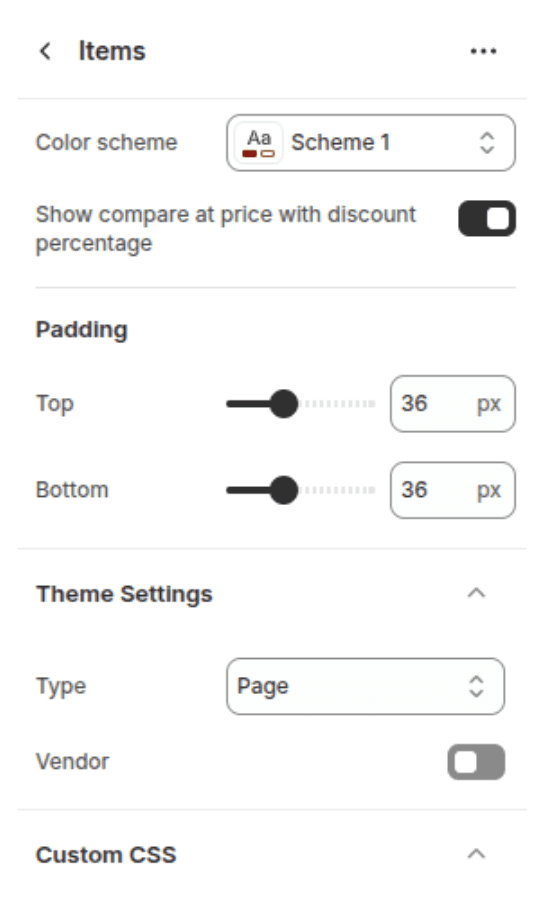
The following settings are available to customize the behavior and appearance of the Items section.
Settings
Description
Default
Color scheme
Sets the background and text color of the section.
Scheme 1
Show compare at price with discount percentage
When enabled, items on sale display the original compare-at price struck through, the sale price, and a green percentage-off badge (e.g. "20% off").
Enabled
Padding top
Space above the section content. Range: 0–100 px, steps of 4 px.
36 px
Padding bottom
Space below the section content. Range: 0–100 px, steps of 4 px.
36 px
Blocks
This section does not support any blocks. All configuration is done through the section settings above.
Customization Tips
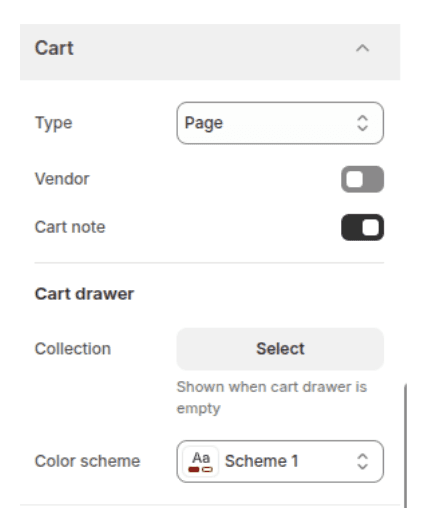
Show vendor: The vendor name displayed above product titles is controlled by Theme Settings → Cart → Show vendor, not by this section's settings directly.
Compare-at price requires product setup: The "Show compare at price" setting only takes effect if the product variant has a compare-at price set in Shopify Admin → Products → [Product] → Pricing. If no compare-at price is set on a variant, the setting has no visible effect for that item.
Quantity rules and volume pricing: Minimum, maximum, and increment quantity rules, as well as volume pricing tiers, are configured per-variant in Shopify Admin. This section automatically detects these and renders the appropriate popover — no additional theme setup is required.
Cart type affects this section: If Cart type is set to "Drawer" in Theme Settings → Cart, the
cart.jsscript used by this section is not loaded (the drawer uses its own). This section is designed for the full Cart page view only.