
Header Section
The Header is a core section that appears at the top of every page on your store. It contains your logo, navigation menu, search bar, account icon, and cart — making it the primary navigation hub for your customers.

Features
Logo Support: Upload a custom logo image or fall back to your store name as text.
Flexible Logo Positioning: Choose from four desktop layout positions (top-left, top-center, middle-left, middle-center).
Multiple Menu Types: Supports dropdown, mega menu, and drawer-style navigation on desktop.
Sticky Header: Four sticky behavior options to keep the header visible while scrolling.
Search: Built-in search modal with optional predictive search.
Customer Account Icon: Shows account login/profile link with optional customer avatar support.
Cart Icon: Displays a live cart item count bubble.
Localization: Built-in country and language selectors.
App Blocks: Supports up to 3 app blocks for extending header functionality.
Settings
The following settings are available to customize the behavior and appearance of the header.
Logo & Layout
Settings
Description
Default
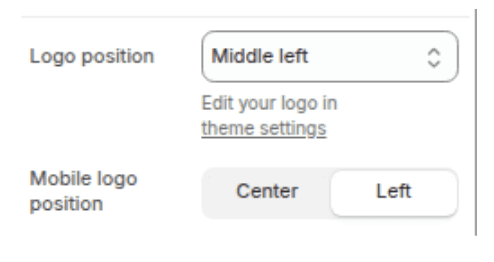
Logo position
Controls where the logo appears relative to the navigation on desktop. Options: Top left, Top center, Middle left, Middle center.
Middle center
Mobile logo position
Controls logo alignment on mobile devices. Options: Center, Left.
Left
Navigation
Settings
Description
Default
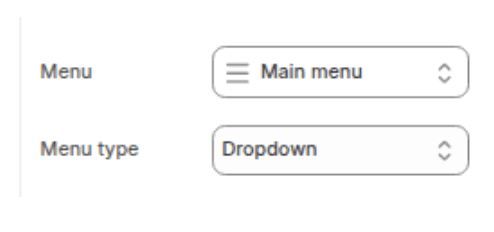
Menu
Selects which navigation link list to display in the header.
main-menu
Desktop menu type
Sets the style of navigation menu on desktop. Options: Dropdown, Mega menu, Drawer.
Dropdown
Sticky Header
Settings
Description
Default
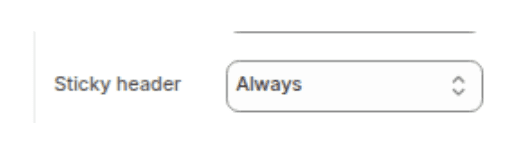
Sticky header
Controls how the header behaves when the customer scrolls. See options below.
Always
Sticky Header Option:
Option
Behavior
None
Header scrolls away with the page normally.
On scroll up
Header hides when scrolling down and reappears when scrolling up.
Always
Header stays fixed at the top of the screen at all times.
Reduce logo size
Same as "Always" but shrinks the logo by 25% once the customer has scrolled past the header.
Appearance
Settings
Description
Default
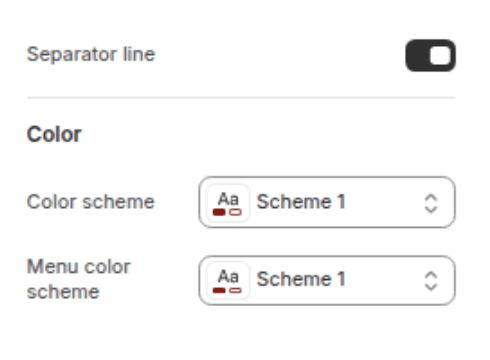
Show separator line
Displays a border at the bottom of the header.
Enabled
Color scheme
Sets the background and text color of the main header bar.
Scheme 1
Menu color scheme
Sets the background and text color of dropdown/mega menu panels.
Scheme 1
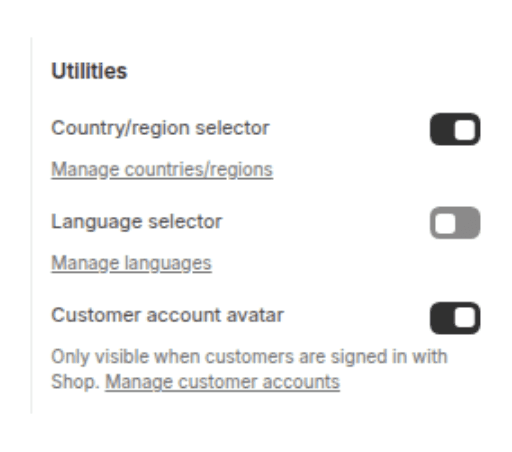
Utilities
Settings
Description
Default
Enable country/region selector
Shows a dropdown for customers to select their country/region (desktop only).
Disabled
Enable language selector
Shows a dropdown for customers to select their language (desktop only).
Disabled
Enable customer avatar
Shows the logged-in customer's avatar image instead of the generic account icon.
Enabled
Spacing
Settings
Description
Default
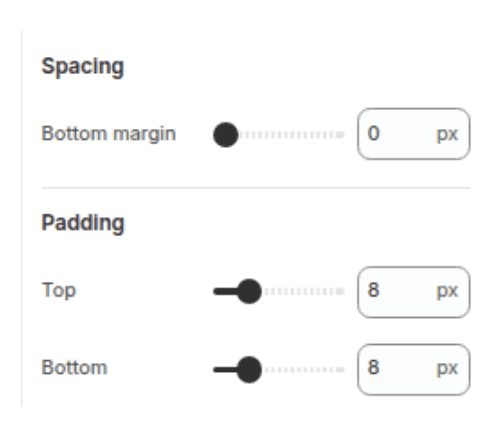
Margin below
Sets the space between the header and the next section on the page (0px – 100px).
0px
Padding top
Sets the internal top padding of the header bar (0px – 36px).
20px
Padding bottom
Sets the internal bottom padding of the header bar (0px – 36px).
20px
Blocks
The header supports up to 3 app blocks (@app type). These allow third-party Shopify apps to inject content directly into the header icons area (e.g., wishlist buttons, loyalty points indicators).
No custom theme blocks are defined for this section beyond app blocks
Customization Tips
Logo: Upload your logo image in Theme Settings > Logo. The logo width is also controlled globally from Theme Settings, not within this section.
Mega Menu: Selecting "Mega menu" as the desktop menu type will render your top-level menu items as full-width panels. This works best with multi-level navigation link lists.
Predictive Search: To enable live search suggestions as customers type, turn on predictive search in Theme Settings > Search.
Customer Accounts: The account icon only appears in the header if customer accounts are enabled in your Shopify Admin > Settings > Customer accounts.
Localization: Country and language selectors are only visible when you have multiple markets or languages configured in Shopify Admin > Markets. Enabling the checkboxes without configuring Markets first will have no visible effect.
Avatar: The customer avatar feature shows the logged-in customer's profile photo. If no photo exists, it falls back to the standard account icon.
Copyright 2020-24 - All Right Reserved