
Image with Text Section Documentation
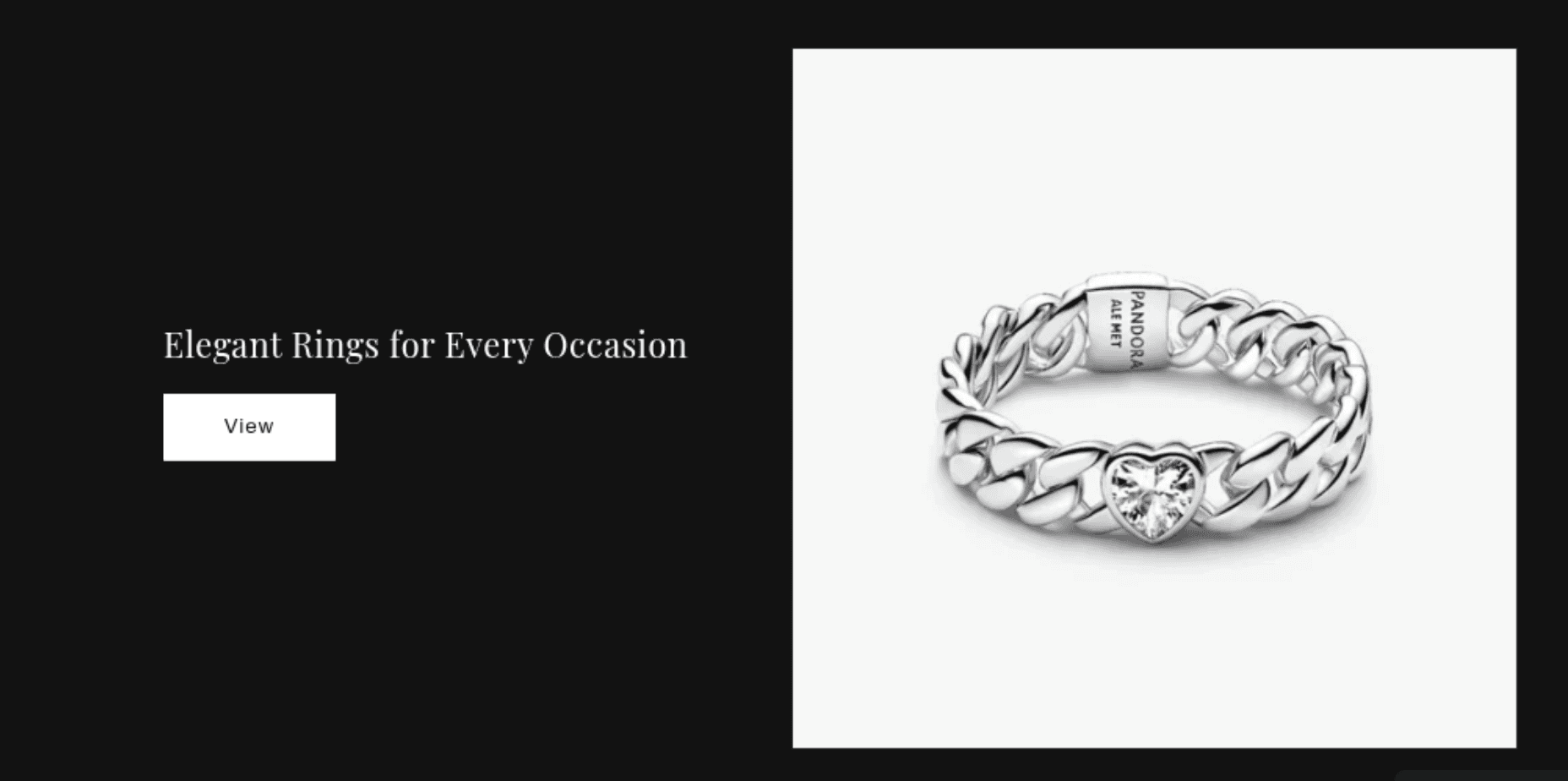
The Image with Text section displays an image alongside a block of content — typically a heading, body text, and a call-to-action button. It is commonly used for brand storytelling, feature highlights, product callouts, or any layout that pairs a visual with a message.
Features
Side-by-Side Layout: Places an image and text content in a two-column grid on desktop.
Layout Direction: Choose whether the image appears on the left or the text appears first.
Image Width Control: Set the image column to small, medium, or large relative to the text column.
Image Height Options: Adapt to the image's natural aspect ratio, or lock it to a fixed height (small, medium, large).
Image Animations: Optional ambient movement or zoom-in effect on the image.
Overlap Mode: Optionally overlap the text content panel on top of the image for a layered look.
Dual Color Schemes: Independently set a color scheme for the outer section background and the inner content panel.
Flexible Content Alignment: Separate alignment controls for desktop (horizontal) and mobile, plus vertical position of text within the panel.
Scroll Animations: Section animates in on scroll if enabled in Theme Settings.
Settings
The following settings are available to customize the behavior and appearance of the Image with Text section.
Image
Settings
Description
Default
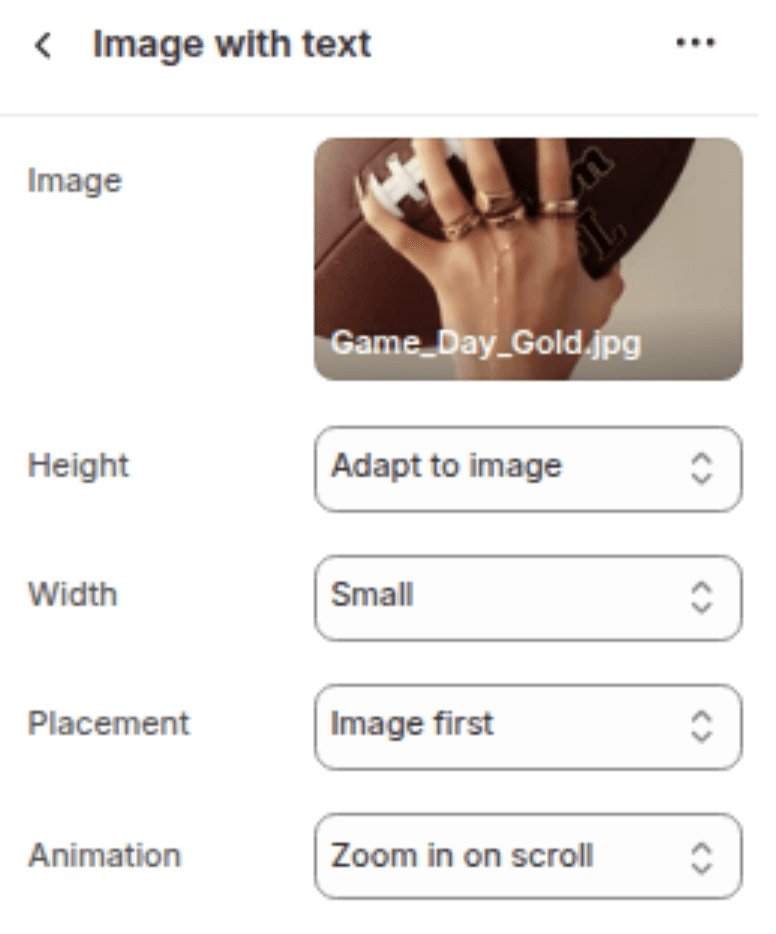
Image
The image to display alongside the text content. If left blank, a placeholder image is shown.
(empty)
Image height
Controls the height of the image panel. Options: Adapt to image (uses natural aspect ratio), Small, Medium, Large.
Adapt to image
Image width
Sets how wide the image column is relative to the text column on desktop. Options: Small, Medium, Large.
Medium
Placement
Placement of the image in correspondence to text
Image First
Animation
Adds an animation to the image. Options: None, Ambient (slow floating motion), Zoom in (zooms in on scroll).
None
Content Layout
Settings
Description
Default
Layout
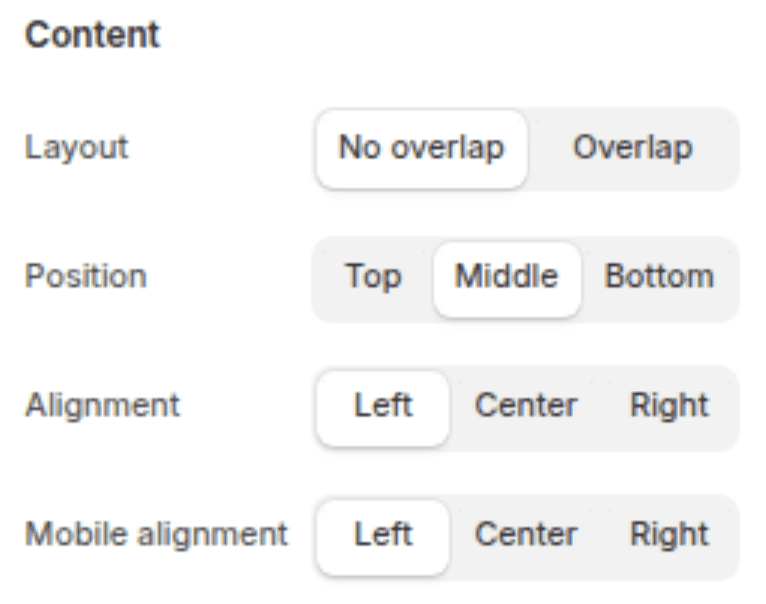
Sets which side the image appears on. Options: Image first (image on left), Text first (image on right).
Image first
Content layout
Controls whether the text panel sits beside or overlaps the image. Options: No overlap, Overlap.
No overlap
Desktop content position
Sets the vertical alignment of the text panel relative to the image on desktop. Options: Top, Middle, Bottom.
Top
Desktop content alignment
Sets the horizontal text alignment inside the content panel on desktop. Options: Left, Center, Right.
Left
Mobile content alignment
Sets the horizontal text alignment inside the content panel on mobile. Options: Left, Center, Right.
Left
Colors
Settings
Description
Default
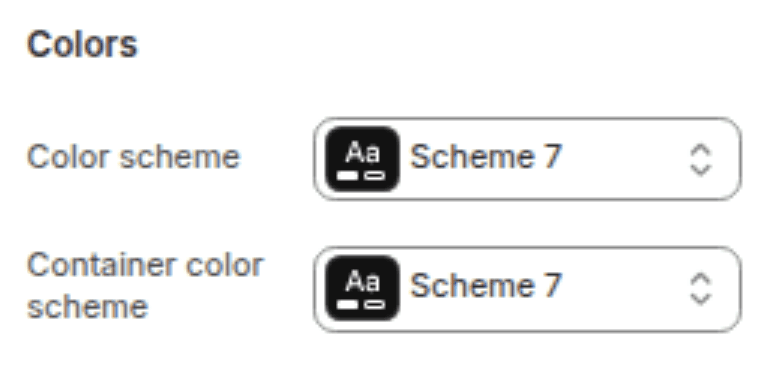
Section color scheme
Sets the background color of the outer section wrapper.
Scheme 1
Container color scheme
Sets the background color of the inner text content panel.
Scheme 1
Spacing
Settings
Description
Default
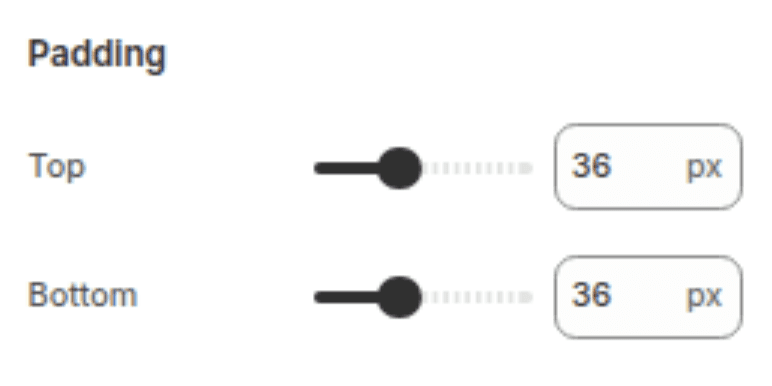
Padding top
Sets the top padding of the section (0px – 100px).
36px
Padding bottom
Sets the bottom padding of the section (0px – 100px).
36px
Blocks
The section supports four block types, each limited to one instance to keep the layout focused.
Heading Block
(Limit: 1)
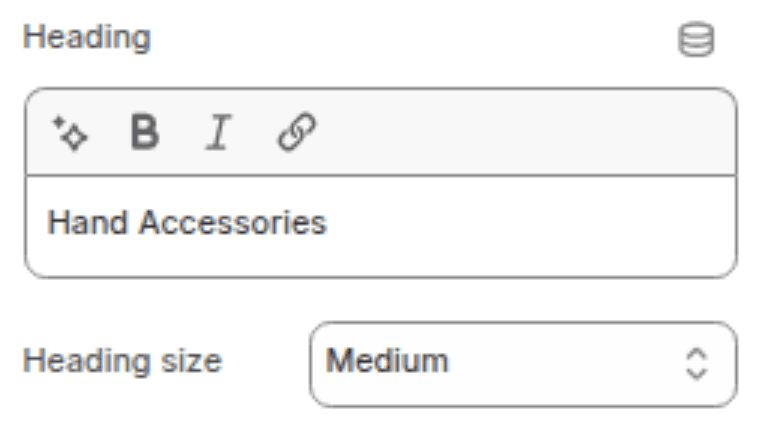
Displays a styled heading inside the text panel. Supports inline rich text formatting.
Settings
TYPE
Description
Default
Heading
Inline rich text
The heading text to display.
"Image with text"
Heading size
Select
Controls the visual size of the heading. Options: Small (h2), Medium (h1), Large (h0), Extra Large (hxl), Extra Extra Large (hxxl).
Medium (h1)
Caption Block
(Limit: 1)
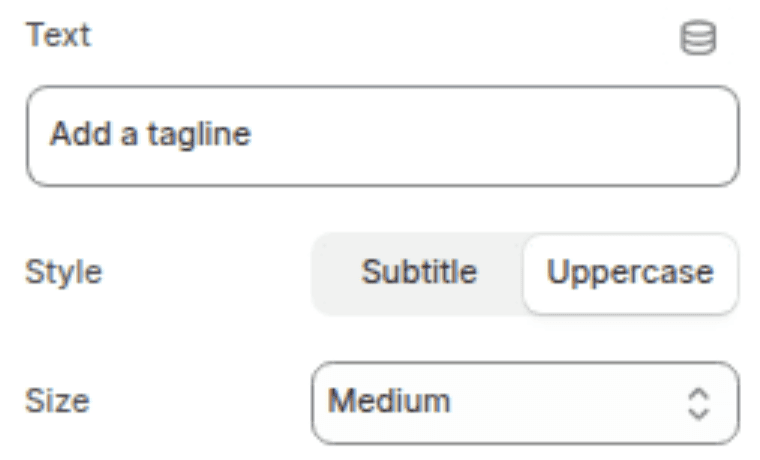
Displays a small label or eyebrow text, typically placed above the heading.
Settings
TYPE
Description
Default
Caption text
Text
The caption text to display.
"Add a tagline"
Text style
Select
Controls the typographic style. Options: Subtitle, Uppercase with letter spacing.
Uppercase with letter spacing
Caption size
Select
Controls the size of the caption. Options: Small, Medium, Large.
Medium
Text Block
(Limit: 1)
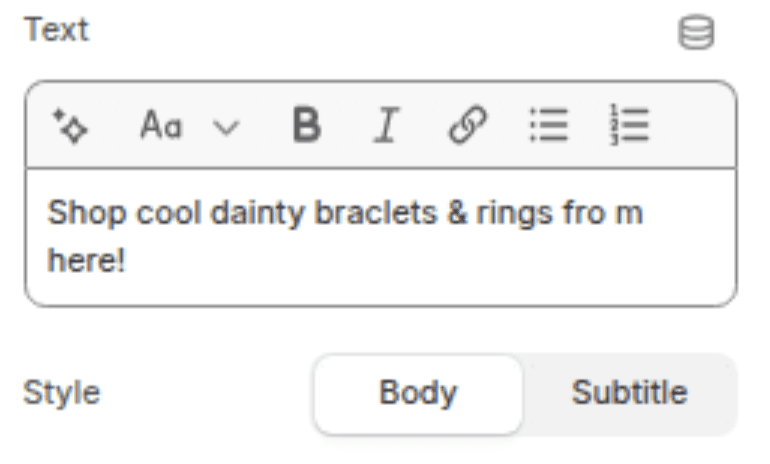
Displays a block of formatted body text. Supports full rich text editing (paragraphs, bold, italic, lists, links).
Settings
TYPE
Description
Default
Text
Rich text
The body text content to display.
"Pair text with an image to focus on your chosen product..."
Text style
Select
Controls the typographic style of the body text. Options: Body, Subtitle.
Body
Button Block
(Limit: 1)
Displays a single call-to-action button below the text content.
Settings
TYPE
Description
Default
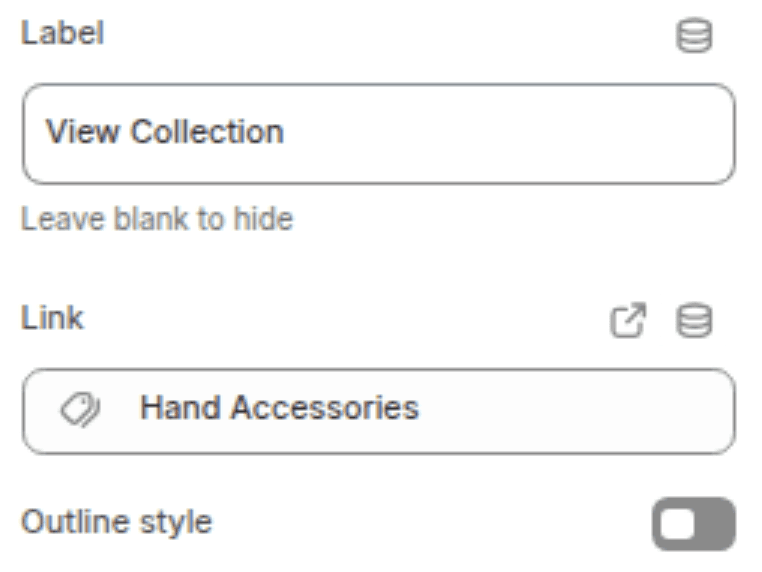
Button label
Text
The visible text on the button. Leave blank to hide the button.
"Shop all"
Button link
URL
The URL the first button links to.
(empty)
Use outline button style
Checkbox
When enabled, renders the button as a secondary (outline) style instead of the primary (filled) style.
Disabled
Customization Tips
Image Width vs. Layout: Desktop image width and Layout work together. A Large image width combined with Image first gives the image dominant presence. Switching to Text first with a Small image width shifts focus to the content.
Overlap Mode: When Content layout is set to Overlap, the text panel slides over the image. For this to look right, ensure the two color schemes are different — otherwise the overlap effect is invisible. The theme automatically removes duplicate color classes when both schemes match.
Image Height: Setting a fixed height (Small, Medium, Large) crops the image to that height regardless of its natural proportions. Use Adapt to image when you want the section height to be driven entirely by your image's aspect ratio.
Image Animations: Ambient and Zoom in animations also affect how the image is loaded (wider srcset widths are requested), so reserve these for images where the animation meaningfully adds to the design.
Vertical Content Position: Desktop content position (Top, Middle, Bottom) is most noticeable when using a fixed image height and the text content is shorter than the image. With Adapt to image height, Middle and Bottom may have less visible effect.
Mobile Layout: On mobile, the image always stacks above the text regardless of the desktop Layout setting. Mobile content alignment controls text alignment within the stacked text panel below.
Block Order: Blocks render in the order they appear in the theme editor. A recommended order is Caption → Heading → Text → Button.