
Login Section Documentation
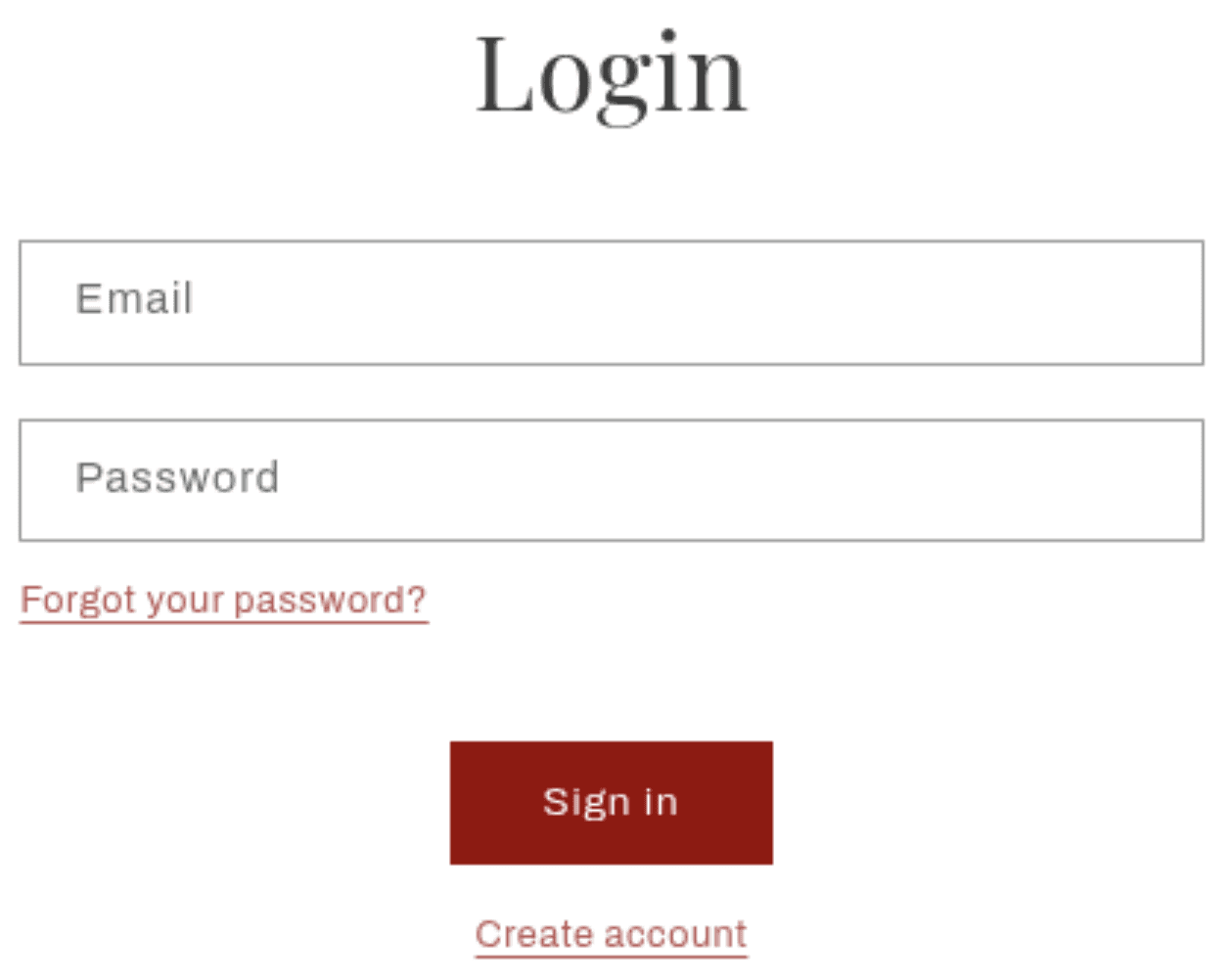
The Login section appears on the customer login page (/account/login). It provides customers with a form to sign in to their account, recover a forgotten password, create a new account, or continue as a guest. The section also supports the Shop login button for one-click sign-in using a customer's Shop Pay credentials.
Features
Login Form: Email and password fields for returning customers to sign in.
Password Recovery: A built-in "Forgot password" flow that sends a reset email, shown inline on the same page without a redirect.
Shop Login Button: Optional one-click sign-in using Shop Pay credentials, shown above the standard form.
Create Account Link: A direct link to the registration page for new customers.
Guest Checkout: If enabled in Shopify checkout settings, a "Continue as guest" option appears below the login form.
Inline Error Handling: Form validation errors and success messages are displayed directly on the page.
Settings
The following settings are available to customize the behavior and appearance of the Login section.
Settings
Description
Default
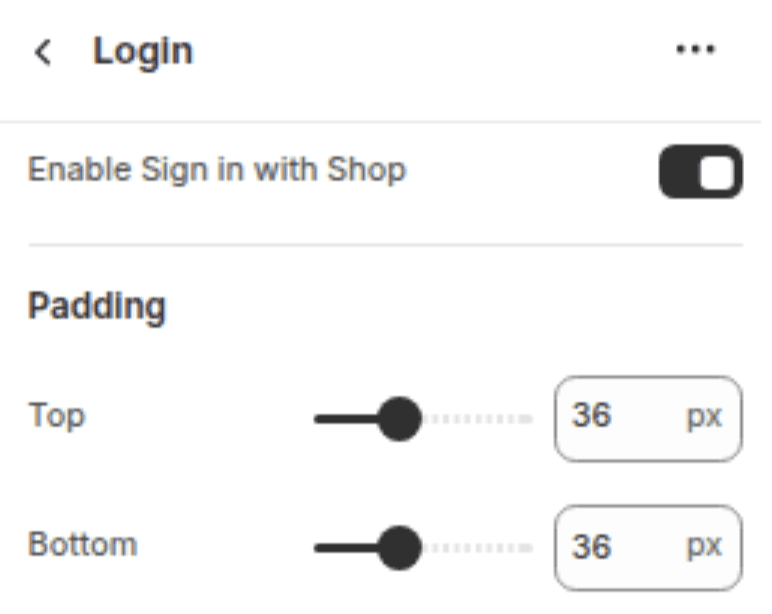
Enable Shop login button
Shows a "Sign in with Shop" button above the standard email/password form, allowing customers to log in using their Shop Pay credentials. Only appears if the store supports Shop classic customer accounts.
Enabled
Padding top
Space above the section content. Range: 0–100 px, steps of 4 px.
36 px
Padding bottom
Space below the section content. Range: 0–100 px, steps of 4 px.
36 px
Blocks
This section does not support any blocks. All configuration is done through the section settings above.
Customization Tips
Shop login button: The "Sign in with Shop" button only renders if your store has the Shop classic customer accounts feature enabled. If it does not appear after enabling the setting, check your Shopify Admin → Settings → Customer accounts to confirm the account type in use.
Guest checkout: The guest checkout option is controlled by your Shopify checkout settings, not by this section. To enable or disable it, go to Shopify Admin → Settings → Checkout → Customer accounts and set it to "Accounts are optional".
Password recovery: The forgot password form is built into this section and does not require any additional configuration. It is always present and toggled by the "Forgot your password?" link.
Customer accounts required: This section only appears to customers when customer accounts are enabled in your store. If accounts are disabled, the login page will not be accessible.
Redirecting after login: The page customers are sent to after a successful login is controlled by Shopify, not by this section. By default they are sent to their account page.