
Footer Section Documentation
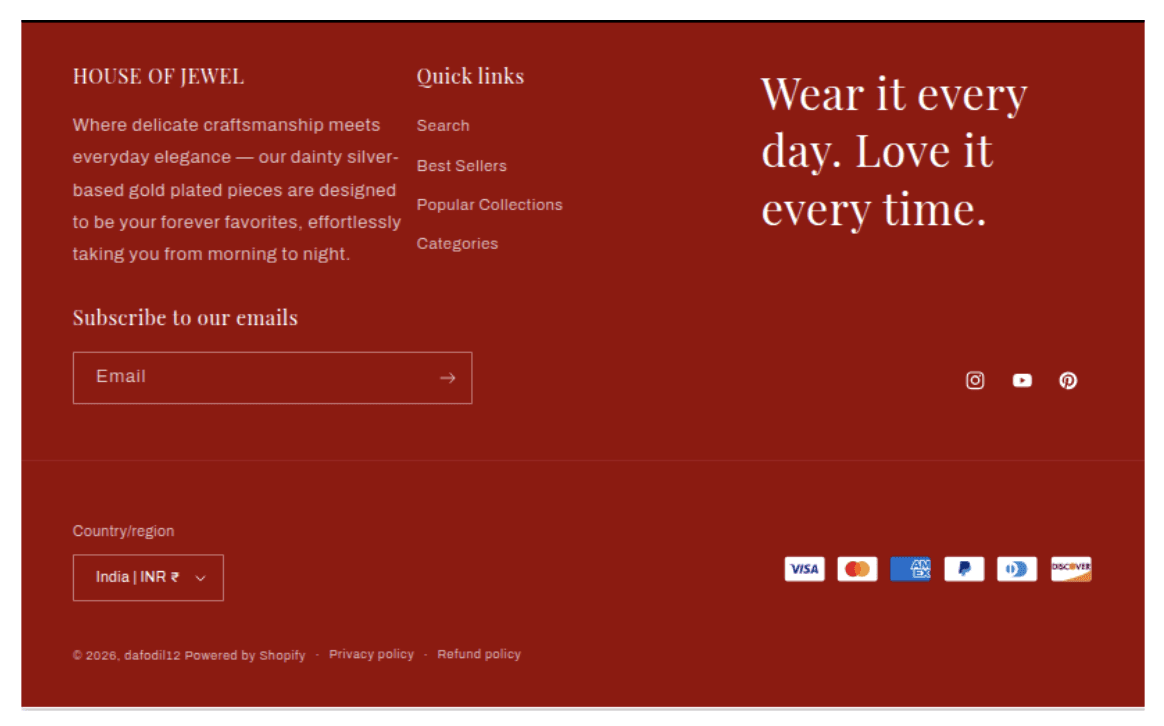
The Footer section is a global section that appears at the bottom of every page on the store. It is divided into two areas: the upper content area containing blocks (navigation menus, brand info, text, images) alongside the newsletter form, social icons, and Follow on Shop button; and the lower bottom bar containing the copyright notice, payment icons, policy links, and localization selectors. The footer's color, content, and visibility of every element is fully configurable.
Features
Flexible Block Columns: Add up to any number of blocks across five types — Link List, Brand Information, Text, Image, and App blocks — arranged in a responsive multi-column grid.
Built-in Newsletter Form: An optional email subscription form built directly into the footer with success and error state handling.
Follow on Shop Button: An optional Shopify Follow on Shop button for customers to follow the store from their Shop app.
Social Icons: Optional social media icon links pulled from social URLs configured in Theme Settings.
Localization Selectors: Optional country/region and language dropdowns displayed in the footer's bottom bar, requiring Shopify Markets configuration.
Payment Icons: Automatically renders the payment method logos enabled in the store's Shopify Payments settings.
Policy Links: Automatically renders links to all active store policies (Refund, Privacy, Terms of Service, etc.) configured in Shopify Admin.
Copyright Notice: Automatically displays the current year and store name with a link to the homepage.
Scroll Animations: Block columns animate in with a cascading slide-in effect if animations are enabled in Theme Settings.
Settings
Colors
Settings
Description
Default
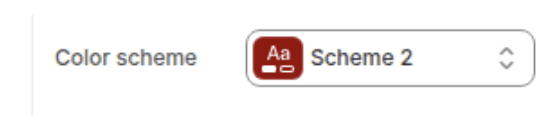
Color scheme
Sets the background and text color of the entire footer.
Scheme 3
Newsletter
Settings
Description
Default
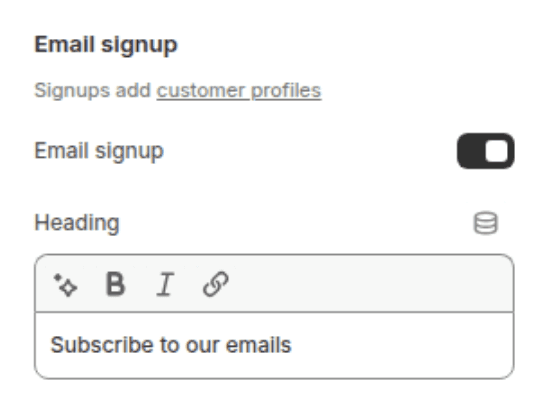
Enable newslette
When enabled, displays an email subscription form in the footer's upper content area, positioned after the block columns.
Enabled
Newsletter heading
The heading displayed above the email input field in the newsletter form. Supports inline rich text (bold, italic, links). Leave blank to hide the heading.
"Subscribe to our emails"
Follow on Shop
Settings
Description
Default
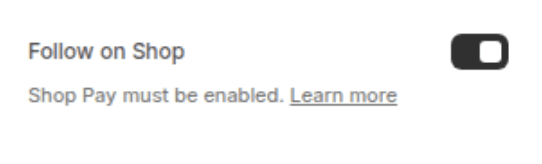
Enable Follow on Shop
When enabled, displays the Shopify Follow on Shop button, allowing customers to follow the store from their Shop app. Only renders if the store is eligible for the Follow on Shop feature.
Enabled
Settings
Description
Default
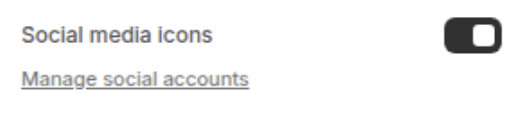
Show social media icons
When enabled, displays social media icon links in the footer's upper content area. Icons are only shown for social platforms that have a URL configured in Theme Settings > Social media. If no social URLs are configured, no icons appear even when this setting is enabled.
Enabled
Localization
Settings
Description
Default
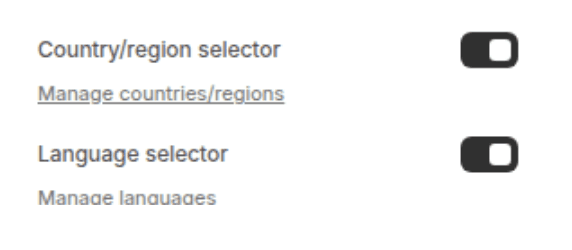
Enable country/region selector
When enabled, displays a country/region dropdown in the footer's bottom bar. Only visible when the store has multiple countries configured in Shopify Markets.
Enabled
Enable language selector
When enabled, displays a language dropdown in the footer's bottom bar. Only visible when the store has multiple languages configured in Shopify Markets.
Enabled
Bottom Bar
Settings
Description
Default
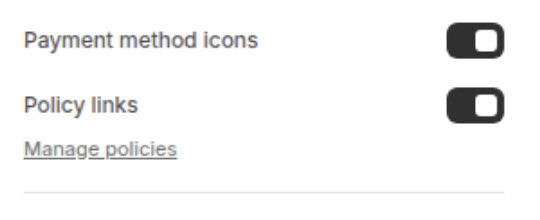
Show payment icons
When enabled, displays the payment method logos in the footer's bottom bar. Icons are generated automatically from the store's enabled payment methods in Shopify Payments settings.
Enabled
Show policy links
When enabled, displays links to all active store policies (Refund Policy, Privacy Policy, Terms of Service, Shipping Policy, etc.) in the footer's bottom bar copyright area. Policies must be configured in Shopify Admin > Settings > Policies.
Enabled
Spacing
Settings
Description
Default
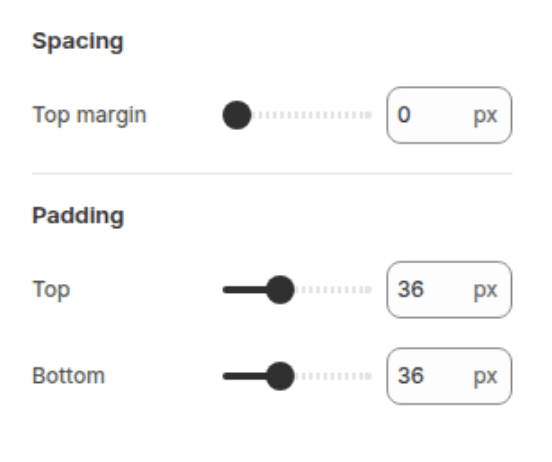
Space above footer
Sets the margin between the last section above the footer and the footer itself (0px – 100px).
0px
Padding top
Sets the internal top padding of the footer (0px – 100px).
36px
Padding bottom
Sets the internal bottom padding of the footer (0px – 100px).
36px
Blocks
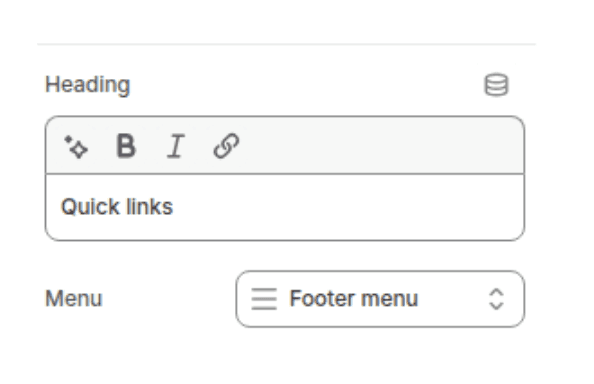
Displays a column of navigation links with an optional heading. Most commonly used for quick links, customer service links, and policy navigation.
Menu Block
Displays a column of navigation links with an optional heading. Most commonly used for quick links, customer service links, and policy navigation.
Settings
TYPE
Description
Default
Heading
Inline rich text
The column heading displayed above the list of links. Supports bold, italic, and links. Leave blank to hide.
"Quick links"
Menu
Link list picker
The navigation link list to display. Selects from the store's existing navigation menus.
footer
Brand Information Block
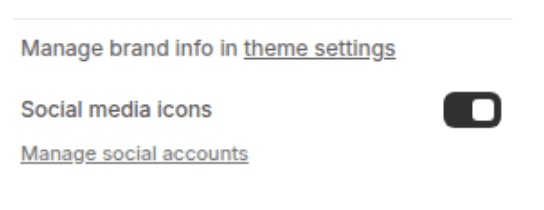
Displays the store's brand image, headline, and description as configured in Theme Settings > Brand information, along with an optional set of social media icons. This block is a pass-through — it renders content from Theme Settings, not from the block settings themselves.
Settings
TYPE
Description
Default
Show social media icons
Checkbox
When enabled, displays social media icon links within the Brand Information block, positioned below the brand description. Social URLs must be configured in Theme Settings > Social media.
Enabled
Text Block
Displays a freeform rich text column with an optional heading. Useful for short descriptions, address information, store hours, or any supporting text content.
Settings
TYPE
Description
Default
Heading
Inline rich text
The column heading displayed above the text content. Supports bold, italic, and links. Leave blank to hide.
"Heading"
Subtext
Rich text
The body text content of the column. Supports full rich text formatting including paragraphs, bold, italic, lists, and links.
"Share information about your brand with your customers."
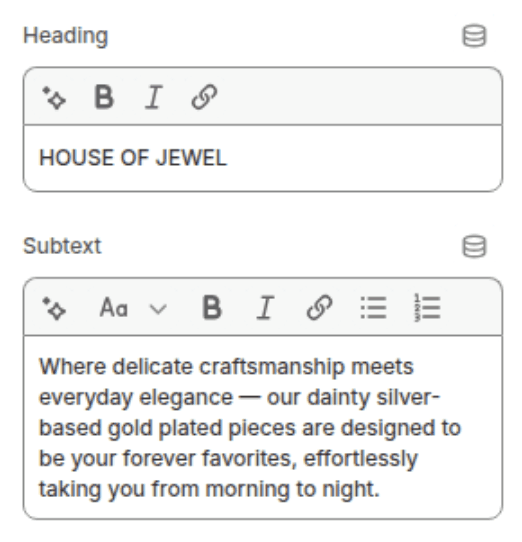
Image Block
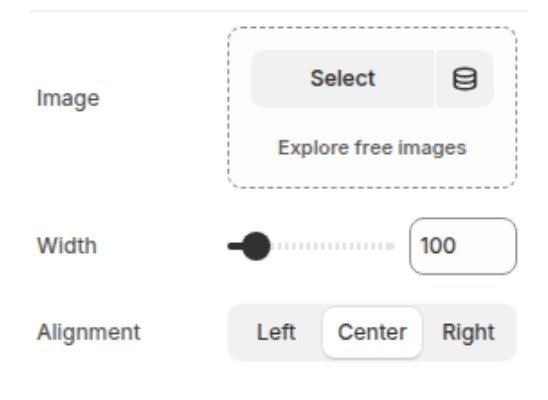
Displays a single image in a footer column with controllable width and horizontal alignment. Useful for trust badges, certifications, partner logos, or any visual asset that benefits from standalone placement in the footer.
Settings
TYPE
Description
Default
Image
Image picker
The image to display in the column. Shows a placeholder if left blank.
(empty)
Width
Range
Sets the maximum display width of the image in pixels. Range: 50px – 550px. The image will never exceed the column width.
10px
Alignment
Select
Sets the horizontal alignment of the image within the column. Options: Left, Center, Right.
Center
Customization Tips
Social Icons Require Theme Settings URLs: The Show social media icons setting in both the footer section settings and the Brand Information block only works if social platform URLs are configured in Theme Settings > Social media. Enabling the setting without any URLs configured will show nothing — no icons, no empty placeholders.
Payment Icons are Automatic: Payment method icons cannot be manually chosen. They are generated directly from the payment methods enabled in Shopify Payments settings (Shopify Admin > Settings > Payments). To add or remove payment icons, adjust the enabled payment methods there.
Policy Links Require Configured Policies: The Show policy links setting only displays policies that have content in Shopify Admin > Settings > Policies. Empty or unconfigured policies (Refund Policy, Privacy Policy, Terms of Service, Shipping Policy, Contact Information) are automatically excluded. To add a policy link to the footer, the corresponding policy must be written and saved in Admin.
Brand Information Block Renders Theme Settings: The Brand Information block does not have its own content fields for image, headline, or description. All of that content is managed in Theme Settings > Brand information and shared across the entire theme. Changing it there updates every location it appears, including the footer block.
Localization Selectors Are Invisible Without Markets: The country and language selectors in the bottom bar only render if the store has more than one country or more than one language configured in Shopify Admin > Markets. Enabling the checkboxes without Markets configured will have no visible effect on the storefront.
Follow on Shop Eligibility: The Follow on Shop button only renders if the store is eligible for the feature (Shopify determines eligibility automatically). If the button does not appear after enabling the setting, the store may not yet meet the eligibility requirements.
Newsletter Form Shares the Same List: The footer newsletter form submits to the same Shopify customer list as the Email Signup Banner section. All subscribers receive the "newsletter" tag automatically. There is no separate list or segmentation between the footer form and other newsletter forms on the store.
Block Column Width is Automatic: Block column widths are divided equally based on the total number of blocks — there is no way to manually set one column to be wider than others. To create an asymmetric layout (e.g. a wider brand info column next to a narrower link list), a custom section or third-party app would be required.